
Terminal Connection
Wired Connection
- After connecting the robot with an Ethernet cable, configure the wired network settings
address: 192.168.10.10
netmask: 255.255.255.0
gateway: 192.168.10.1
Reference for static IP configuration steps:
- Mac: https://juejin.cn/post/6998312776481374222
- Windows: https://cloud.tencent.com/developer/article/2153033
- Linux: https://blog.csdn.net/davidhzq/article/details/102991577
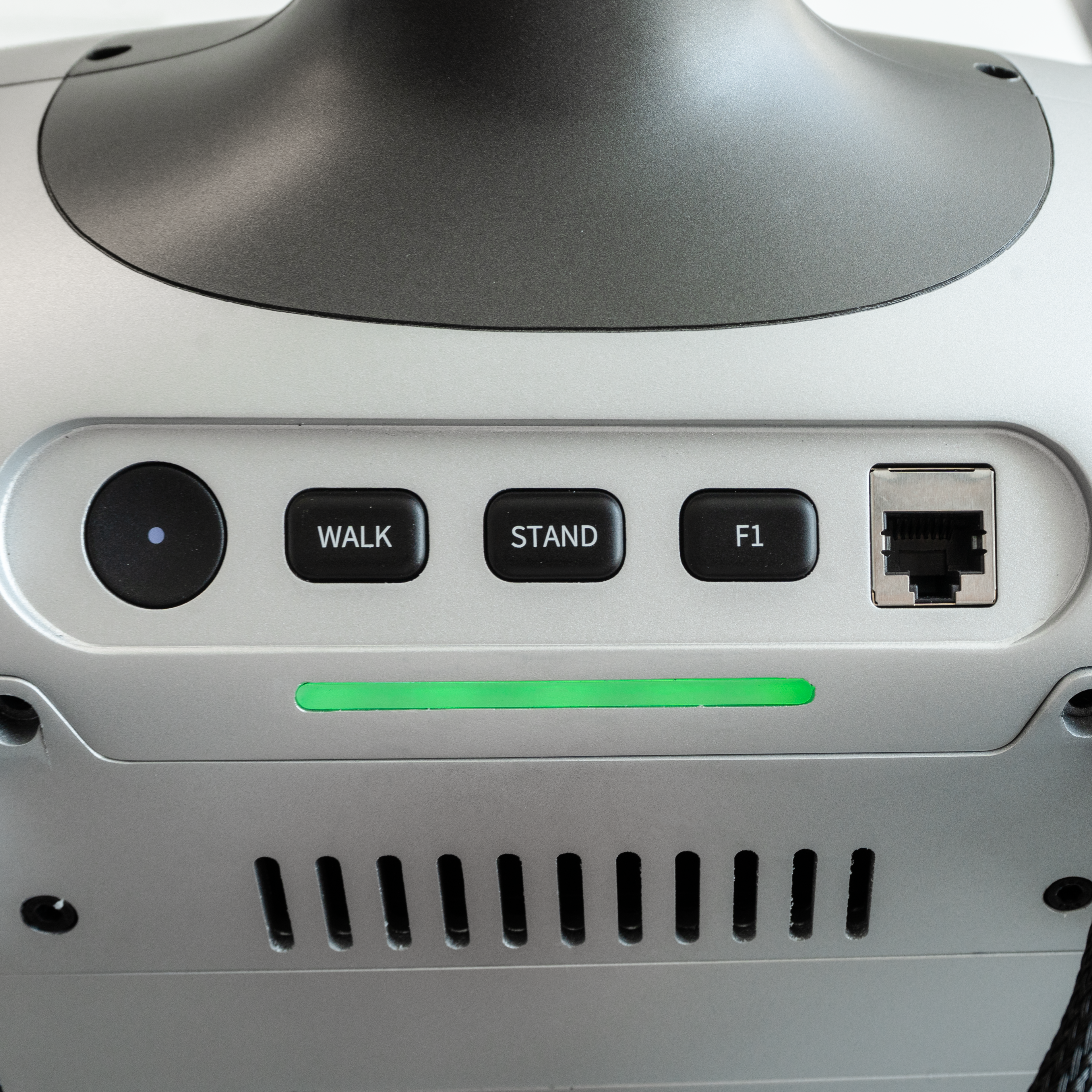
- Connect the development machine and the robot with an Ethernet cable. The robot Ethernet port is shown in the figure
- Log in to the robot via SSH
Open a command-line tool (Terminal) and enter the following command
# Connect directly with an Ethernet cable and log in to the robot
ssh booster@192.168.10.102
# Initial password: 123456
Wireless Connection
- After connecting the robot with the App and configuring its wireless network, you can see the robot IP address
xxx.xxx.xxx.xxx - Log in to the robot via SSH
# Connect over the wireless network and log in to the robot
ssh booster@xxx.xxx.xxx.xxx
# Initial password: 123456