
App Operations
-
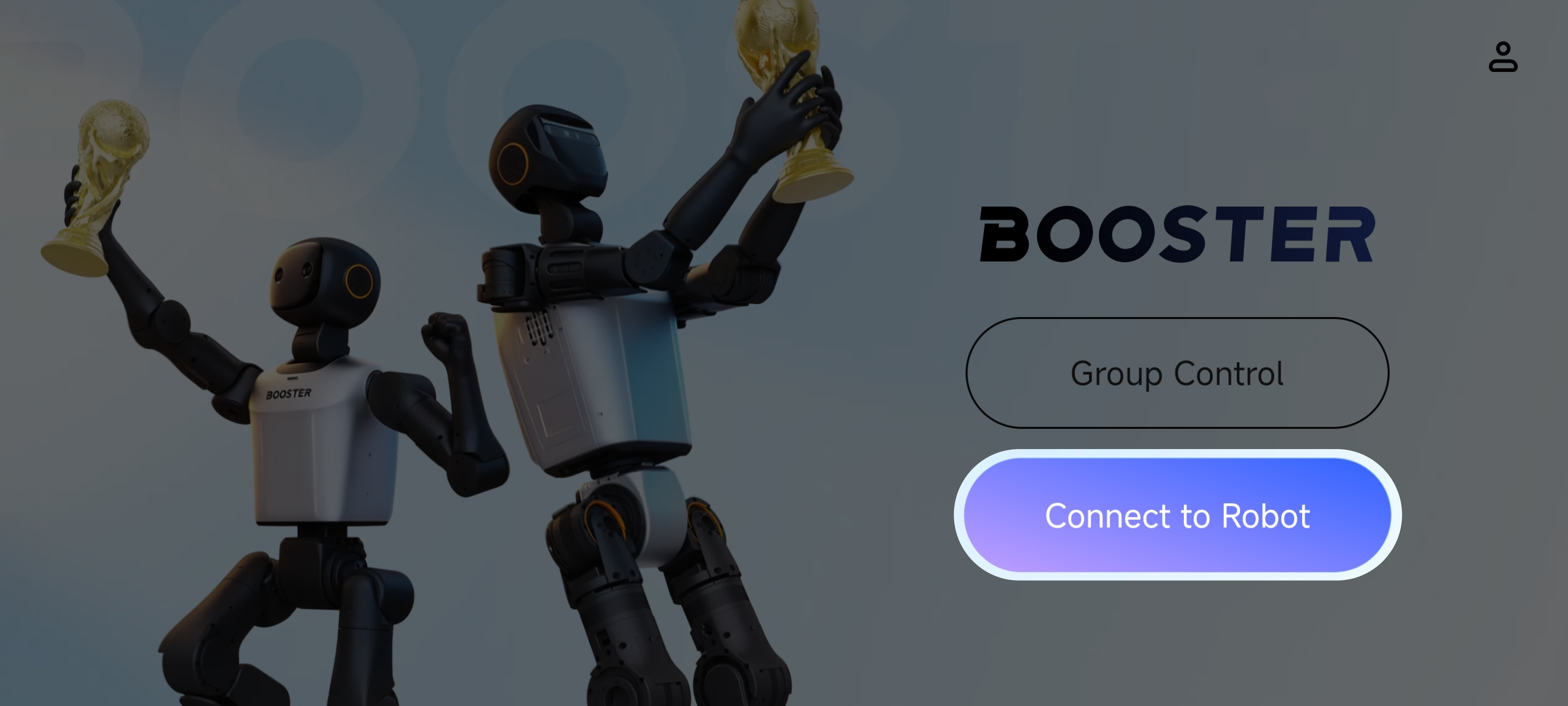
After signing up and signing in, tap "Connect Robot" on the home page.
-
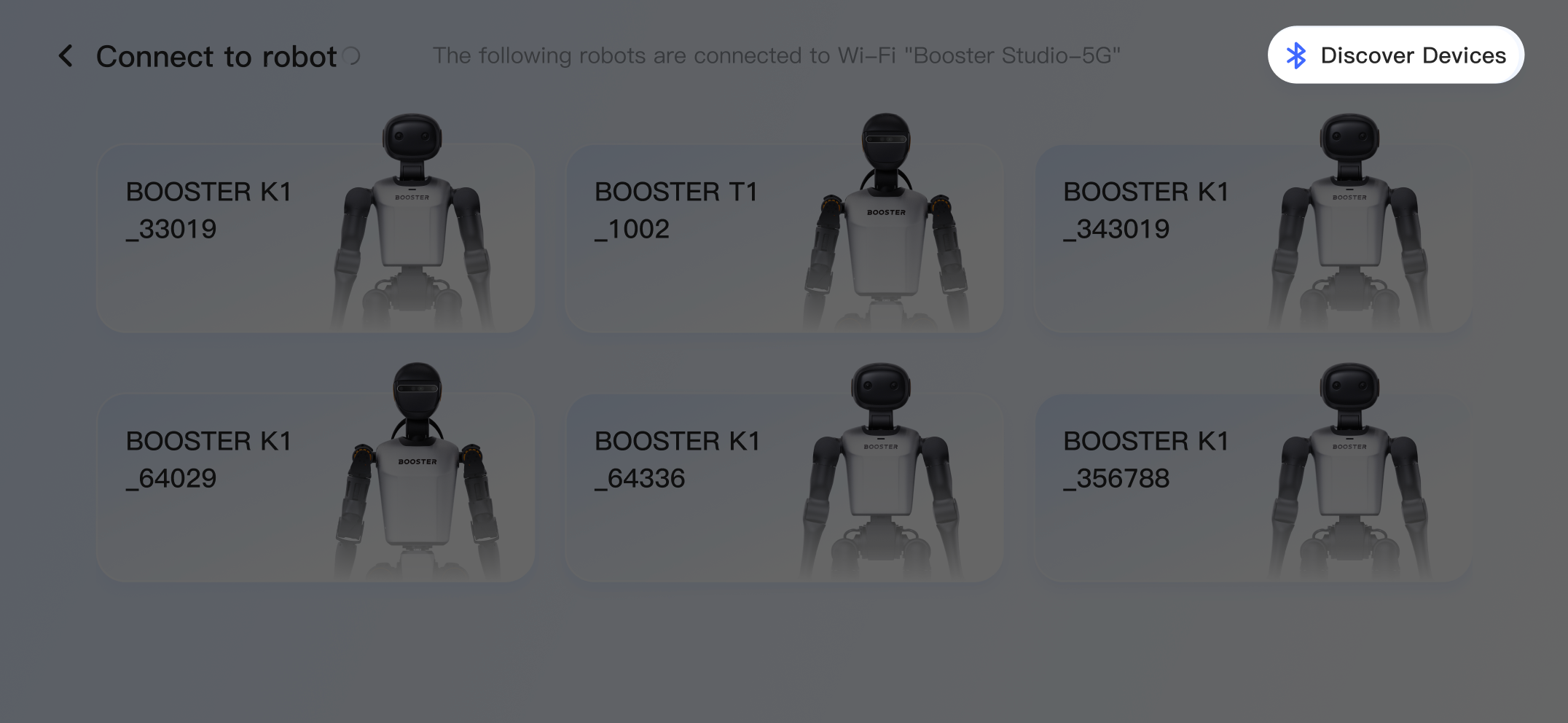
A list of robots on the same network as your phone appears below. If the robot you want to connect is not listed, tap "Discover Devices".
-
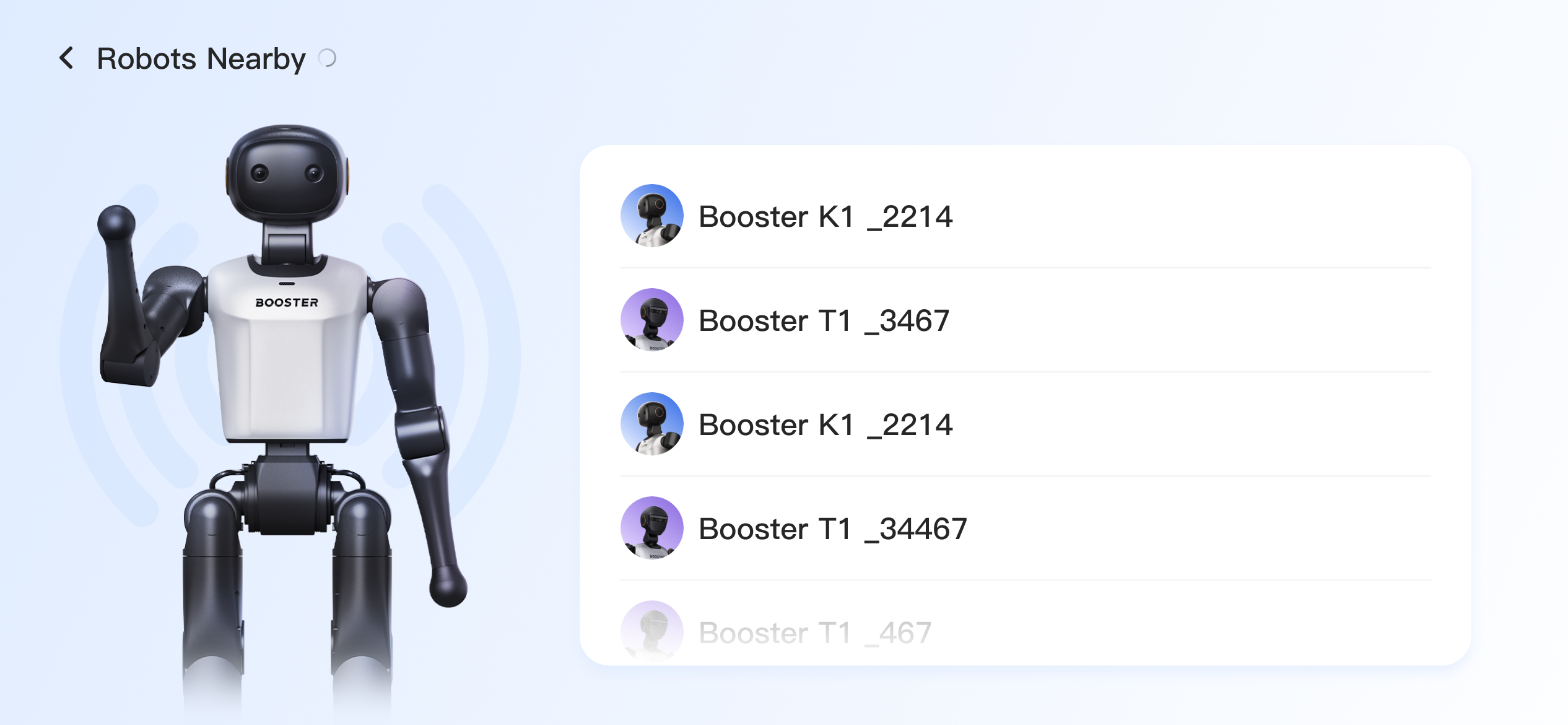
In the "Discover Nearby Robots" list, select your robot.
Bluetooth and Location must be enabled, and the app must be granted the required permissions.
-
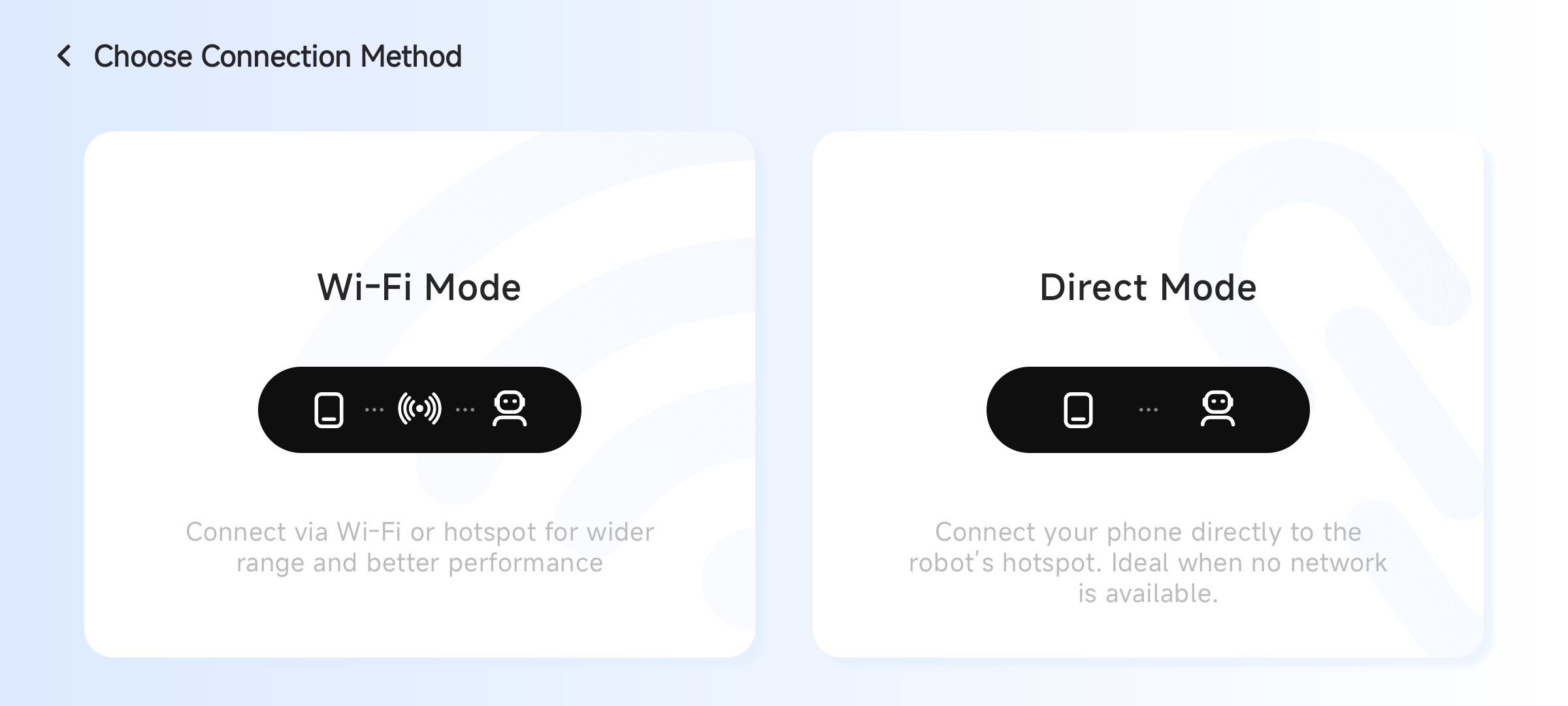
Two connection modes are available:
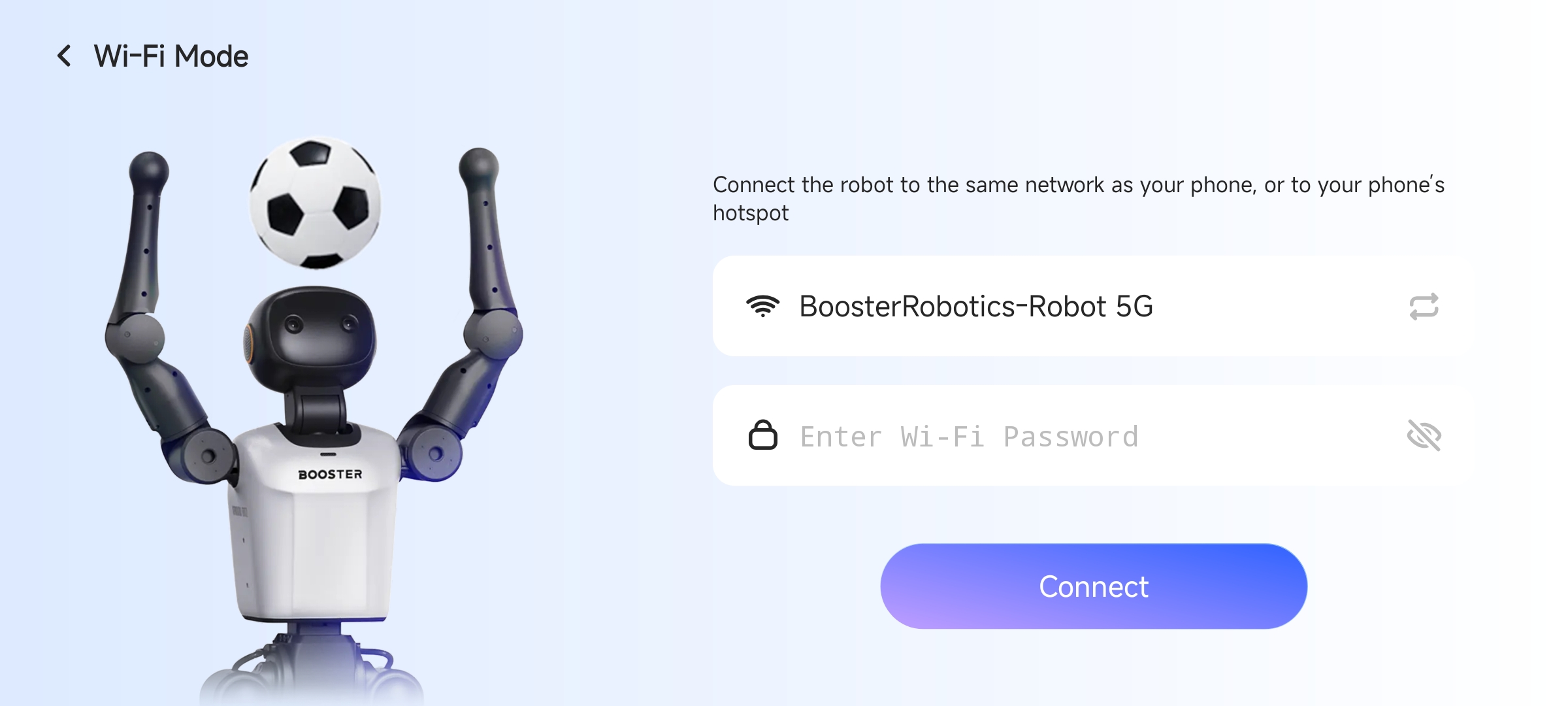
- Wi-Fi connection mode: connect the robot to the same Wi-Fi network as your phone, or connect the robot to your phone hotspot. This mode is suitable when network conditions are good.
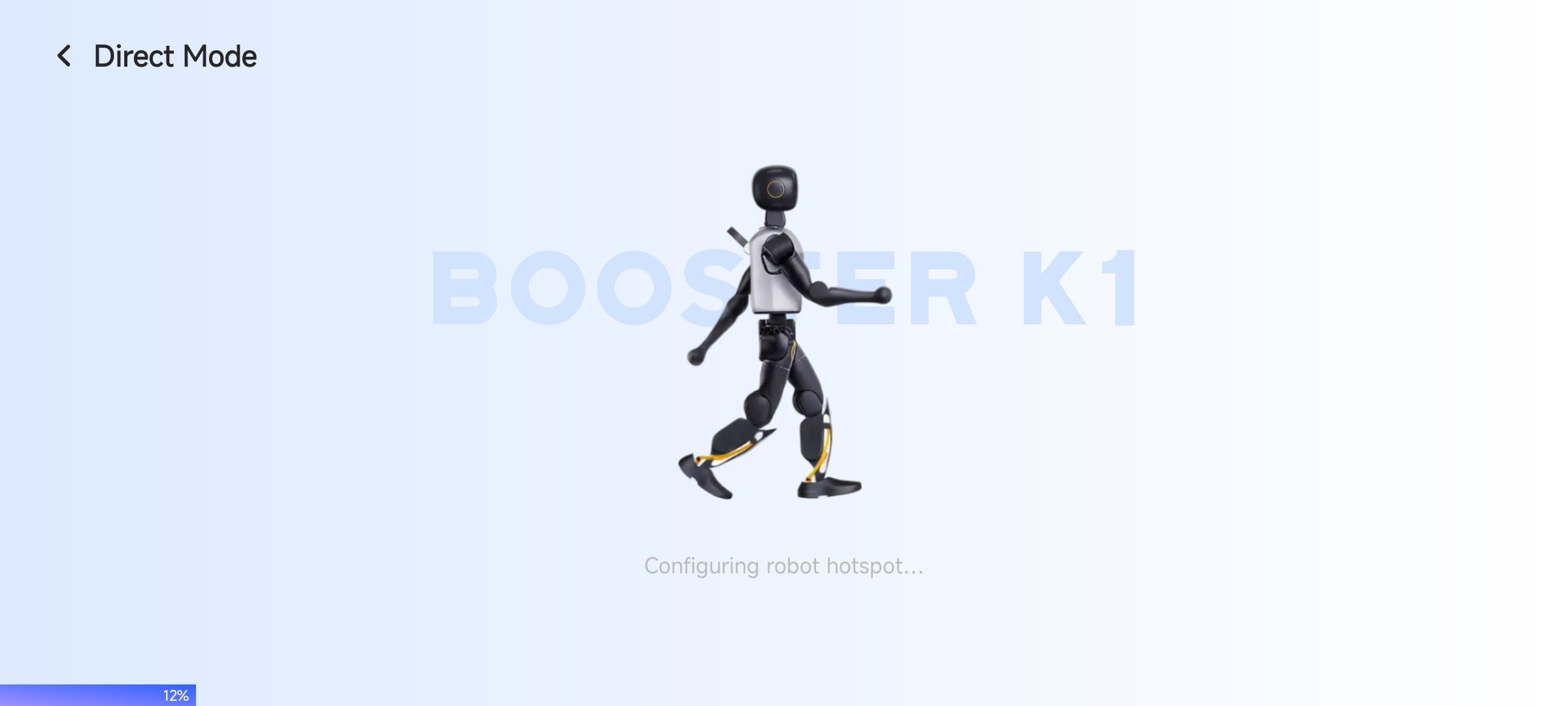
- Direct connection mode: connect your phone to the robot hotspot. This mode is suitable when no network is available and your phone is close to the robot.
-
If you choose Wi-Fi connection mode, select the same network as your phone, or your phone hotspot, from the Wi-Fi list. Enter the password and confirm the connection. If the connection succeeds, the robot control page opens automatically.
-
If you choose direct connection mode, the robot control page opens automatically after loading.
For more, see: Booster App User Guide