
Connect to Robot
Connect through the App
-
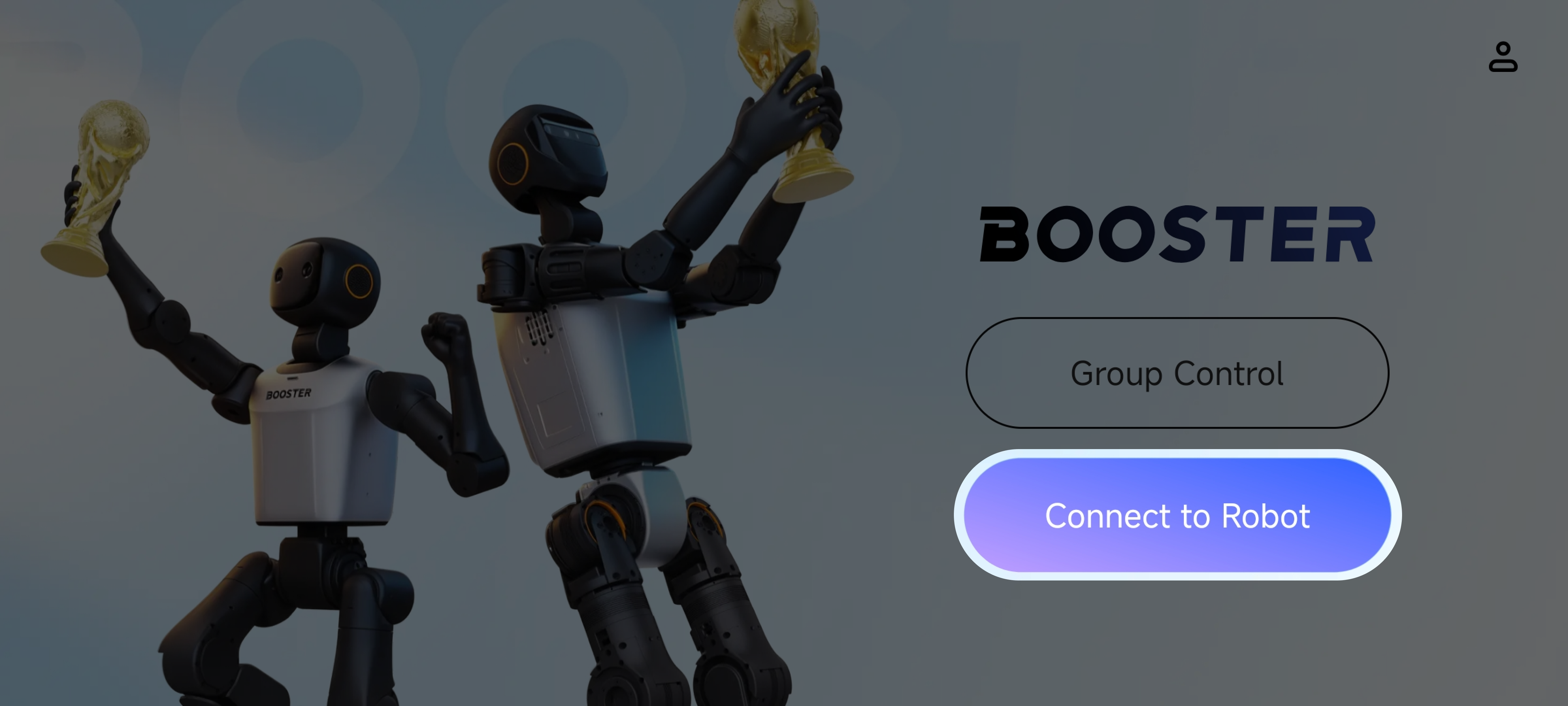
After signing up and signing in, tap "Connect Robot" on the home page.
-
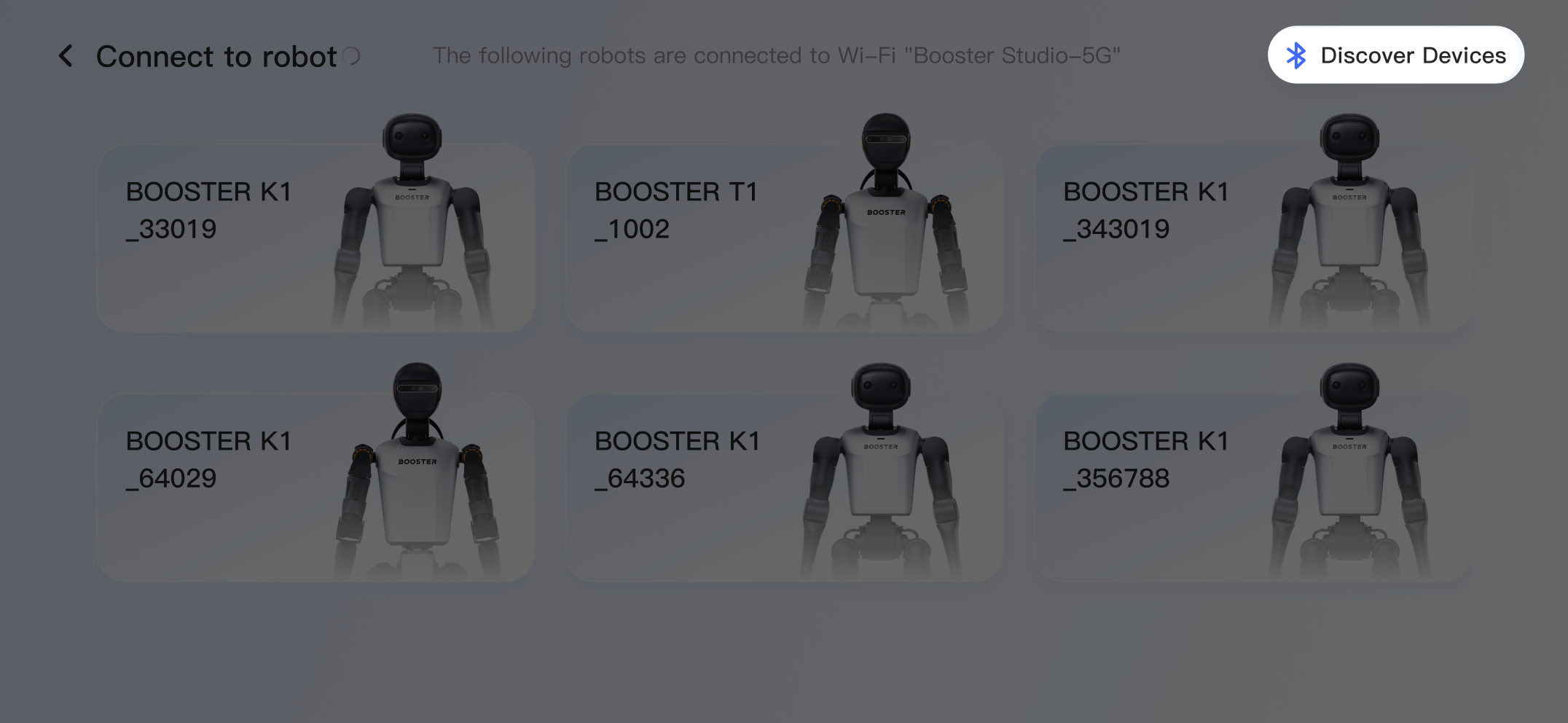
A list of robots on the same network as your phone appears below. If the robot you want to connect is not listed, tap "Discover Devices".
-
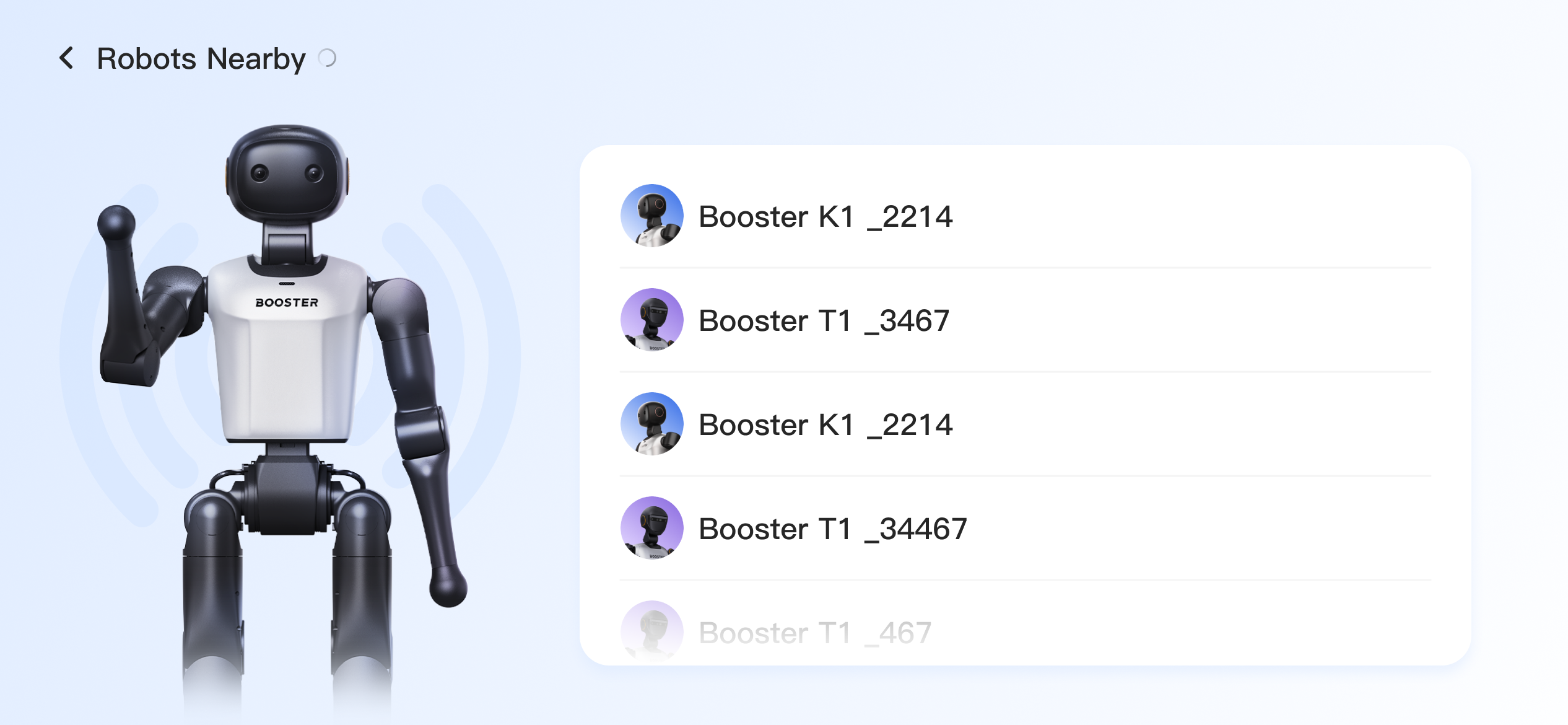
In the "Discover Nearby Robots" list, select your robot.
Bluetooth and Location must be enabled, and the app must be granted the required permissions.
-
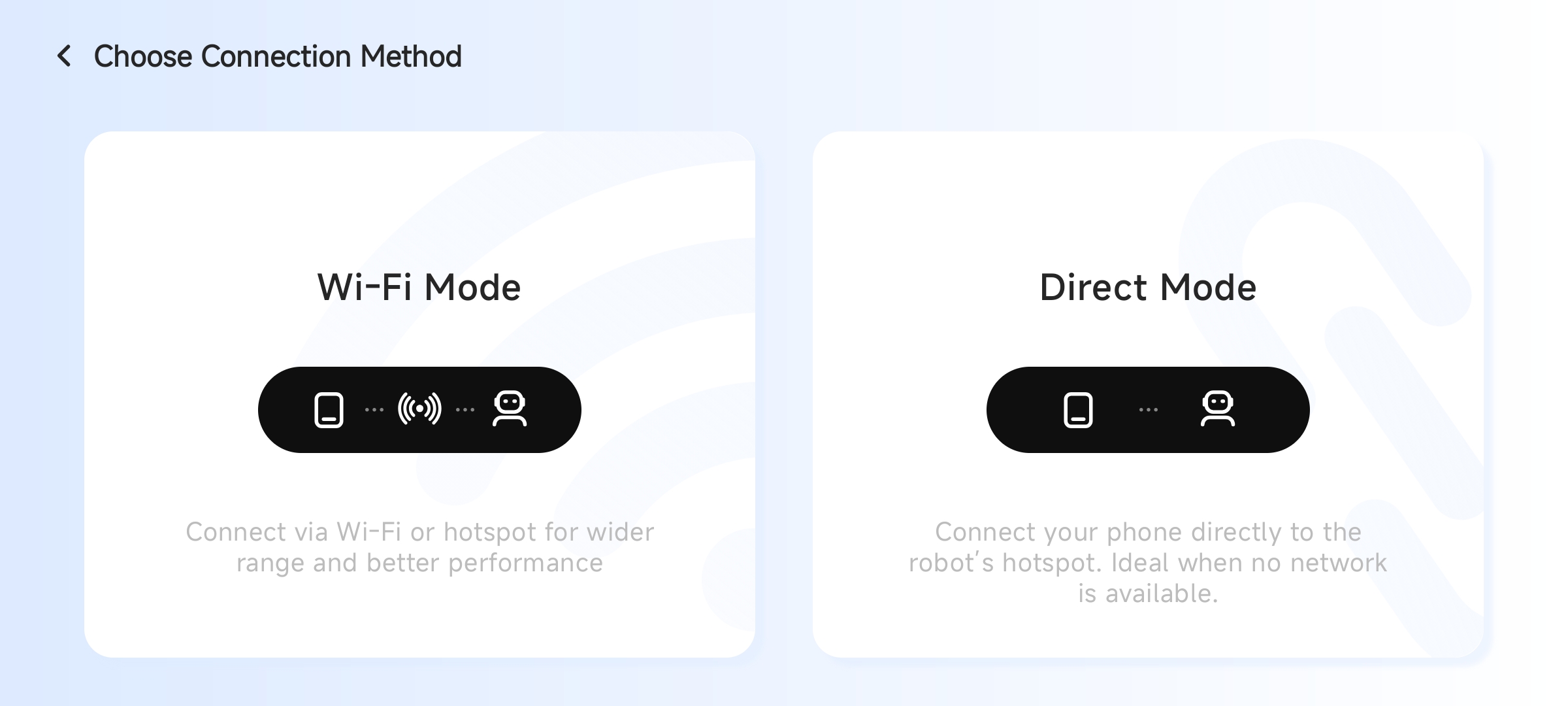
Two connection modes are available:
- Wi-Fi connection mode: connect the robot to the same Wi-Fi network as your phone, or connect the robot to your phone hotspot. This mode is suitable when network conditions are good.
- Direct connection mode: connect your phone to the robot hotspot. This mode is suitable when no network is available and your phone is close to the robot.
-
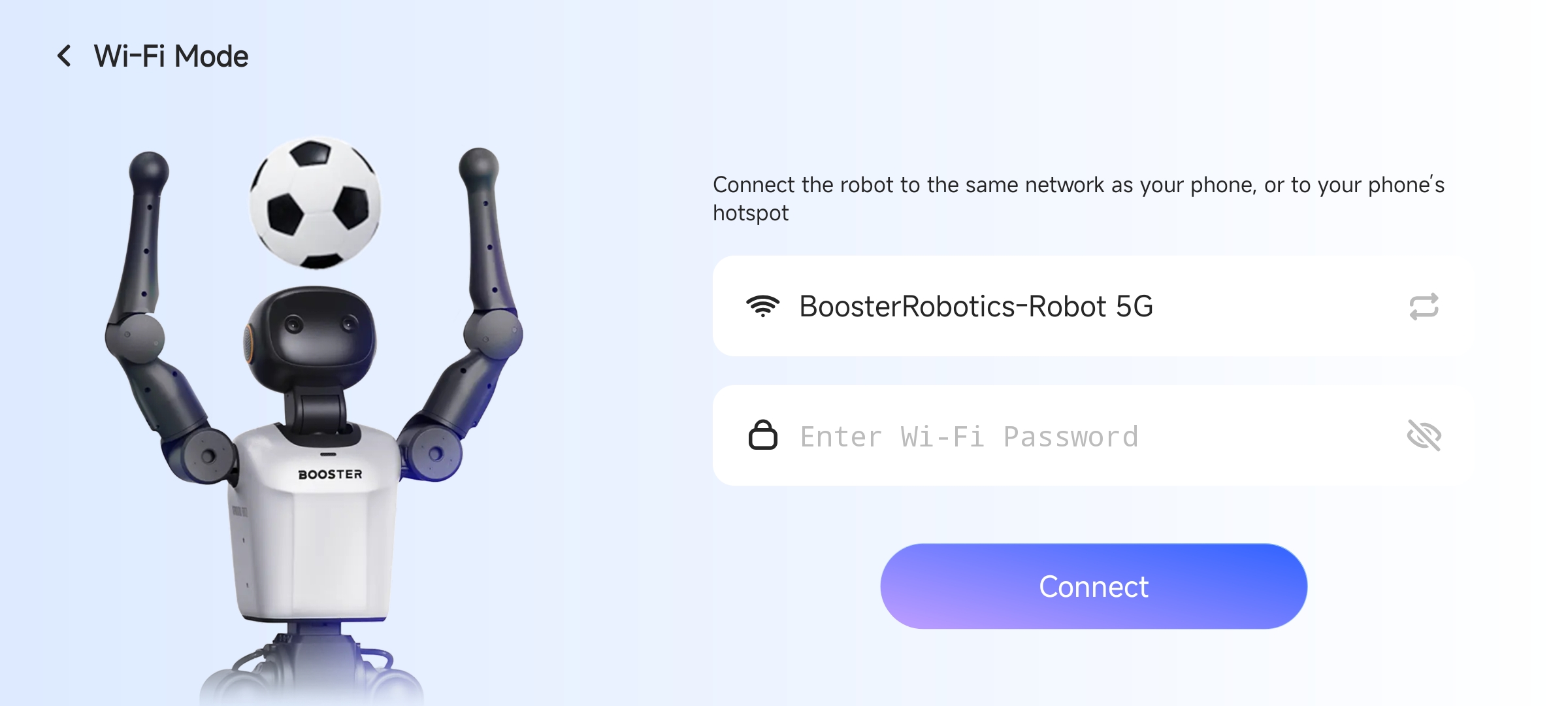
If you choose Wi-Fi connection mode, select the same network as your phone, or your phone hotspot, from the Wi-Fi list. Enter the password and confirm the connection. If the connection succeeds, the robot control page opens automatically.
-
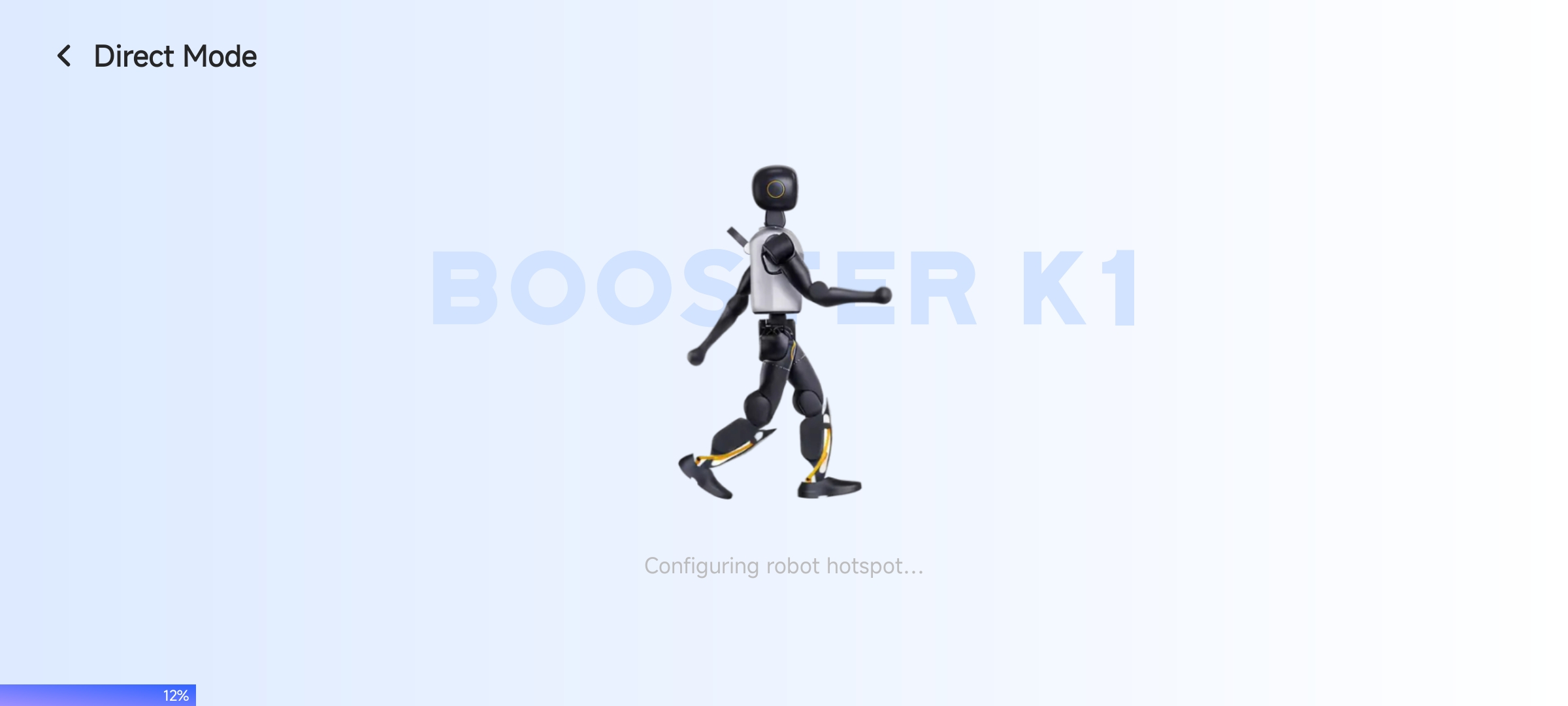
If you choose direct connection mode, the robot control page opens automatically after loading.
Connect via Terminal
Wired Connection
- Connect via Ehternet, and configs the wired network in manual mode as following
address: 192.168.10.10
netmask: 255.255.255.0
gateway: 192.168.10.1
Static IP Configuration Steps Reference:
- Mac: https://wiki.teltonika-networks.com/view/Setting_up_a_Static_IP_address_on_a_macOS
- Windows: https://www.trendnet.com/press/resource-library/how-to-set-static-ip-address
- Linux: https://www.freecodecamp.org/news/setting-a-static-ip-in-ubuntu-linux-ip-address-tutorial/
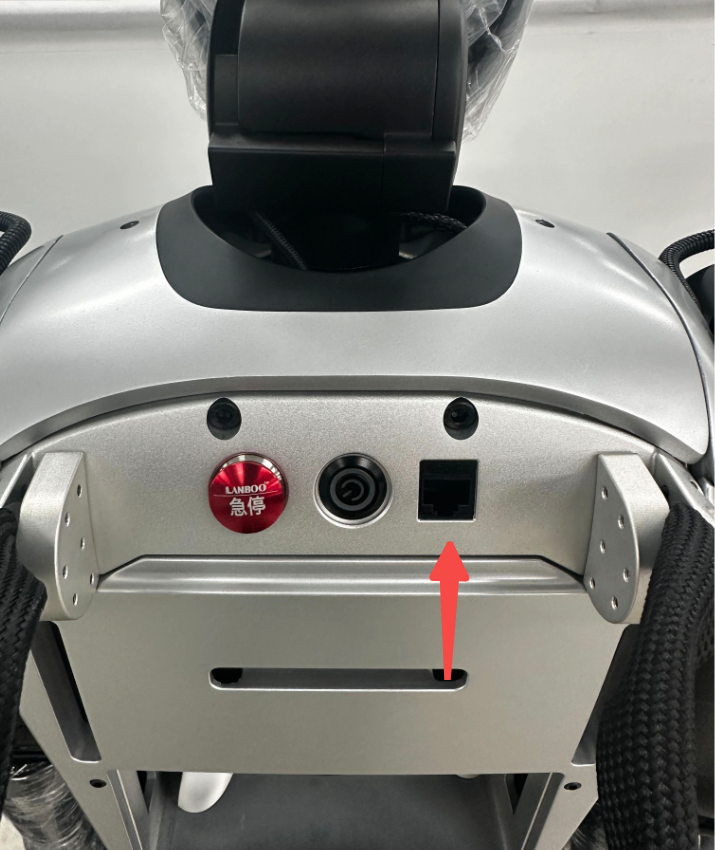
- Connect the development machine to the robot using an Ethernet cable. The robot's network port is shown in the image.
- Login via ssh
Basic
- Login basic board
# wired connection,login basic board
ssh booster@192.168.10.102
# initial password: 123456
Standard
- Login motion control board
# wired connection,login motion control board
ssh master@192.168.10.101
# initial password: 123456
- Login perception board
# wired connection, login perception board
ssh booster@192.168.10.102
# initial password: 123456
Wireless connection
- Configure robot's wireless connection via App. Find wireless ip of robot in app, eg
xxx.xxx.xxx.xxx - Login via ssh.
Basic
- Login basic board
# wireless connnection, login basic board
ssh booster@xxx.xxx.xxx.xxx
# initial password: 123456
Standard
- Login motion control board
# wireless connnection, login motion control board
ssh master@xxx.xxx.xxx.xxx
# initial password: 123456
-
Login perception board
- If wireless ip of perception board is unknown. We can login motion control board first, and then connect to perception board via motion control board.
# 1. login motion control board wirelesslyPssh master@xxx.xxx.xxx.xxx# initial password: 123456# 2. login perception board through internal connectionssh booster@192.168.10.102# initial password: 123456- Perception board wireless ip is already known.
# login wirelessly on perception boardssh booster@xxx.xxx.xxx.xxx# initial password: 123456