Log Retrieval
Introduction
When the robot has issues, tech support may need to obtain the robot's operation logs. Here’s how to retrieve logs and send them to support.
Privacy and Purpose
Without violating any applicable laws and regulations or involving any personal privacy information, Booster collects only data related to the operation of the robot, for the purposes of fault detection, problem localization, and statistical analysis.
Upload Logs via App
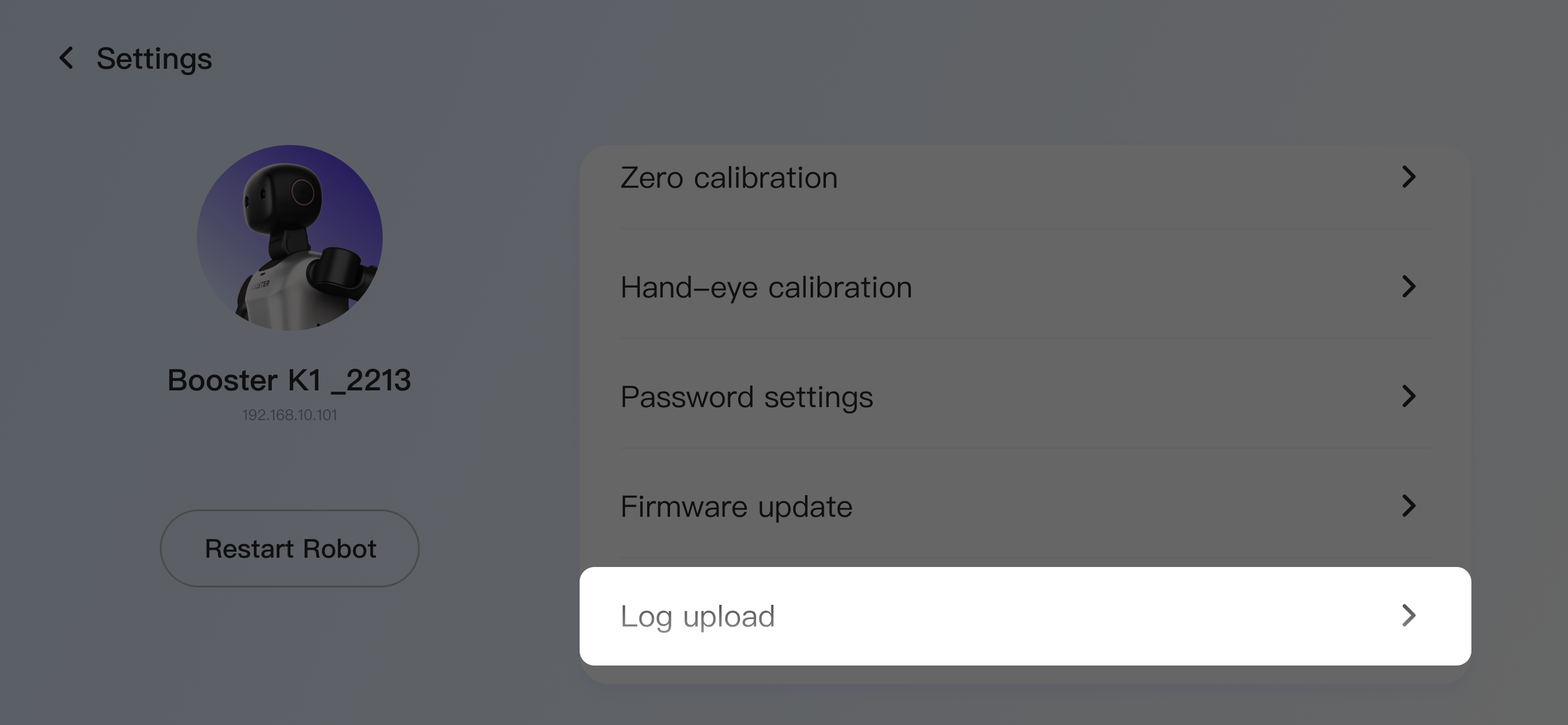
- After connecting to the robot via the App, go to "Settings".
- Tap "Log Upload".
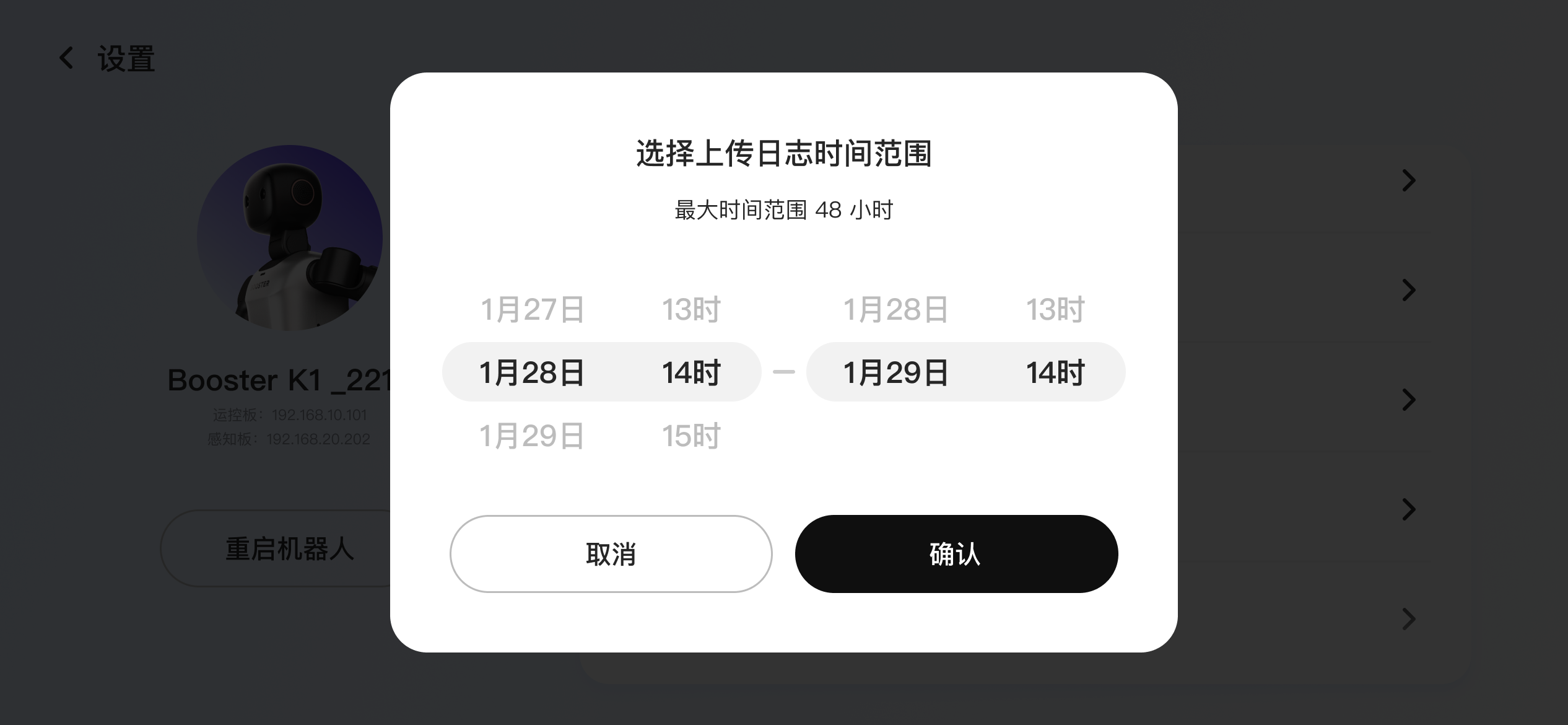
- Select the time range to upload, making sure it covers the time when the issue occurred.
- The upload takes about 5-10 minutes. During this process, keep the robot powered on and connected to the network. Both the App logs and the robot logs will be uploaded together.
- After the upload is complete, contact customer service to report the issue. Our technical staff will retrieve your uploaded log files through the management console.
Upload Logs via Terminal
Basic
- Log into the robot via terminal on basic board
- Run the command to get the log compressed file:
Please note that the robot's default time zone is UTC+8. If you are in a different time zone, you can either modify the time zone in the robot's operating system or use the converted time to access the logs
# run this command in terminal
# Usage:
#   -st --start-time [TIME]: Filter logs starting from a specific time (format: YYYYMMDD-HHMMSS, eg: 20180808-080808), this option must be set
#   -et --end-time [TIME]: Filter logs ending before a specific time (format: YYYYMMDD-HHMMSS, eg: 20180808-080808), if not set, use 30000101-000000
#   -o, --output [FILE]: Compress logs to a specified output file, default is /home/master/Downloads/[YYYYMMDD-HHMMSS].zip
booster-cli log -t YYYYMMDD-HHMMSS -o OUTPUT_PATH
Assuming the issue with the robot occurred around 20200808-120810, you can select a time range of approximately ten minutes before and after this point as the start and end times for retrieving the logs, to ensure that the log package covers the time of the issue. Run the following command:
booster-cli log -st 20200808-120800 -et 20200808-120820 -o /home/master/Documents
After running, a file like 20200808-120800.zip will be generated in /home/master/Documents.
- Send the generated file to technical support via WeChat or Feishu.
# To copy the file from the developer host (assuming the log file is in /home/master/Documents):
scp master@192.168.10.101:/home/master/Documents/20200808-120800.zip ~/Downloads

# Then send the log file to technical support.
-
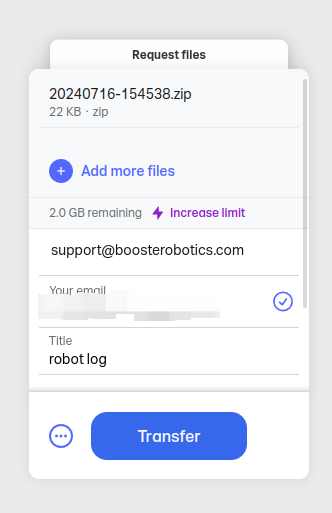
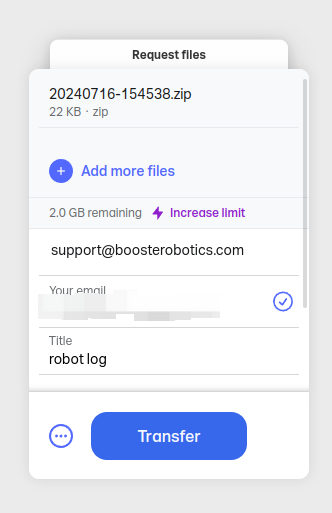
If overseas users are unable to send log files via the chat tool, you can choose to use WeTransfer to send the log files.
- Upload the log file, then enter support@boosterobotics.com in the 'Email to' field, and click 'Transfer' to send.
Standard
- Log into the robot via terminal on motion control board
- Run the command to get the log compressed file:
Please note that the robot's default time zone is UTC+8. If you are in a different time zone, you can either modify the time zone in the robot's operating system or use the converted time to access the logs
# run this command in terminal
# Usage:
#   -st --start-time [TIME]: Filter logs starting from a specific time (format: YYYYMMDD-HHMMSS, eg: 20180808-080808), this option must be set
#   -et --end-time [TIME]: Filter logs ending before a specific time (format: YYYYMMDD-HHMMSS, eg: 20180808-080808), if not set, use 30000101-000000
#   -o, --output [FILE]: Compress logs to a specified output file, default is /home/master/Downloads/[YYYYMMDD-HHMMSS].zip
booster-cli log -t YYYYMMDD-HHMMSS -o OUTPUT_PATH
Assuming the issue with the robot occurred around 20200808-120810, you can select a time range of approximately ten minutes before and after this point as the start and end times for retrieving the logs, to ensure that the log package covers the time of the issue. Run the following command:
booster-cli log -st 20200808-120800 -et 20200808-120820 -o /home/master/Documents
After running, a file like 20200808-120800.zip will be generated in /home/master/Documents.
- Send the generated file to technical support via WeChat or Feishu.
# To copy the file from the developer host (assuming the log file is in /home/master/Documents):
scp master@192.168.10.101:/home/master/Documents/20200808-120800.zip ~/Downloads

# Then send the log file to technical support.
-
If overseas users are unable to send log files via the chat tool, you can choose to use WeTransfer to send the log files.
- Upload the log file, then enter support@boosterobotics.com in the 'Email to' field, and click 'Transfer' to send.