
Hand–Eye Calibration
Overview
Use the app to quickly complete hand–eye calibration for a K1 robot. This recalibrates the extrinsic parameters between the camera coordinate frame and the robot head coordinate frame. If the robot does not recognize object positions accurately, such as when it tracks or kicks a ball inaccurately, try this calibration feature.
Currently, the calibration result mainly affects the performance of the “Soccer” Agent. The Robocup demo does not use the new result yet and still needs to use the previous calibration method. Support for this part will be added later.
Prerequisites
-
K1 Robot: Battery level above 30%
-
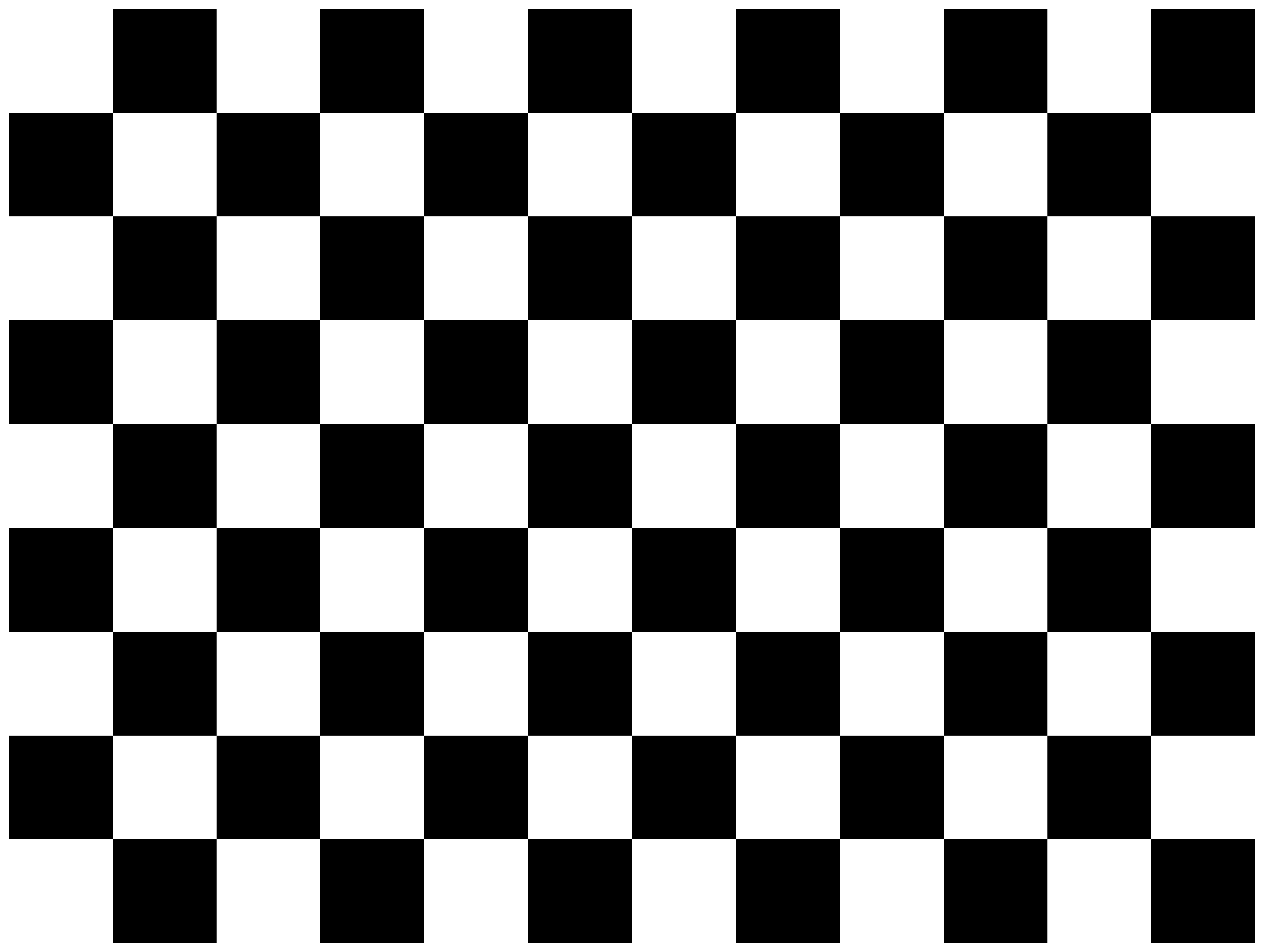
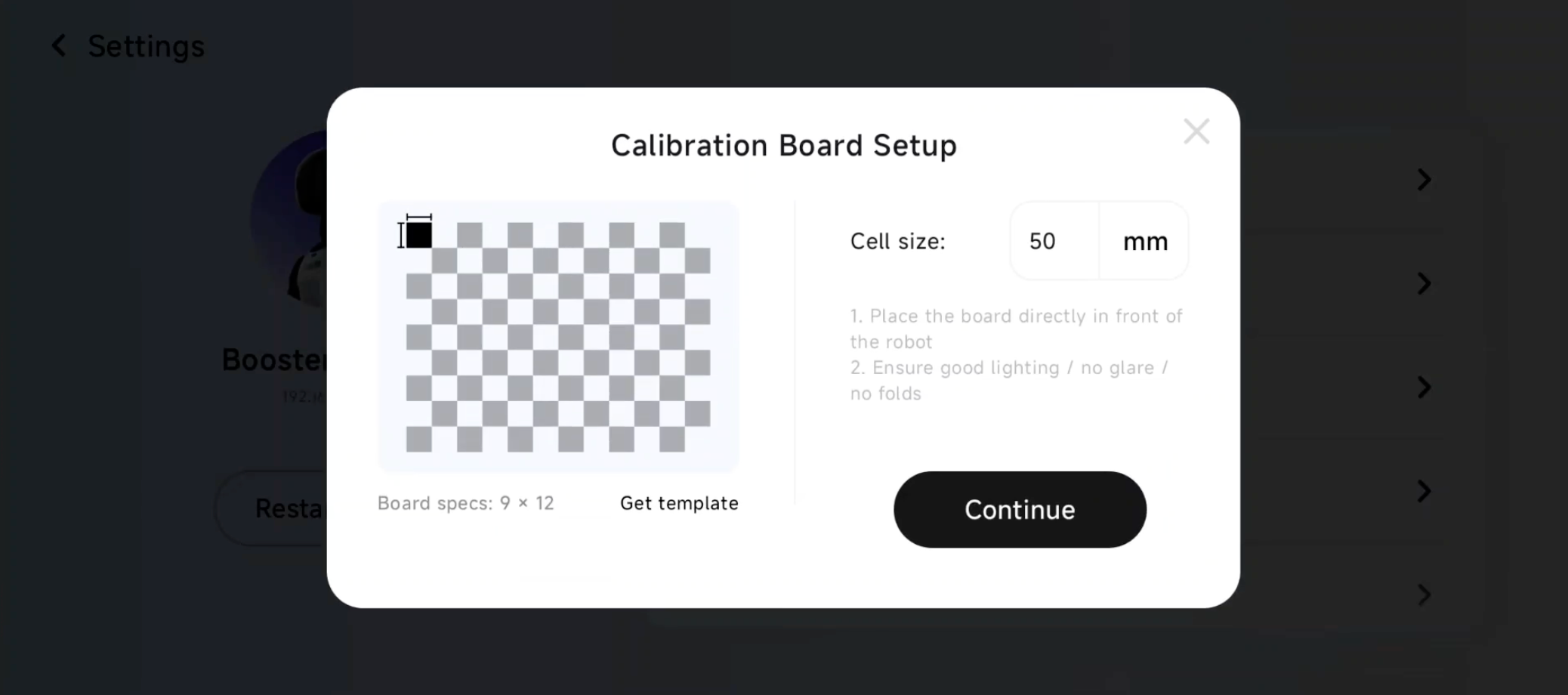
Calibration Board: Prepare a 9 rows × 12 columns calibration board and confirm the cell size, such as 20 mm.
- If no suitable calibration board is available, print the image below and attach the printed sheet to a vertical surface.
Steps
-
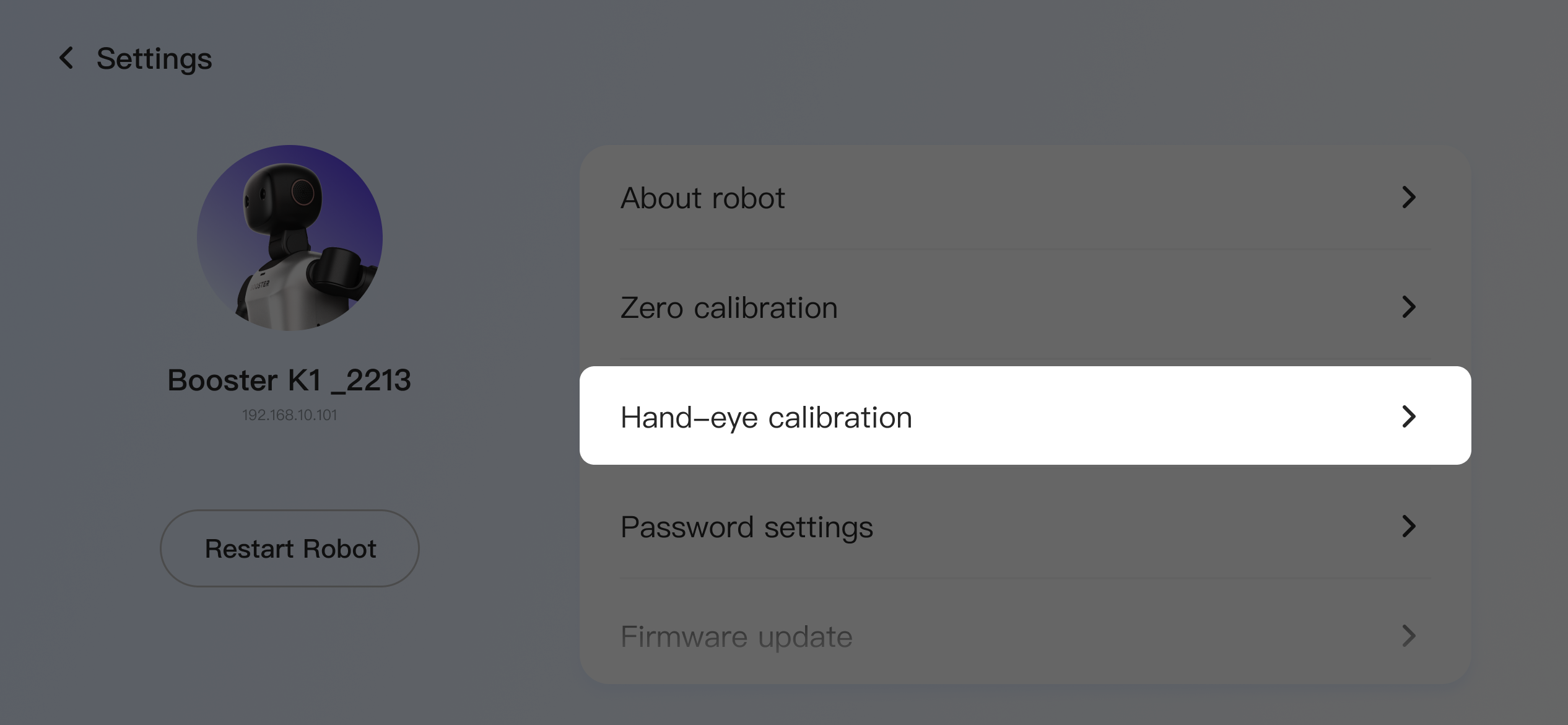
Entry point: Robot Settings > Hand–Eye Calibration
-
Prepare the calibration board: Enter the calibration board cell size. The unit is millimeters (mm). Tap "Continue".
-
Start Calibration
-
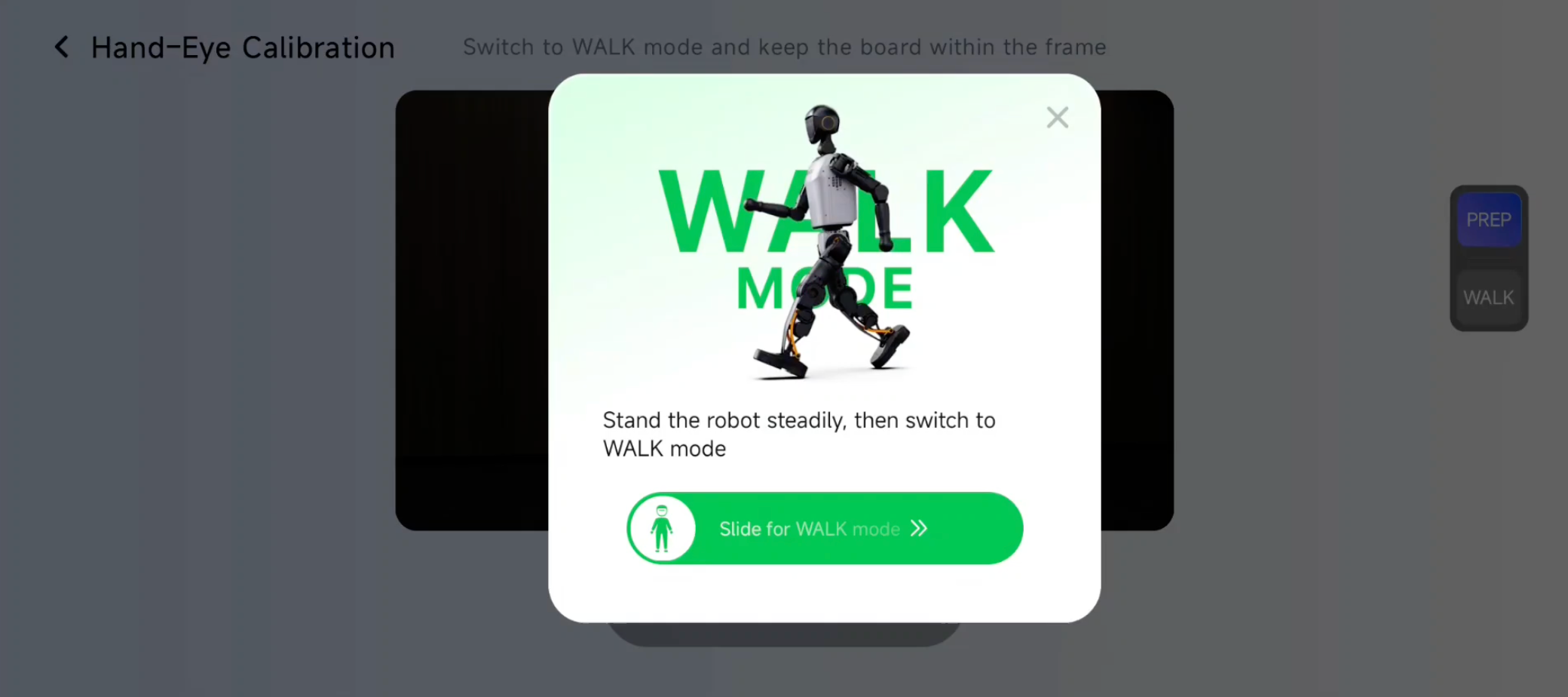
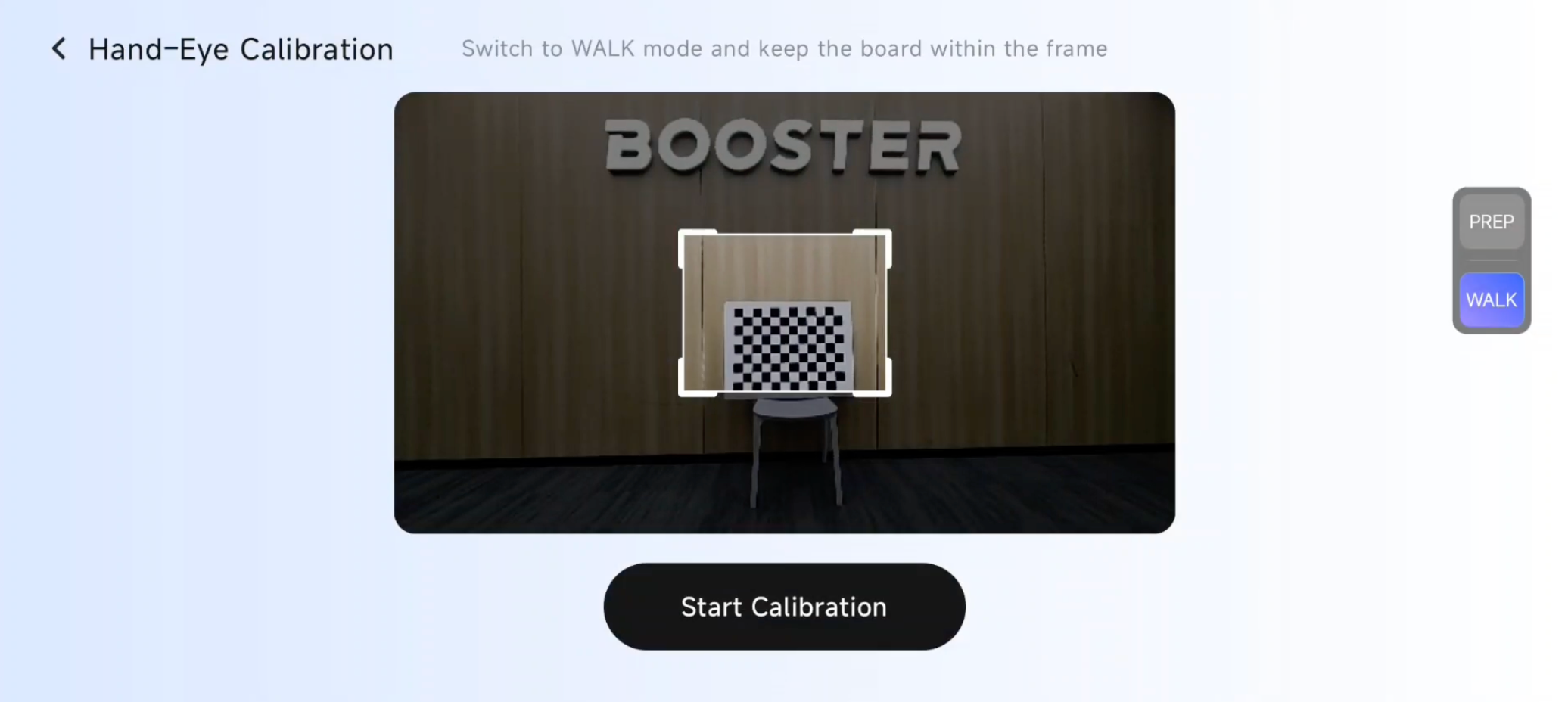
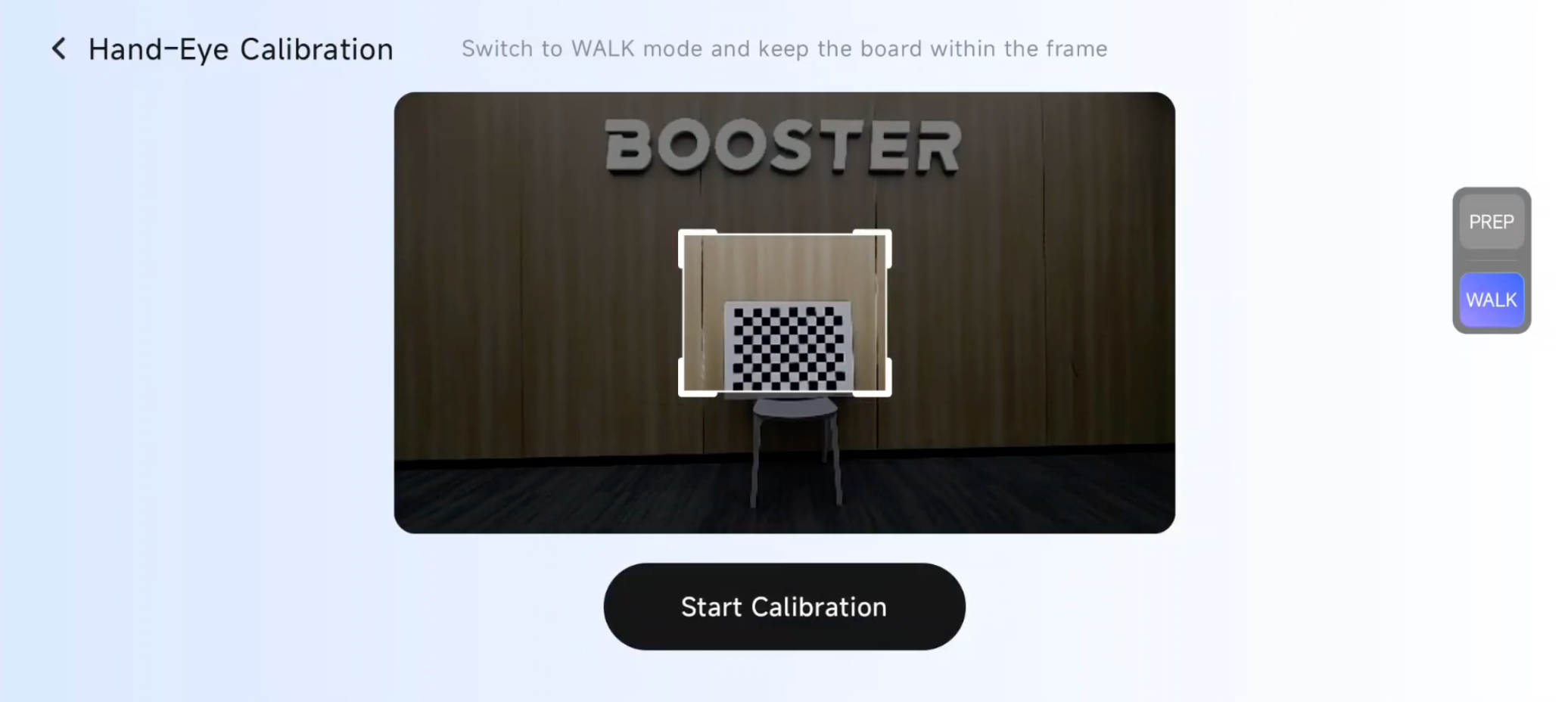
Switch to WALK mode. Switch to WALK mode before aligning the calibration board, because the robot height changes when switching modes.
-
Adjust the relative positions of the robot and calibration board so that the board is inside the frame area. It does not need to be perfectly aligned.
-
Tap "Start Calibration"
-
-
Calibration process: The process has 3 stages. No intervention is needed. Keep the robot and calibration board stable and still.
-
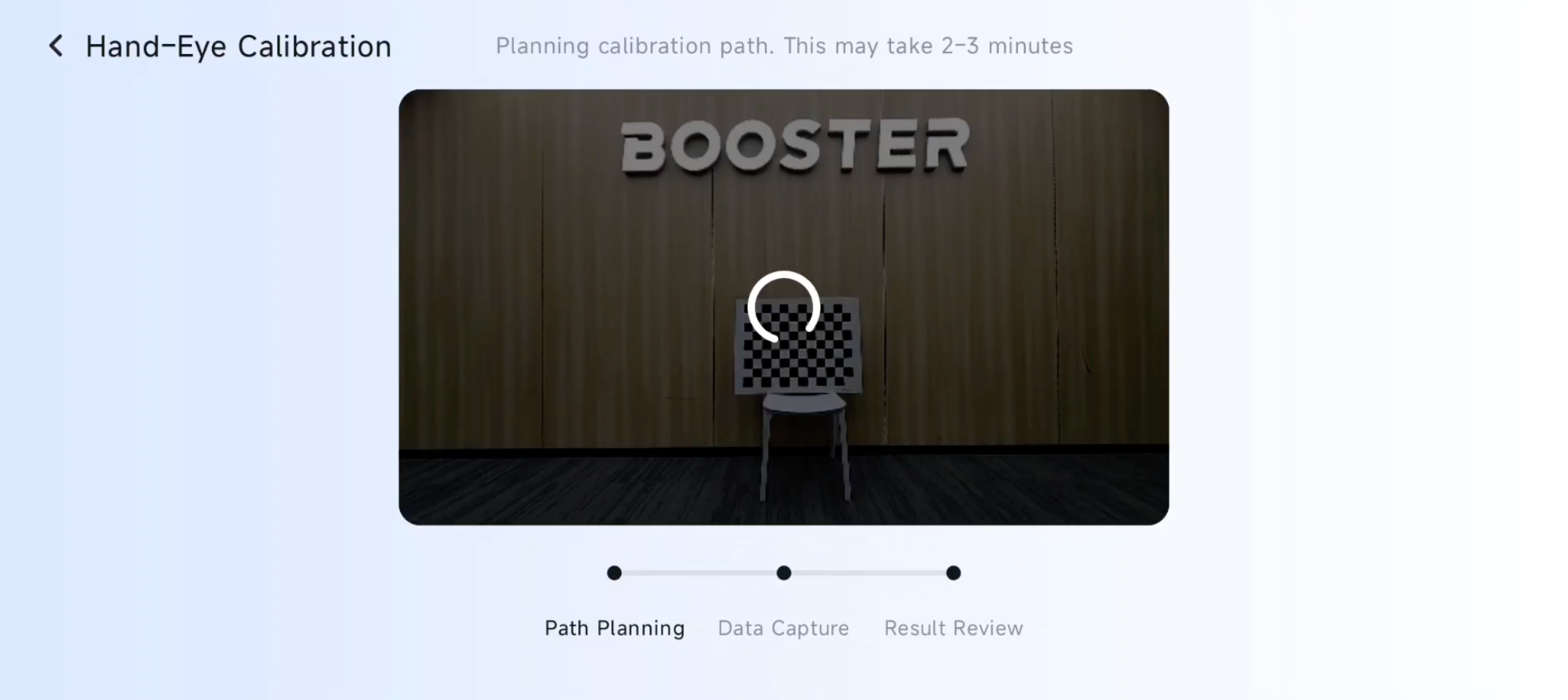
Path planning: The robot takes 1–3 minutes to identify the current calibration board pose and calculate the subsequent head movement path.
-
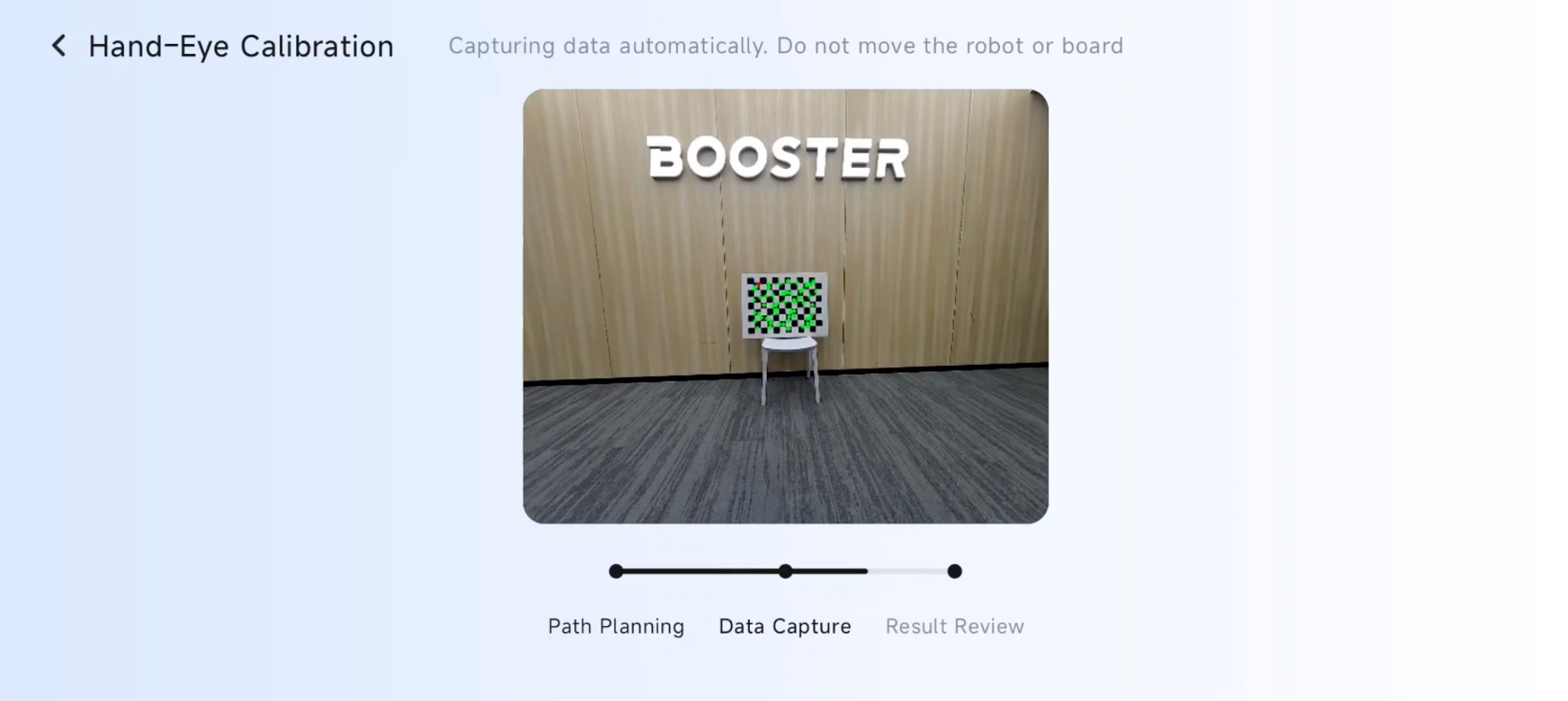
Data capture: The robot automatically rotates its head and captures calibration board data from different viewpoints.
-
-
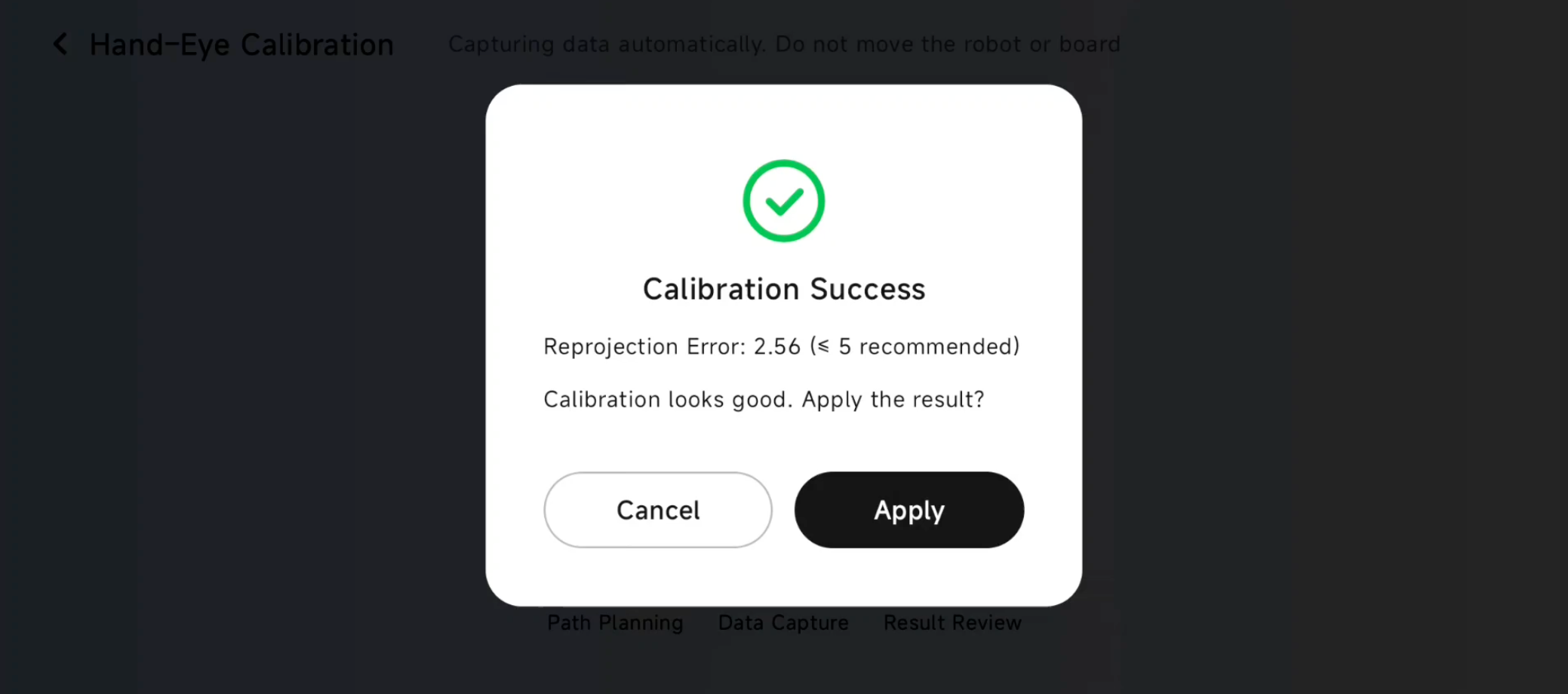
Calibration complete: When the reprojection error is ≤ 5, the result is usable. Tap "Apply" to use this calibration result.
FAQ
Where is the calibration result stored?
The calibration result is stored in opt/booster/vision.yaml.
What does the calibration result affect?
- In this release, it mainly affects the performance of the "Soccer Master" Agent. Other development projects that use the updated result can also benefit from it.
- The official Robocup demo does not use the updated result yet. It still uses the previous calibration method. It will use the new result in a later version.
What should I do if calibration fails?
-
Check whether the calibration board meets the requirements:
- 9 rows × 12 columns
- Make sure the cell size is measured accurately and entered correctly
- Make sure the calibration board is not stained, damaged, or folded
- Make sure the lighting is normal, with no glare and not too dark
-
Make sure the calibration board is placed inside the recommended frame area
-
Make sure the robot and calibration board do not move during the entire process