Quick Start
Download and Install the App
- You can download Booster from the App Store, Google Play, or other major app stores, or visit the official website to download the latest version.
Connect a Robot
-
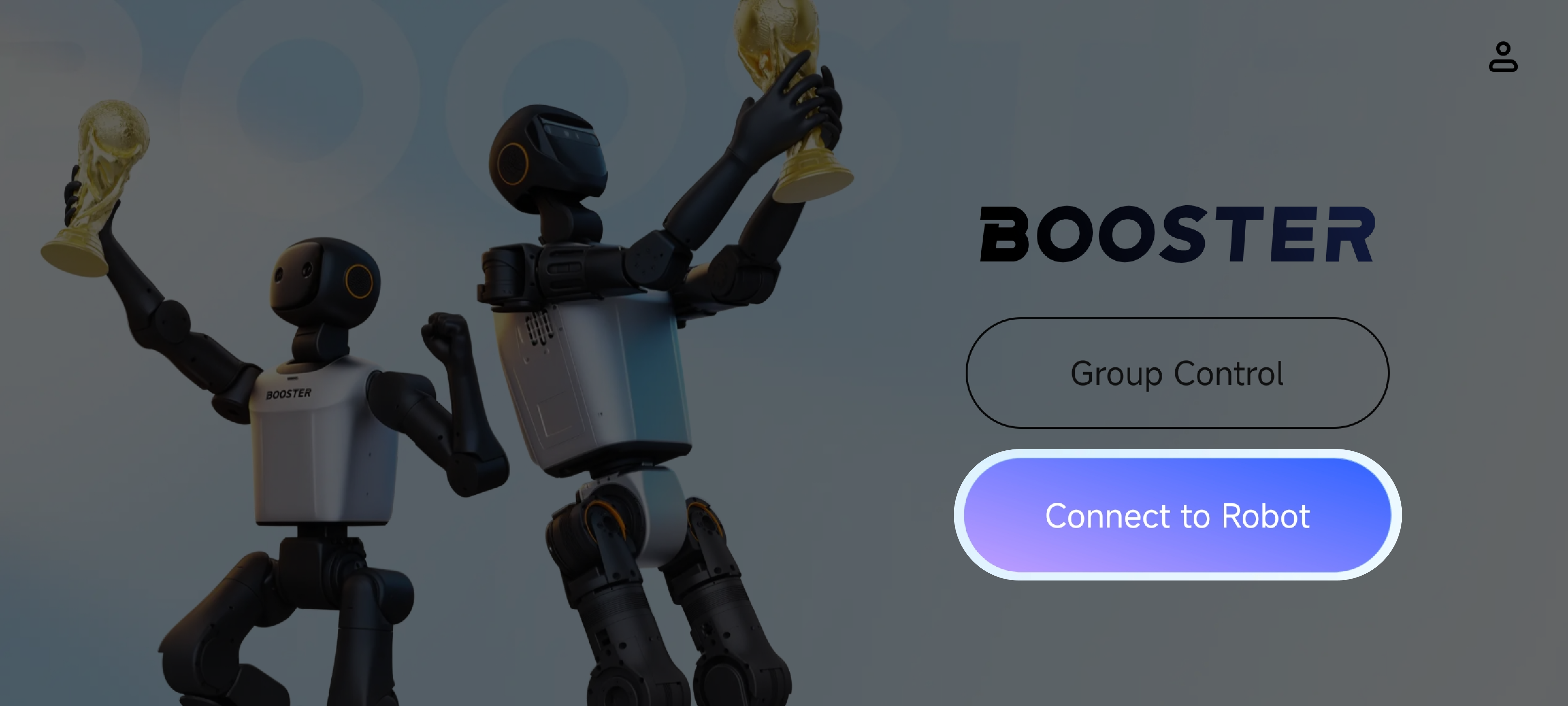
After signing up and signing in, tap "Connect Robot" on the home page.
-
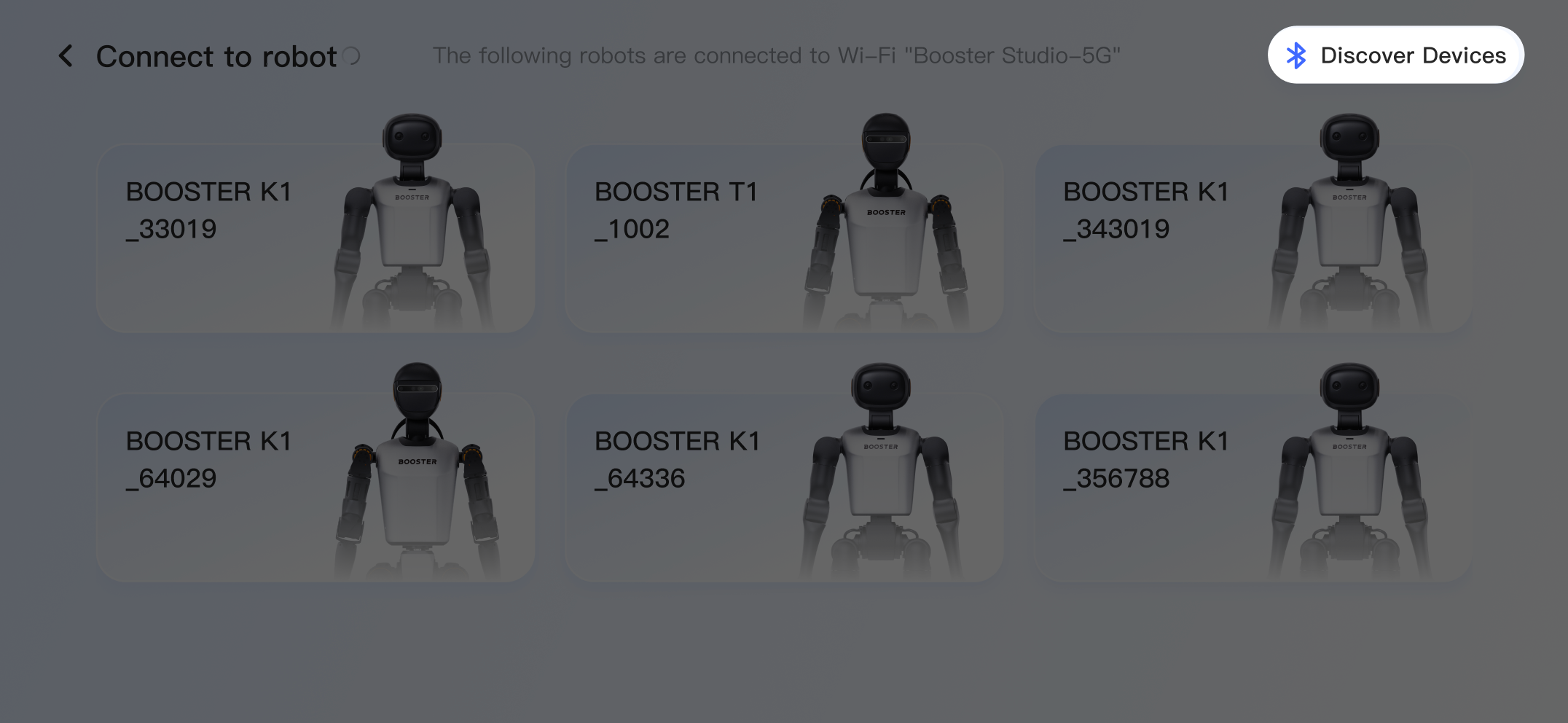
A list of robots on the same network as your phone appears below. If the robot you want to connect is not listed, tap "Discover Devices".
-
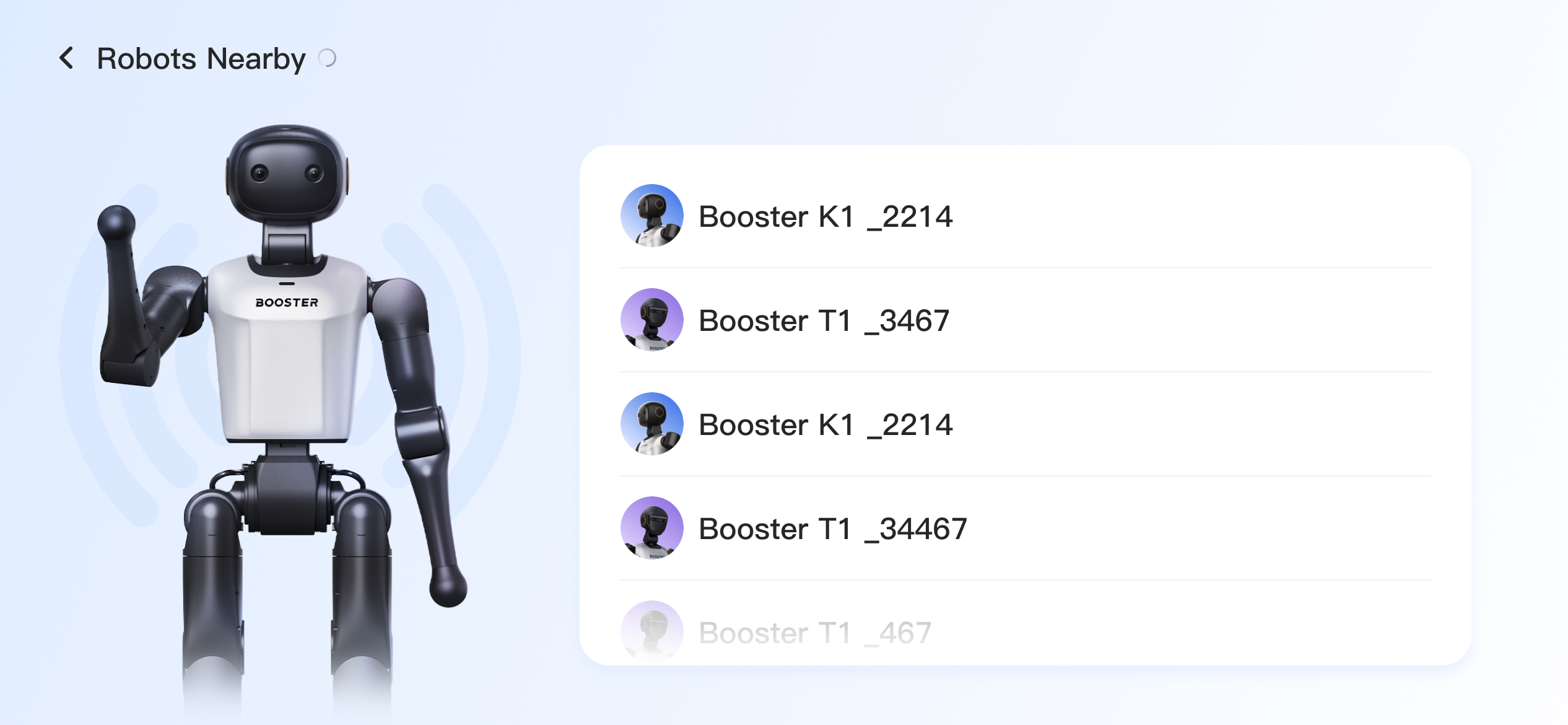
In the "Discover Nearby Robots" list, select your robot.
Bluetooth and Location must be enabled, and the app must be granted the required permissions.
-
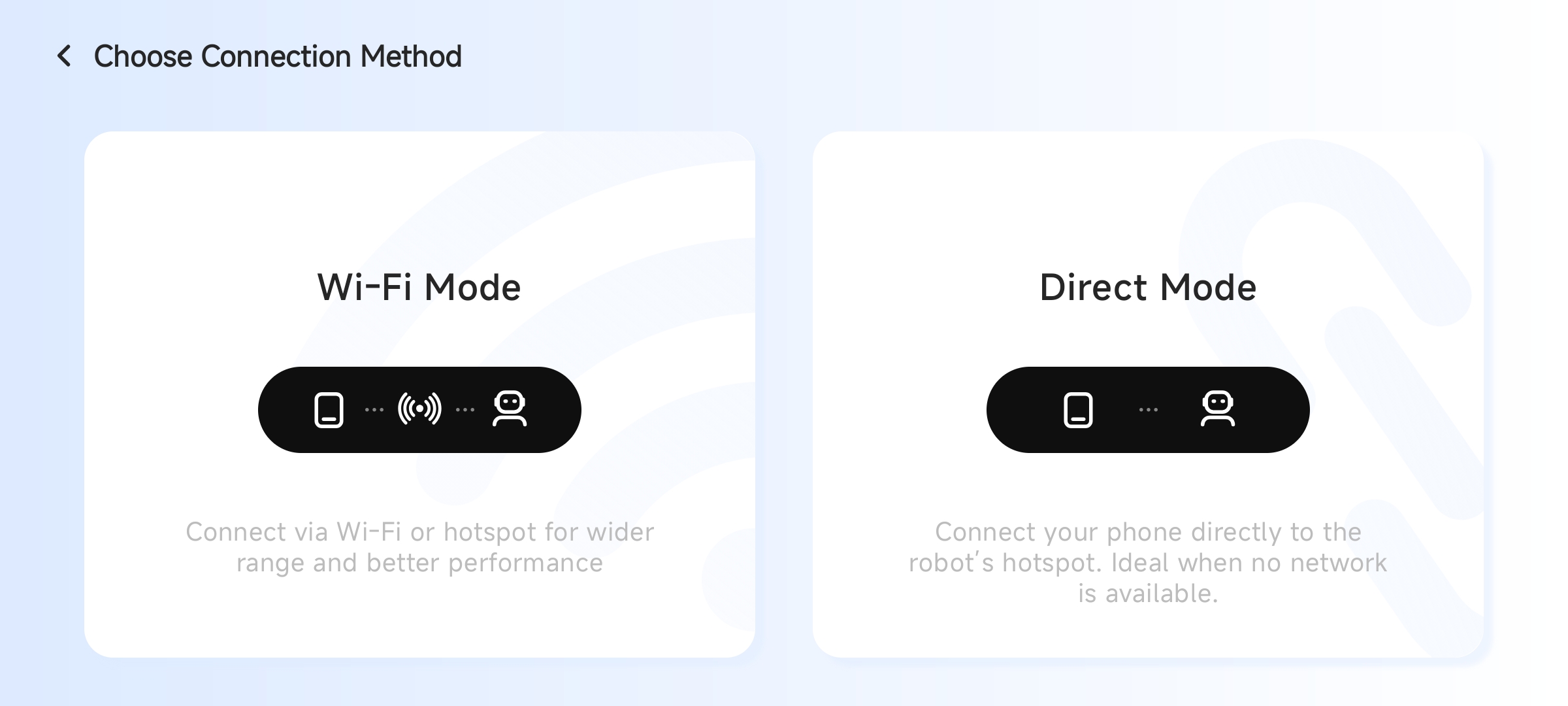
Two connection modes are available:
- Wi-Fi connection mode: connect the robot to the same Wi-Fi network as your phone, or connect the robot to your phone hotspot. This mode is suitable when network conditions are good.
- Direct connection mode: connect your phone to the robot hotspot. This mode is suitable when no network is available and your phone is close to the robot.
-
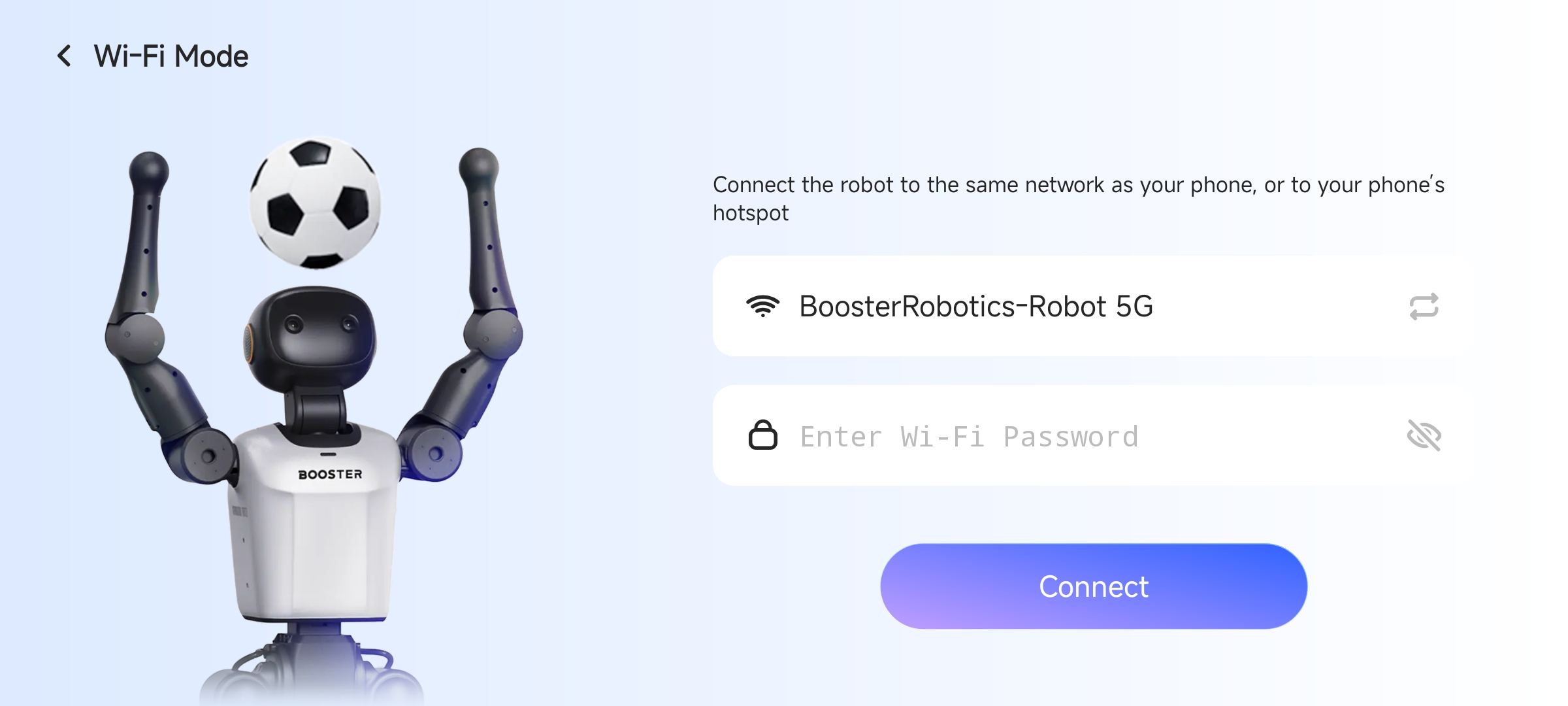
If you choose Wi-Fi connection mode, select the same network as your phone, or your phone hotspot, from the Wi-Fi list. Enter the password and confirm the connection. If the connection succeeds, the robot control page opens automatically.
-
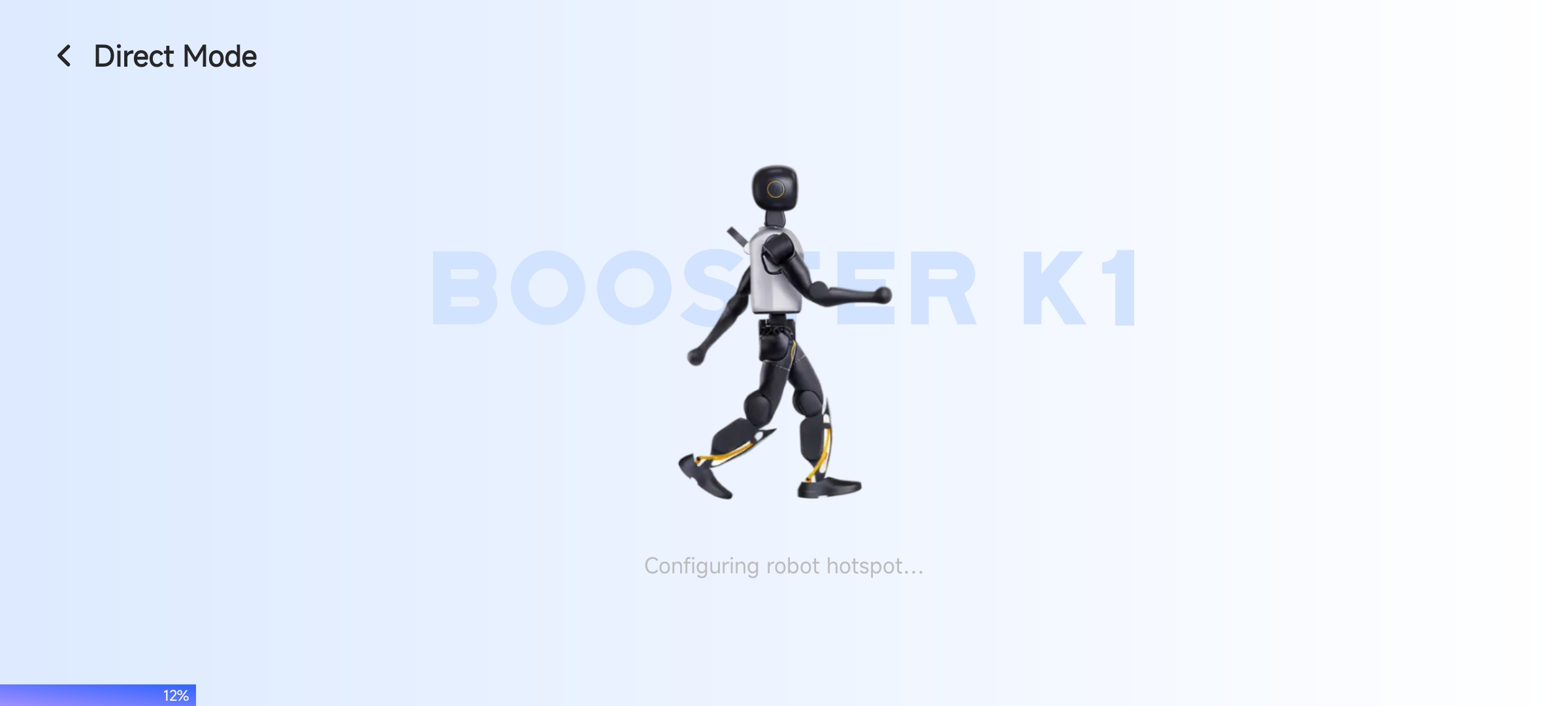
If you choose direct connection mode, the robot control page opens automatically after loading.
Control the Robot
Switch Modes
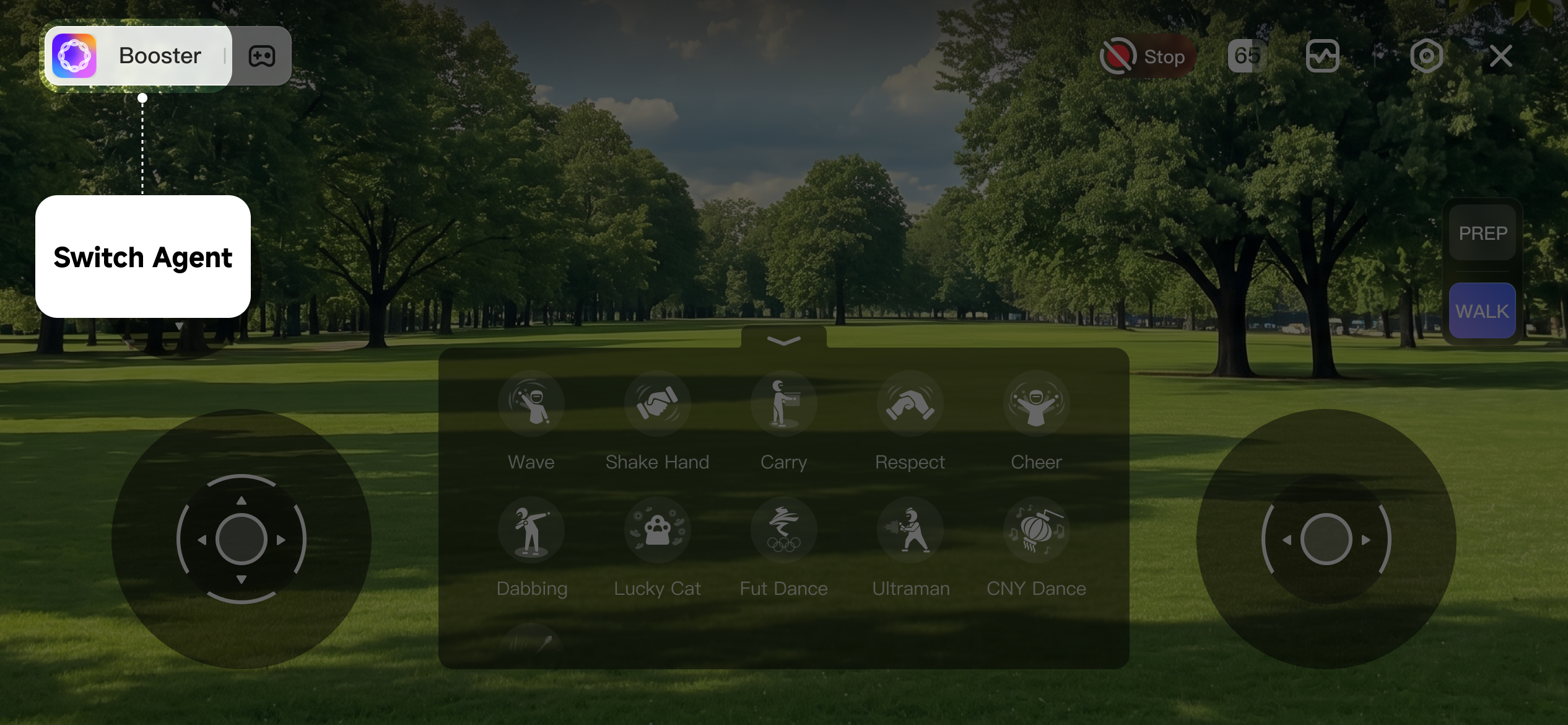
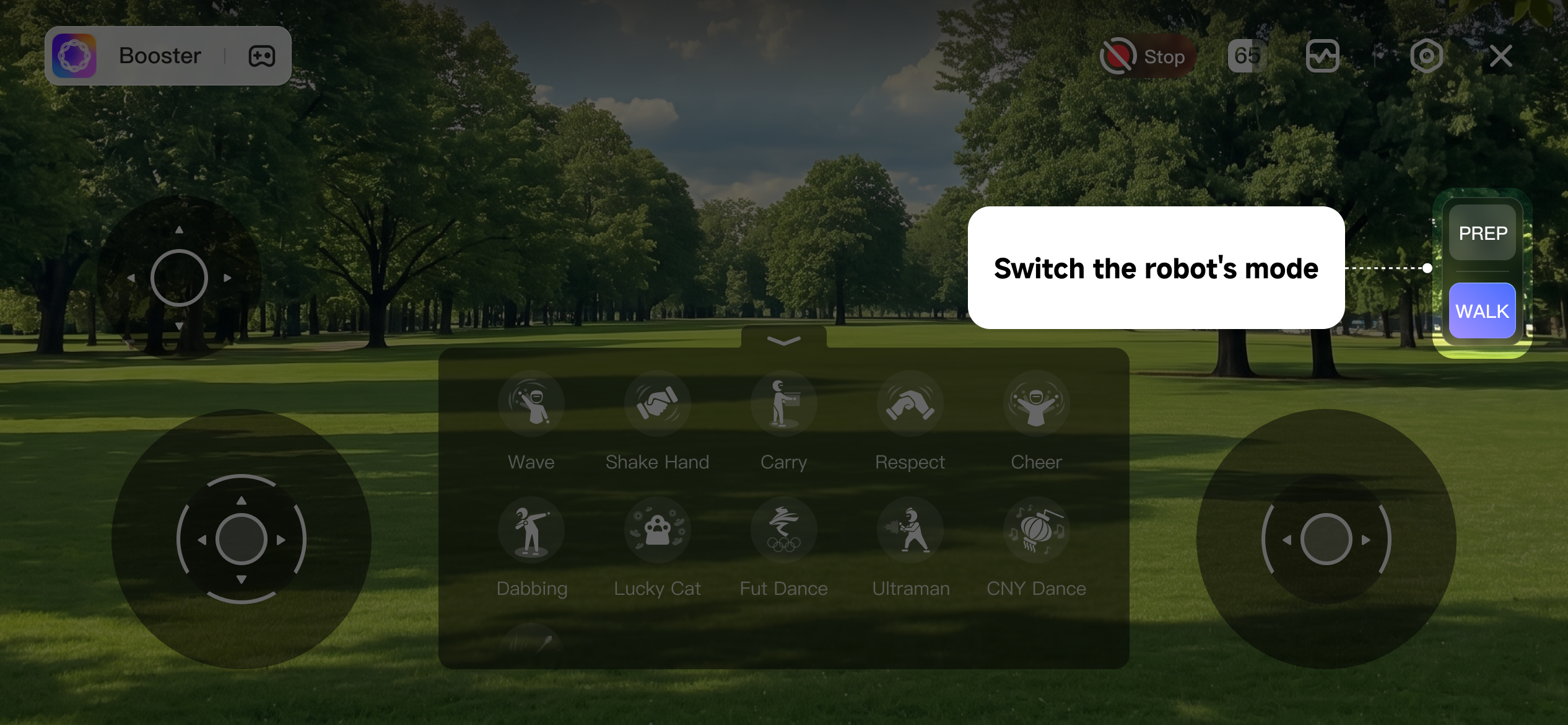
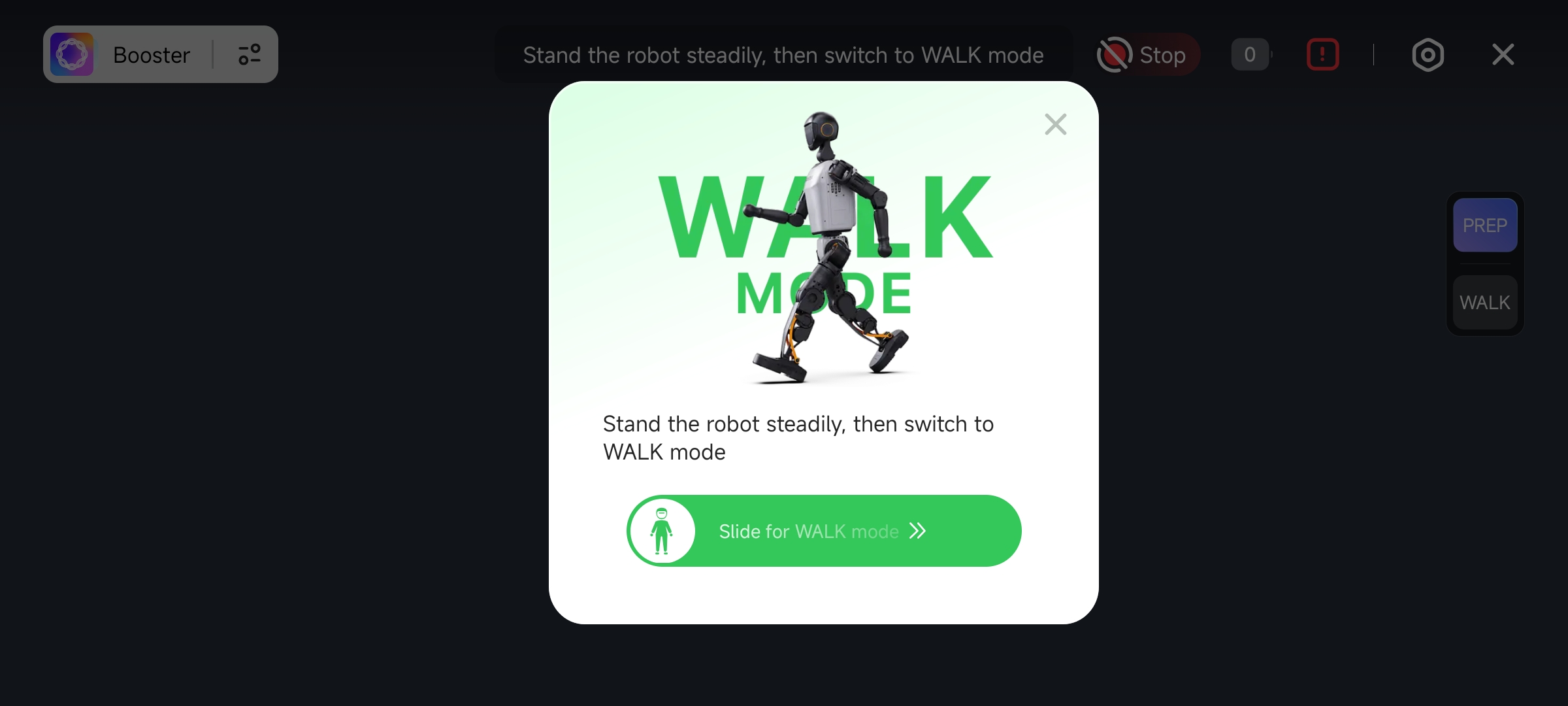
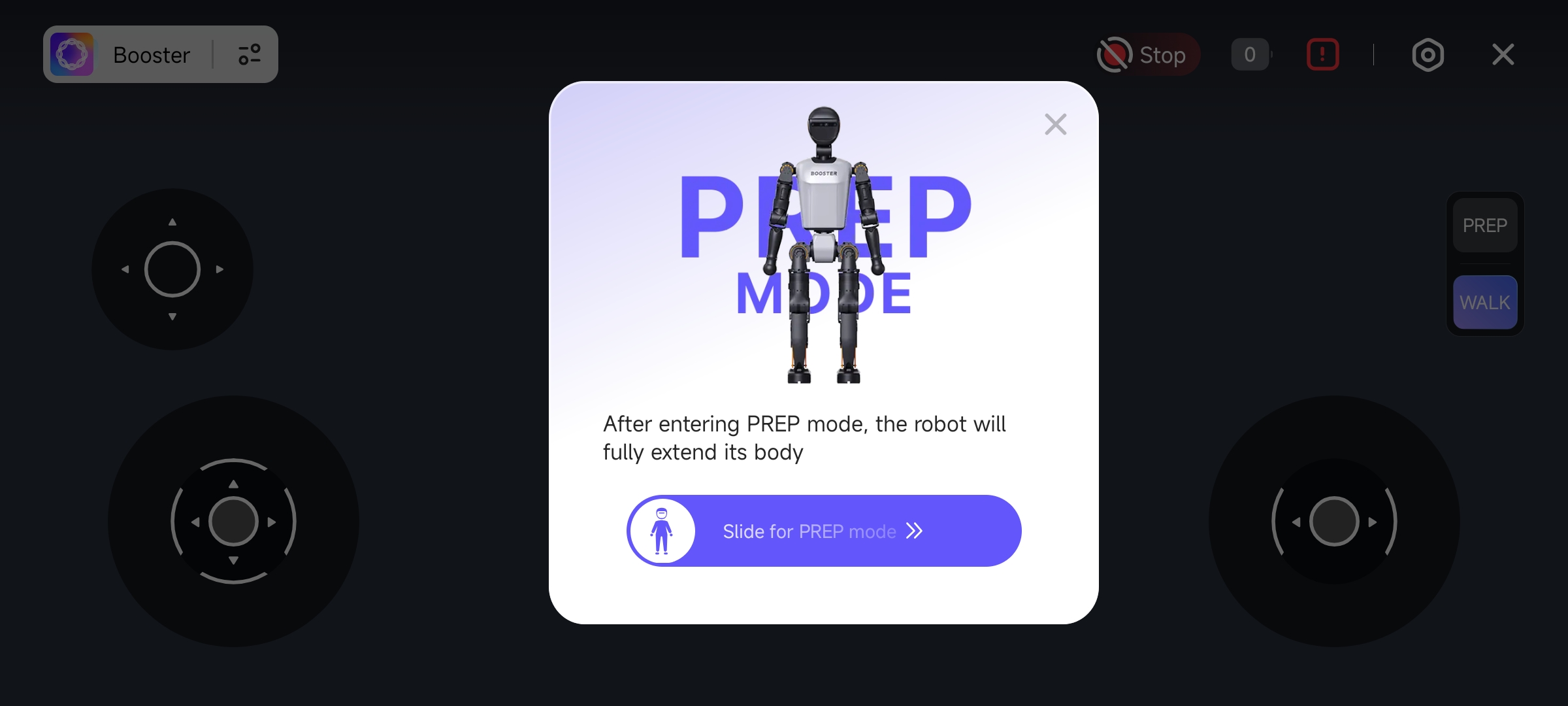
Use the buttons on the right to switch robot modes. The highlighted button indicates the current mode. If no button is highlighted, the robot is in "Damping Mode". Switch to "Ready Mode" first, make sure the robot is standing on the ground, and then switch to "Walking Mode".
Omnidirectional Walking
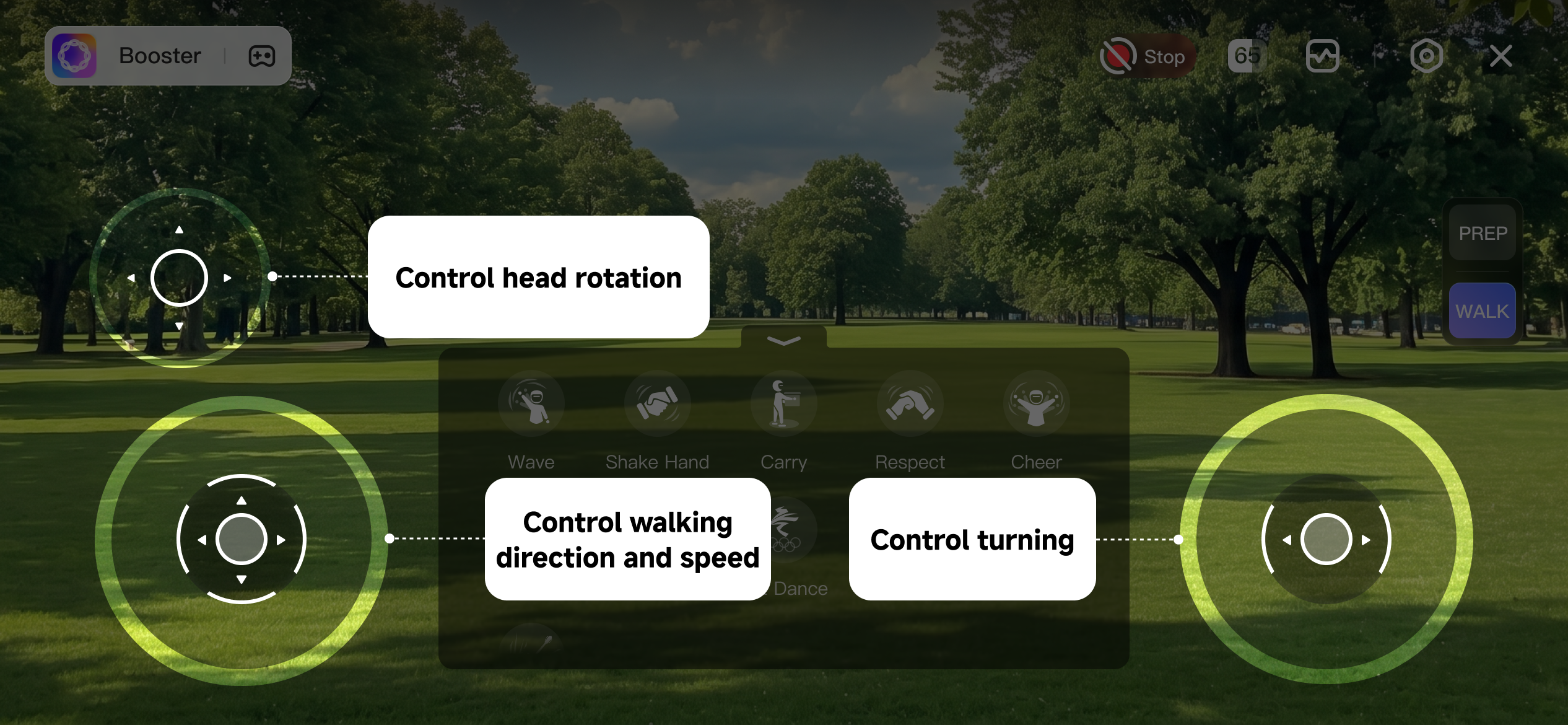
There are three joysticks for movement control: head rotation, walking, and turning.
Run Action
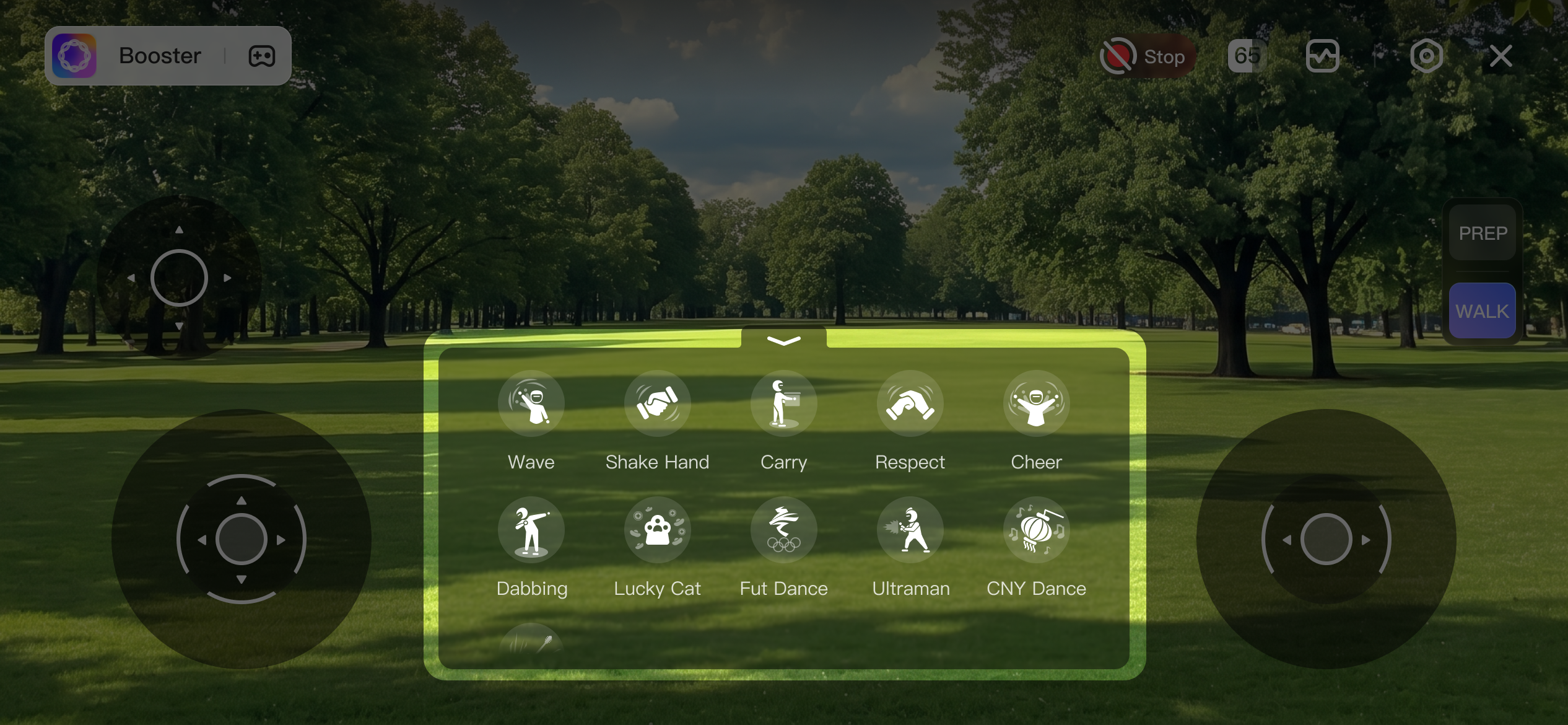
This is the function panel. It shows the actions available in the current mode. Tap an action to play it; tap again to stop playback. Some actions cannot be stopped.
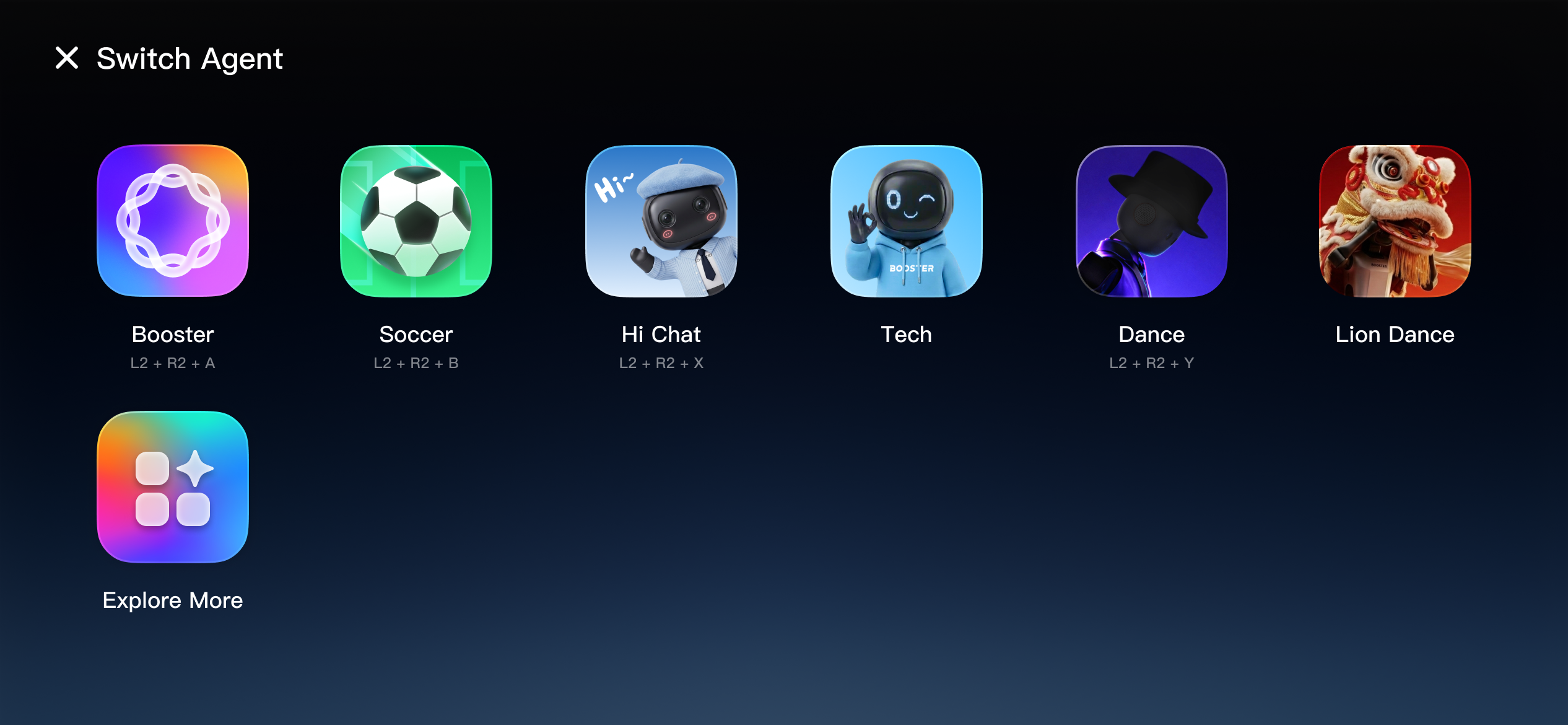
Switch Agent
Tap the Agent name in the upper-left corner to switch to another Agent. Each Agent has different capabilities. For example, "Football Master" can play soccer with you, Hi Chat can chat with you using different personas, and "Dance Master" can perform many dances from different eras and cultures.