
Group Control
Feature Overview
Use the mobile app to control multiple robots on the same local network and make them execute the same action commands together. This is suitable for small group performance demos (up to 10 robots).
Preparation
-
Mobile App:
Update it from an app store, or download it from the official website
Android
IOS
Upgrade to version 1.6.1 or later.
Upgrade to version 1.6.2 or later.
-
Robots:
-
Same model: for example, all robots are K1 Education Edition.
-
Same firmware version:
- Firmware must be upgraded to at least v1.6.1 or later.
- All robots must have exactly the same version number, for example, all are v1.6.1.0.
-
Sufficient battery level: keep at least three battery bars to prevent individual robots from stopping during group control because of low battery.
-
-
Network setup: use a router, or use another phone to create a hotspot.
Procedure
1. Create a Robot Group
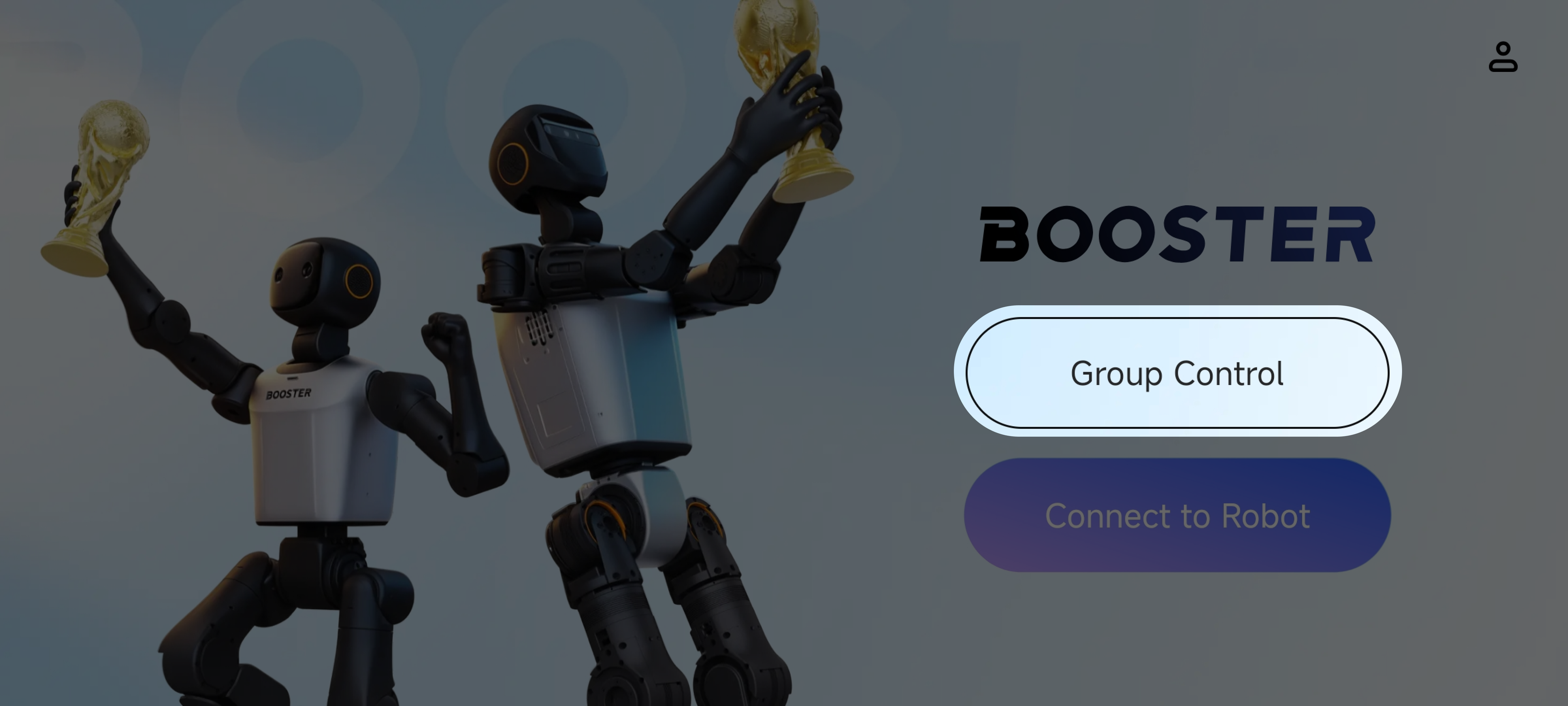
- Entry point : tap "Group Control" on the home page to enter the robot selection page.
-
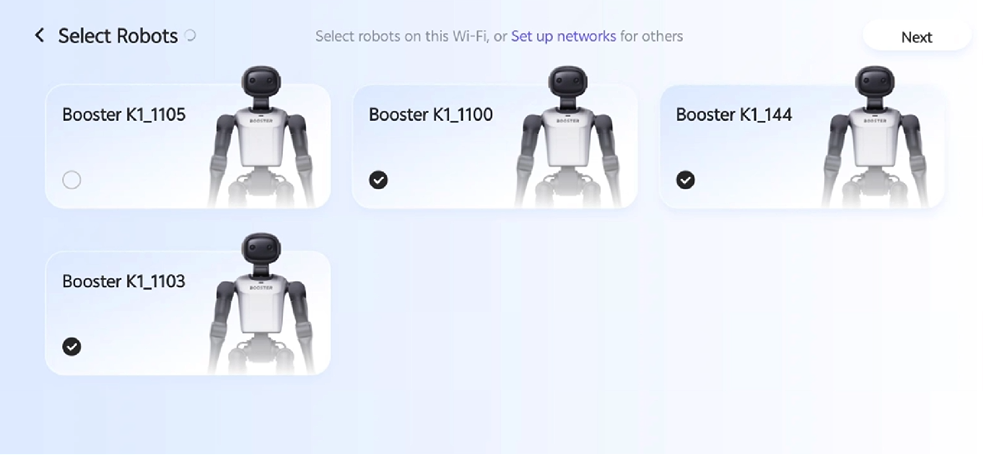
Select the robots to control as a group, then tap "Next".
- First, make sure your phone is connected to the target Wi-Fi network.
- The list on the right shows all robots connected to the same network as your phone.
- Select the robots to control as a group. You can select up to 10 robots, and they must be the same model.
2-1. Batch Network Configuration
-
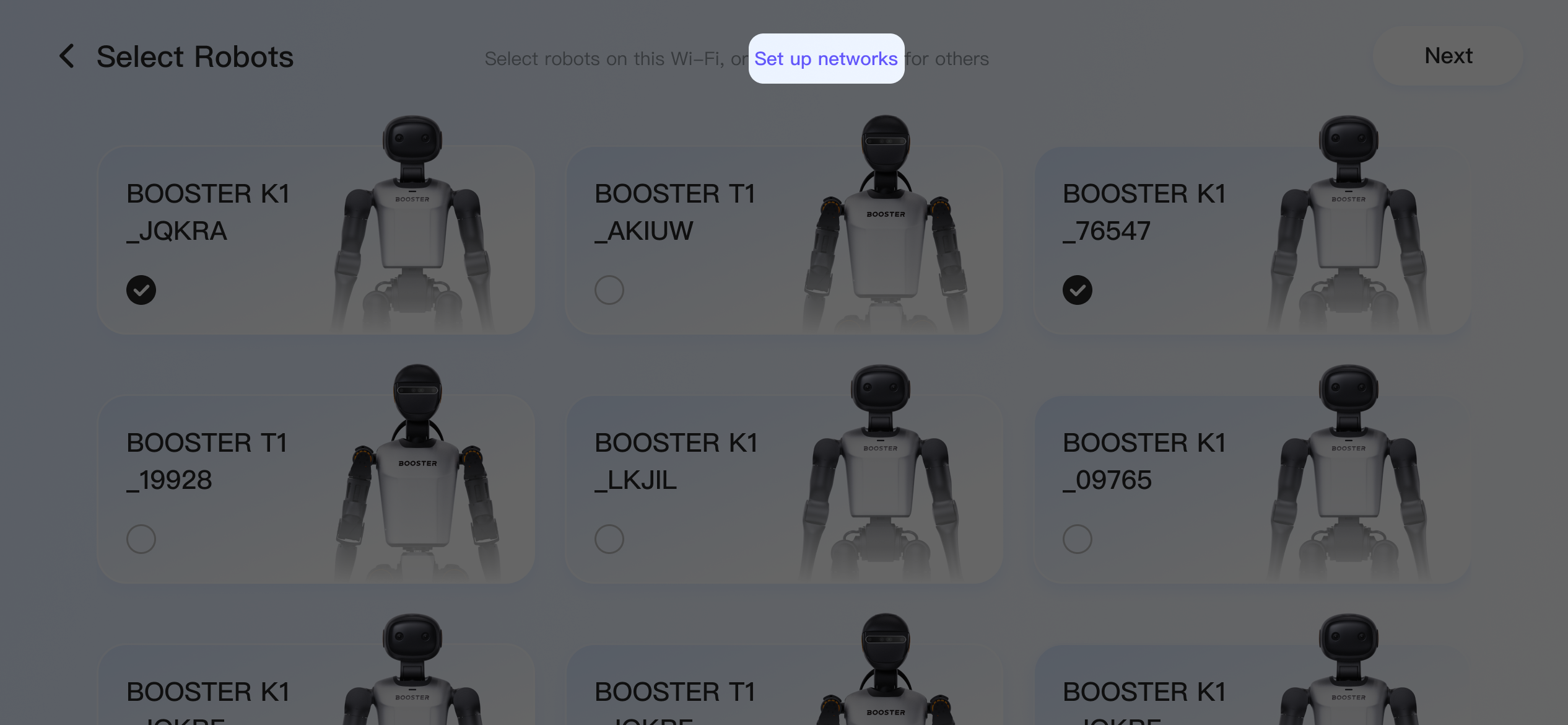
If not all robots are connected to the same network, use "Batch Network Configuration" to configure their network. Skip this step for robots that are already connected.
- Tap "Batch Network Configuration".
-
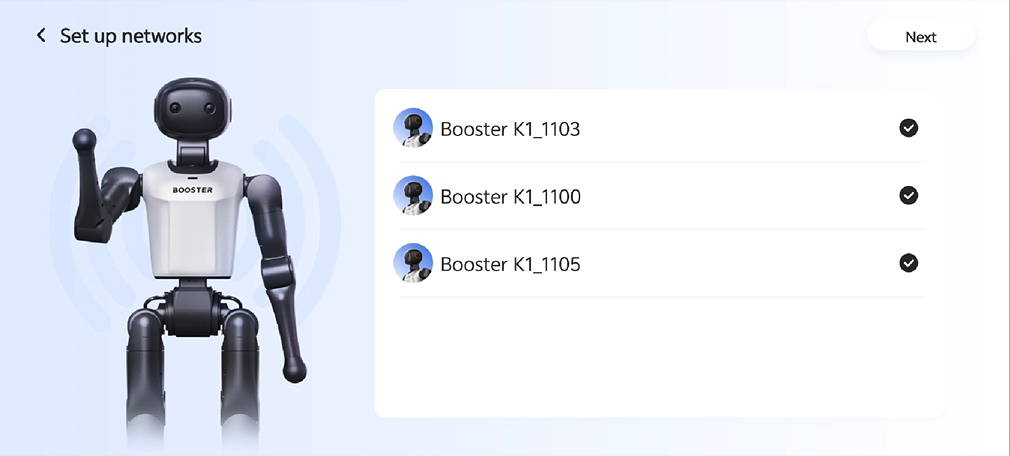
The right side displays a list of nearby robots discoverable via Bluetooth.
- Select the robots to configure, then tap "Next".
If the list does not appear, check whether Bluetooth and Location are enabled on your phone and whether the Booster app has been granted the required permissions.
-
Enter the password for the target Wi-Fi network, then tap "Connect".
If the target Wi-Fi network has no password, tap "Connect" directly.
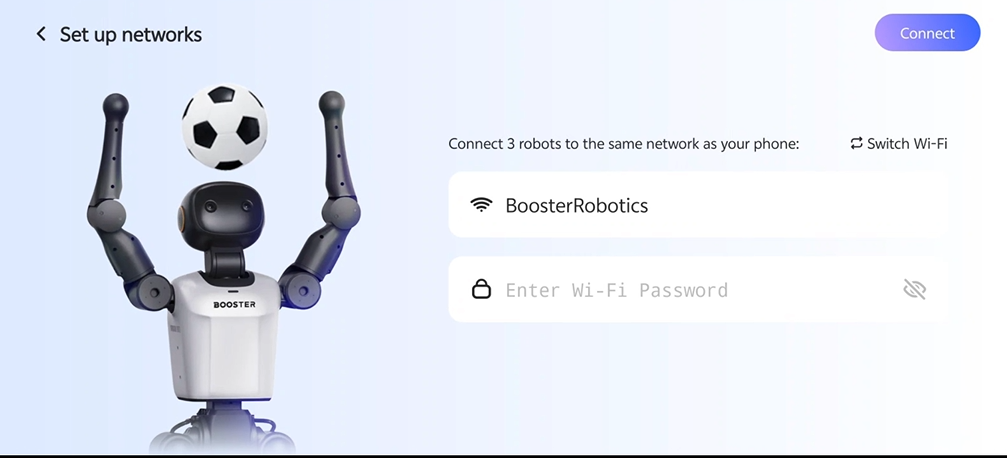
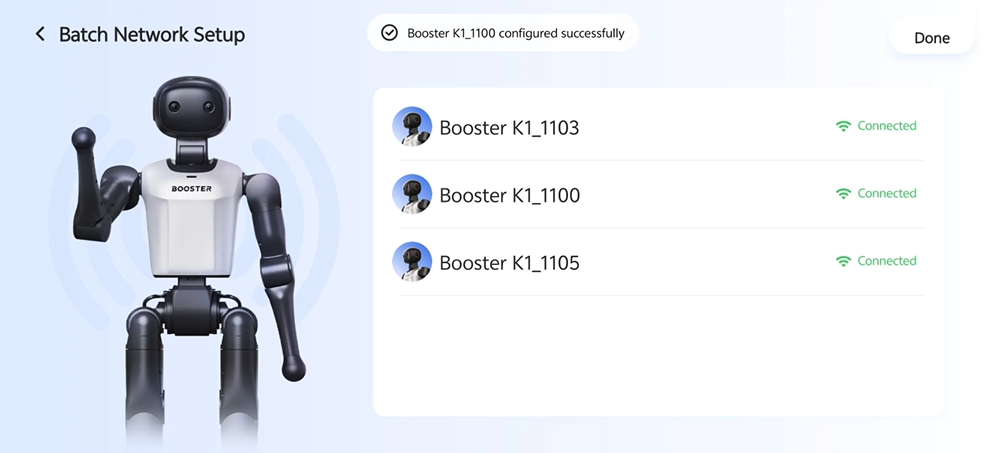
- The robots enter network configuration mode one by one, and the overall progress bar is shown in the upper-right corner.
- After network configuration is complete, tap "Done" to return to the robot selection page.
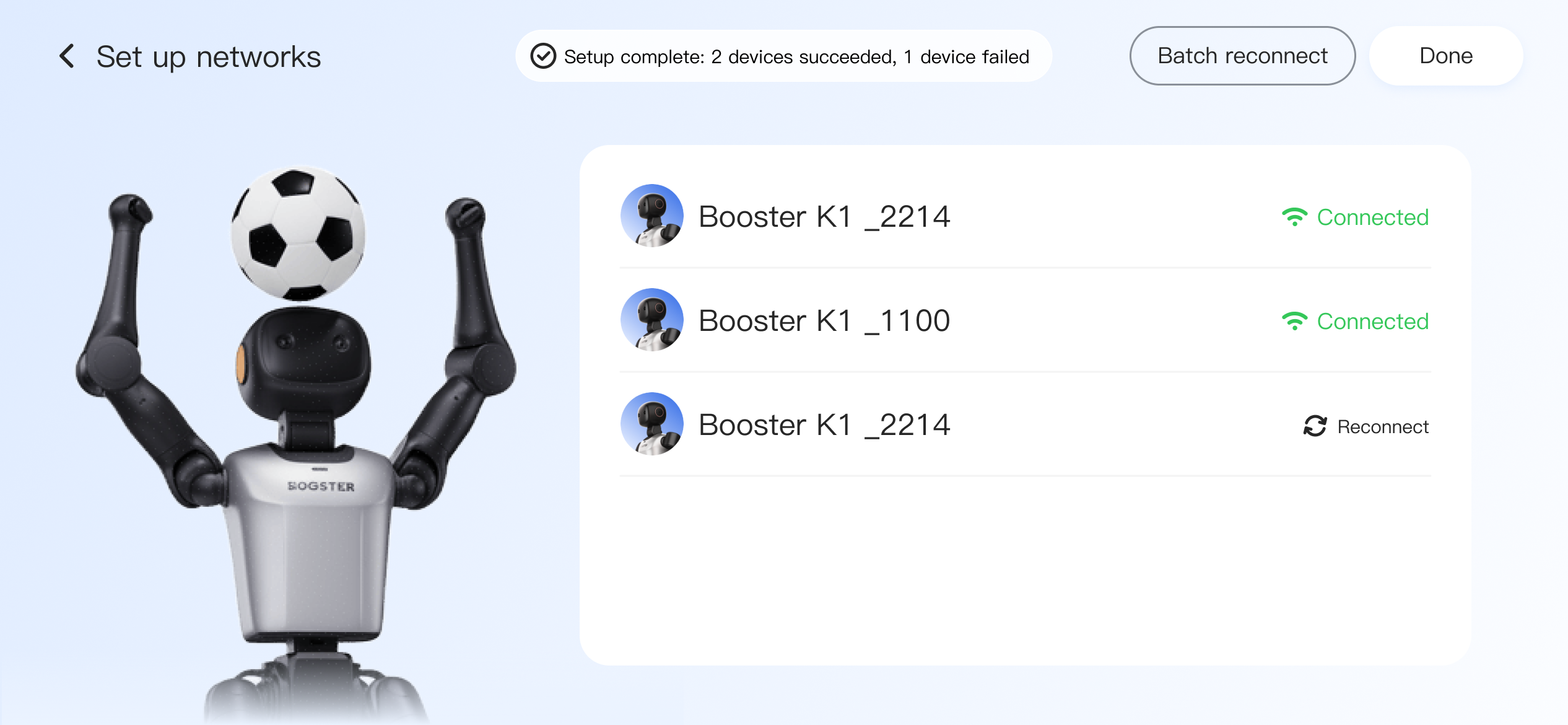
If individual robots fail to connect, tap "Retry".
If multiple robots fail to connect, tap "Batch Retry".
-
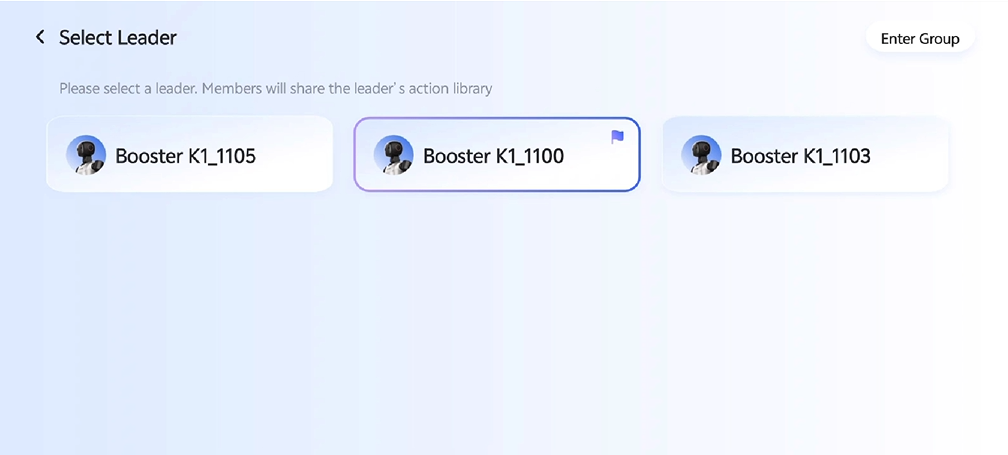
Select the Leader Robot
- Select one of the chosen robots as the leader robot. The other member robots share the leader robot's action library.
- Tap "Enter Group Control".
2. Run Group Control
-
Unified mode:
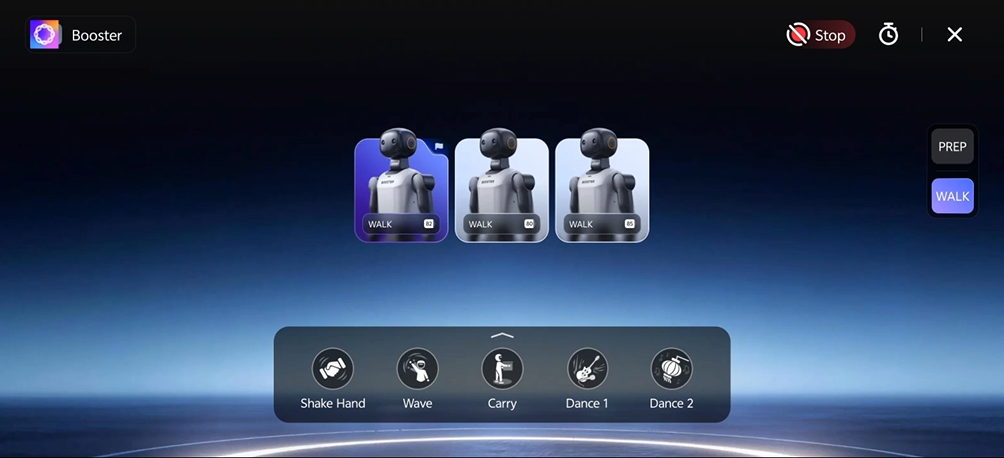
- After entering the group control page, make sure the robots are standing stably on the ground, then switch all robots to "Walking" mode
-
Run actions:
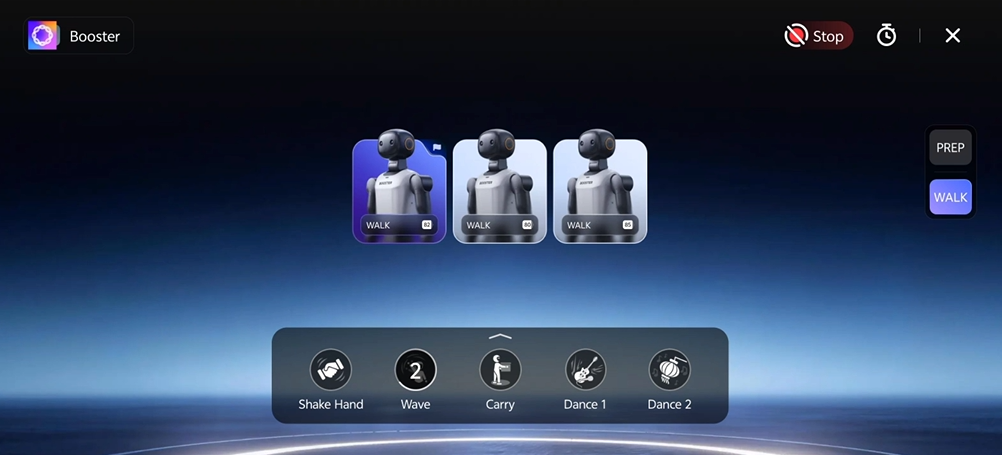
- After entering Walking mode, the leader robot's action library appears at the bottom. After you tap an action, all robots will execute it after 3 seconds run the action
Note:
-
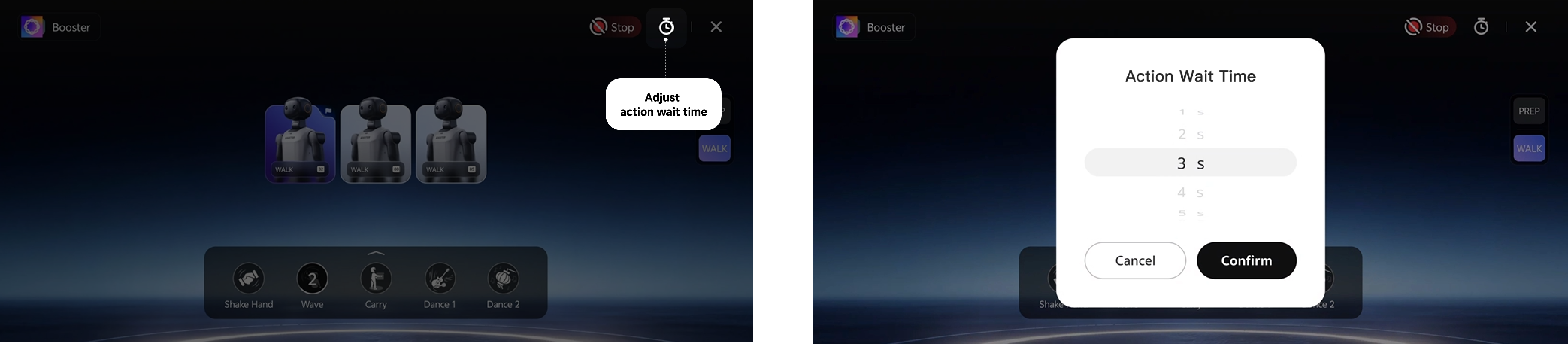
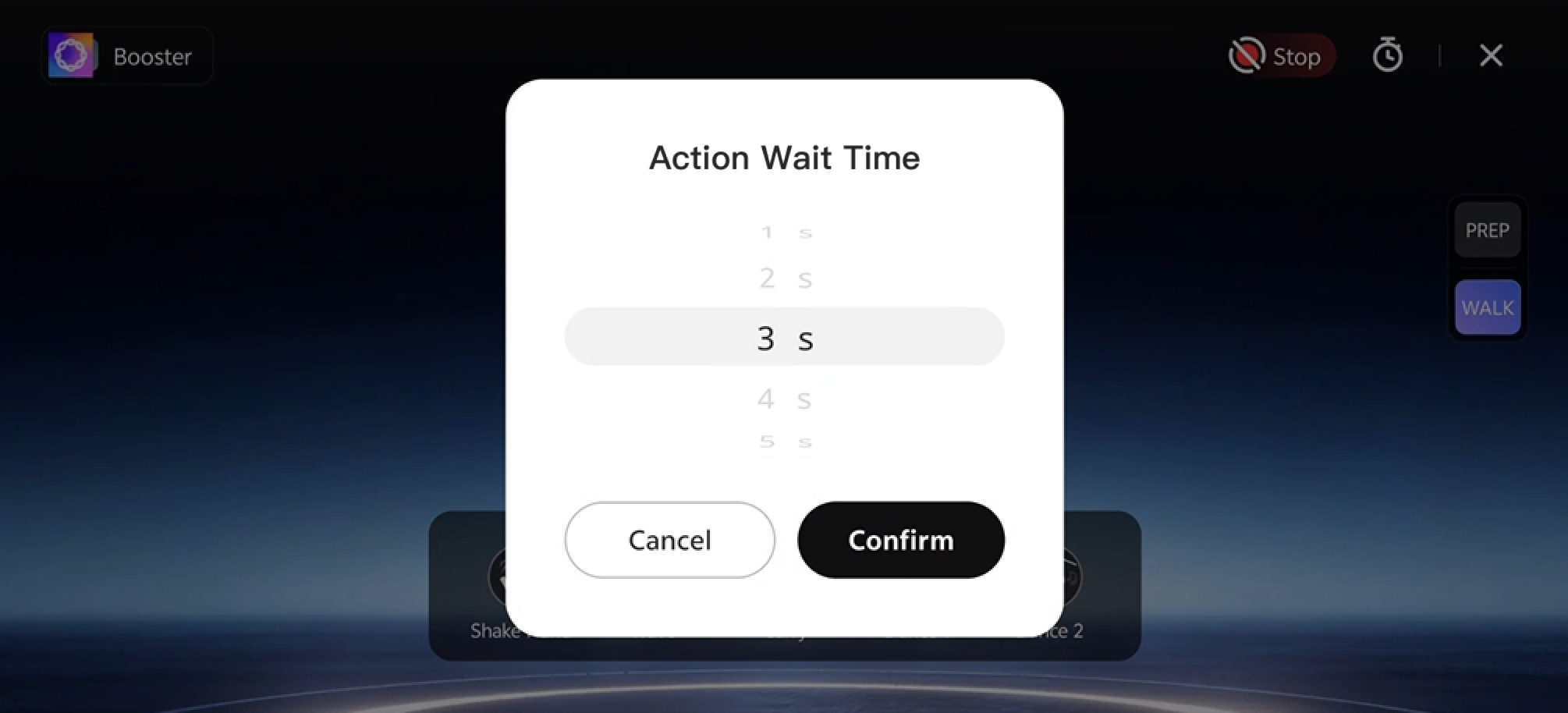
The 3-second wait is used because robots may receive commands at slightly different times. Increasing the execution wait time can make actions more synchronized.
-
You can change the wait time in the upper-right corner, up to 10 seconds.
-
If you need to play audio manually, start playback after the countdown finishes
-
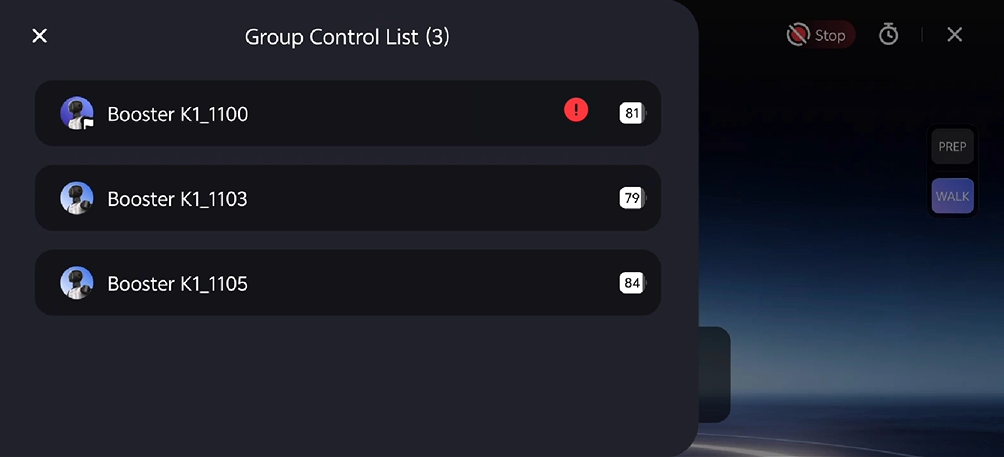
Status Monitoring :
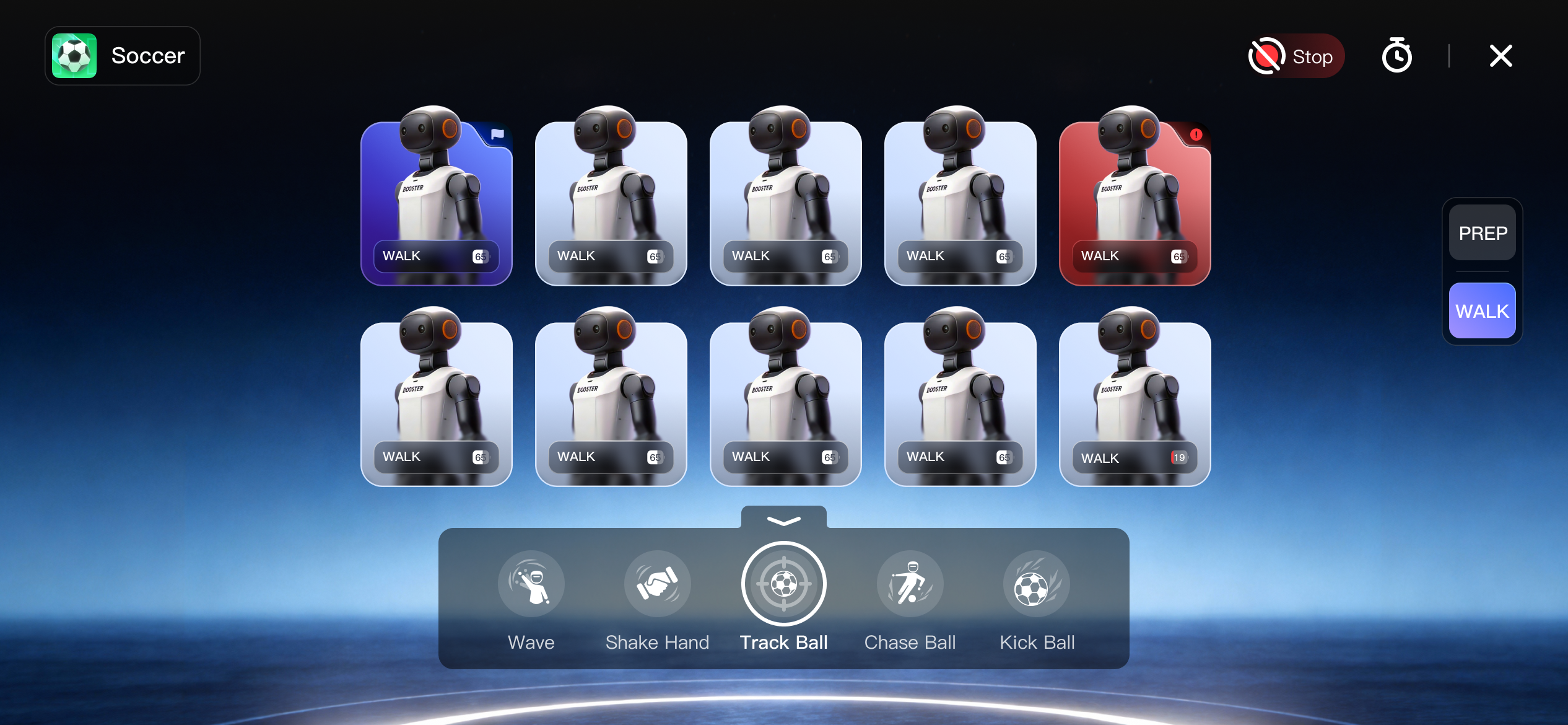
- Tap a robot card to view the list of all robots.
- If a robot card turns red, the robot battery is low or its status is abnormal. Tap the card to view details.
3. Exit Group Control Mode
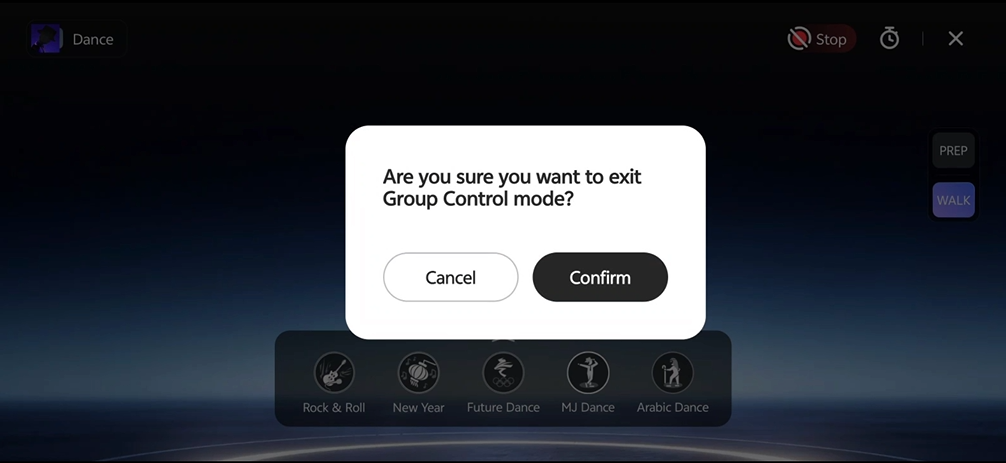
- Tap the X in the upper-right corner to "Exit Group Control".
- If you exit while an action is in progress, the action currently being executed is not affected.
FAQ
Firmware Version Issue
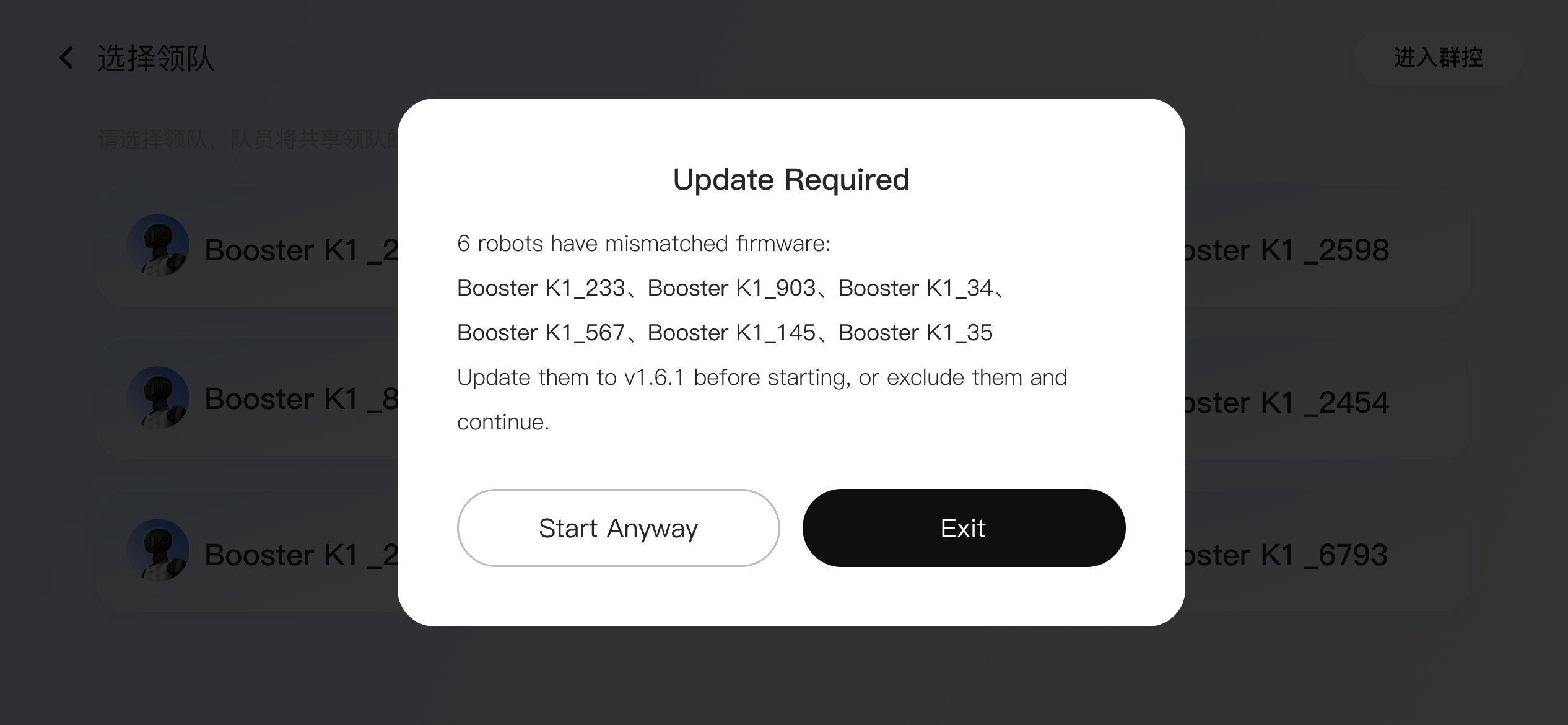
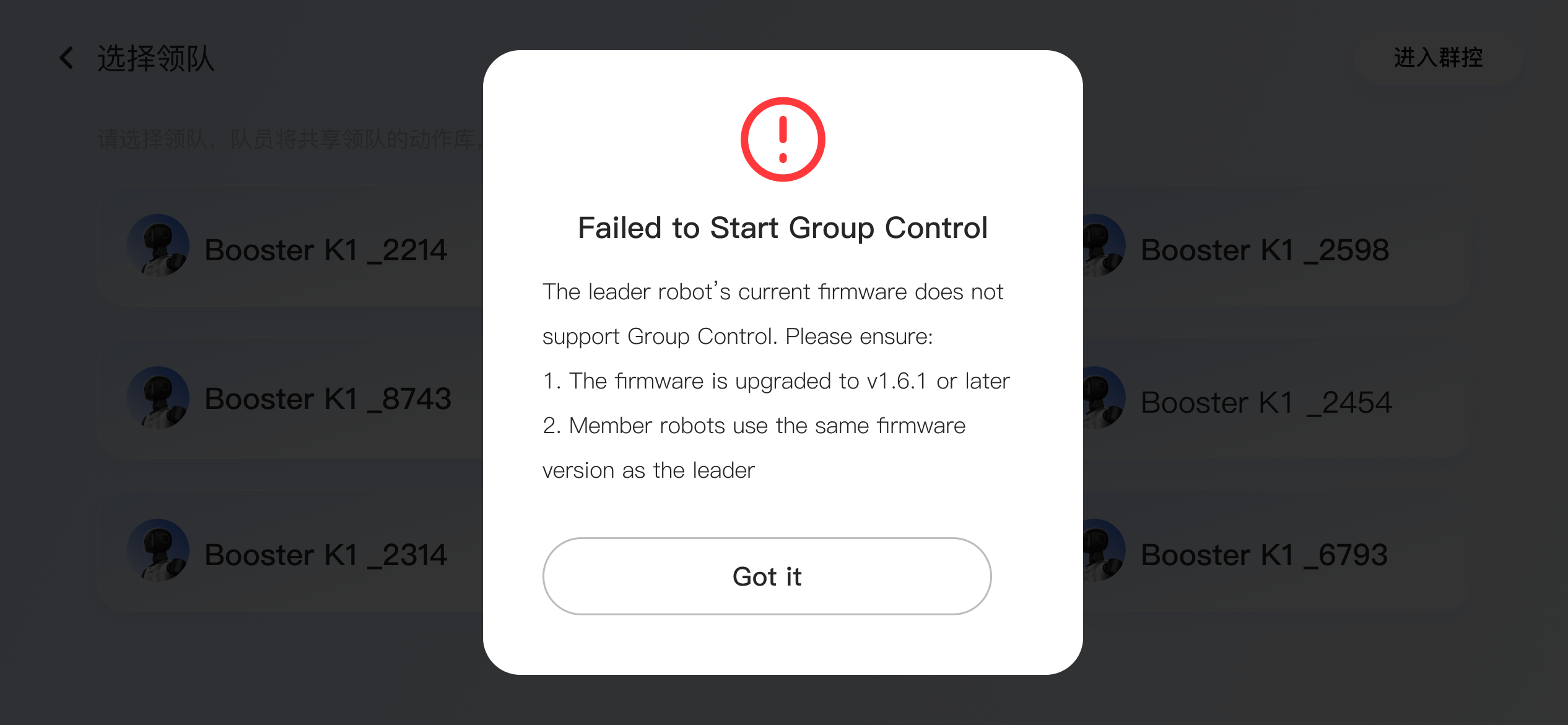
If the following error occurs, make sure every robot is running firmware later than v1.6.1 and that all robots are on the same firmware version, for example, all are v1.6.1.0.
Resource Sync Error
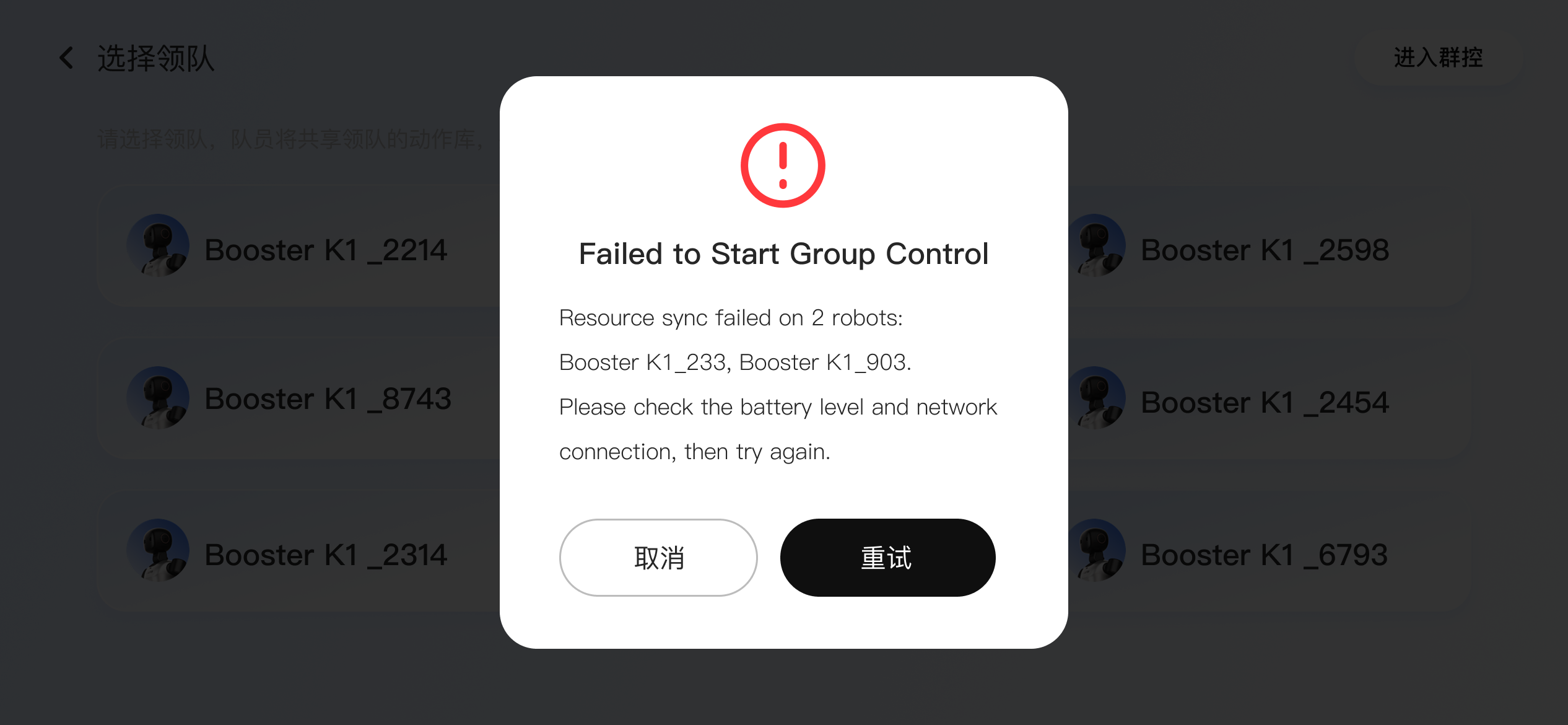
- If the following situation occurs, the robot battery may be low, the network may be abnormal, or the robot storage may be full, preventing resources from syncing. Check for these issues, resolve them as needed, and try again.
Leader Robot Battery Low
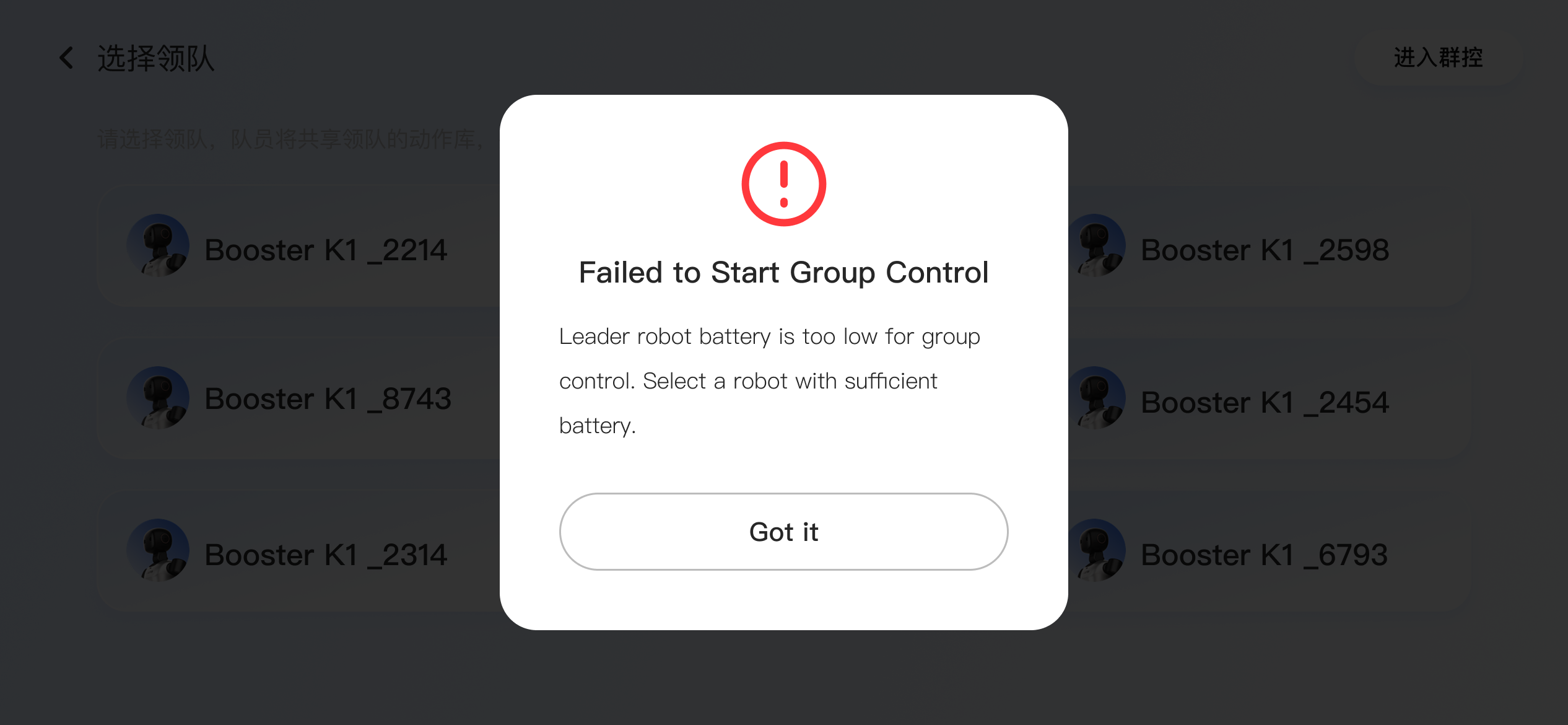
- When entering group control, the following error appears if the leader robot battery is low (≤30%). Replace the battery and try again.
Leader Robot Disconnected
-
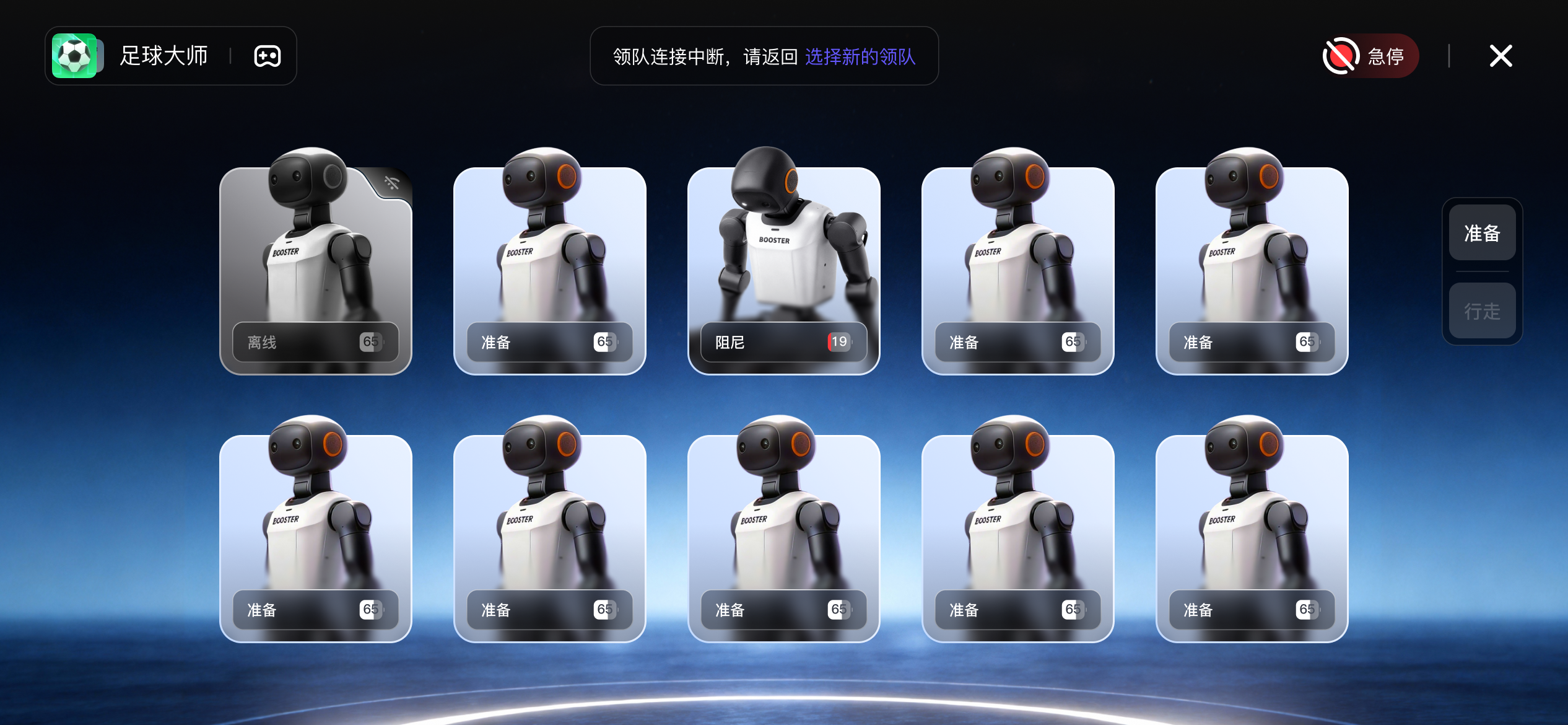
During group control, the leader robot may go offline because of network disconnection, battery depletion, or shutdown. In this case, you can:
- Tap "Select New Leader" to continue controlling the other robots.
- Or check the leader robot status, replace the battery, restart it, and so on. If the leader robot reconnects successfully, the group control page automatically updates the leader robot status and you can continue operating.
Network Latency
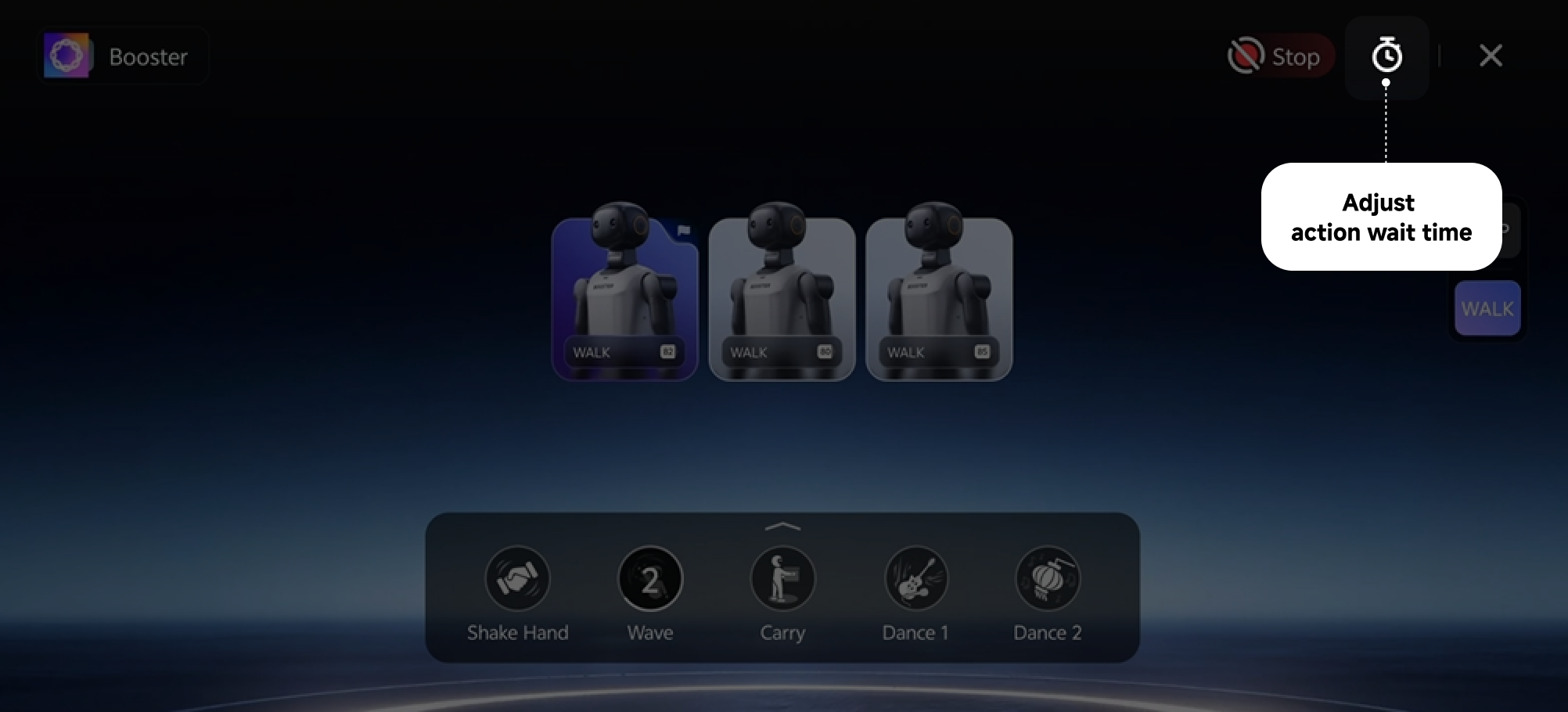
The default wait time before action execution is 3 seconds. If the robots are still not synchronized, the app prompts: Network latency. Please extend the "Action Wait Time". You can tap the clock icon in the upper-right corner to adjust it.
What if Robots in Group Control Are Not Synchronized?
Check whether the robots' start times are not synchronized, or whether they start together but become unsynchronized during the rest of the dance.
-
If the start times are not synchronized, refer to the previous item and increase the "Action Wait Time".
-
If the robots start together but become unsynchronized while dancing, check the following:
- Whether all robot models are exactly the same, for example, all are K1 Education Edition.
- Whether all firmware versions are exactly the same, for example, all are 1.6.1.1.