
RoboCup Demo User Guide
Project Overview
RoboCup Demo is the official open-source sample project developed by Booster Robotics for the RoboCup humanoid robot 5v5 soccer competition. It provides out-of-the-box configuration templates and parameter examples, covering the complete pipeline of visual perception, decision planning, motion control, and GameController communication, enabling the K1 robot to collaboratively complete basic match workflows such as taking the field, positioning, chasing the ball, and shooting, helping first-time teams quickly complete pre-match deployment and on-site debugging.
This Demo provides:
- A complete 5v5 collaboration framework (vision, decision, control, GameController communication)
- Basic goalkeeper, attacker, and defender role examples
- Vision calibration tools and configuration templates
- GameController integration
Project repository: https://github.com/BoosterRobotics/robocup_demo
This document focuses on the deployment process, configuration methods, and common troubleshooting to help users get started quickly. It does not cover strategy design. Specific field positioning, role behaviors, and decision logic are implemented by the user's own code.
The competition rules described in this document are based on RoboCup 2025 and also apply to the various events hosted by Booster Robotics.
Applicable Scenarios
- Teams participating in RoboCup and related competitions that need to quickly build a field-ready system
- Teams that need to validate the vision and control performance of the K1 robot in a standard competition environment
Environment Requirements
Hardware Checklist
Device | Description |
|---|---|
K1 robot | Firmware version 1.6, fully charged |
Router | 5GHz support, gigabit port recommended |
GameController machine | Ubuntu 22.04, running GameController |
Vision calibration board | |
Development computer | Supports SSH and file transfer |
Software Requirements
Component | Version | Installation Location |
|---|---|---|
K1 firmware | 1.6 | K1 robot (each) |
Booster SDK | 1.3.6 | K1 robot (each) |
K15v5Demo | v1.6 | K1 robot (each) |
GameController | 1.0.1 | GameController machine |
Ubuntu | 22.04 | GameController machine |
Version matching requirement: Firmware 1.6 must be used with SDK 1.3.6. A version mismatch will cause build failures or runtime crashes. Back up important configurations and logs before upgrading the firmware.
Network Environment
Recommended structure:
- The router acts as the central node, assigning IPs to the 5 K1 robots (e.g. 192.168.1.11 ~ 192.168.1.15)
- The GameController machine connects to the same router (wired or wireless), with an IP such as 192.168.1.100
- The development computer connects to any K1 via SSH for configuration
- All devices are on the same LAN, with UDP broadcast reachable (GameController relies on UDP)
Prerequisite Skills
Using this Demo requires the following basic skills:
-
Linux terminal operations: SSH login, file transfer (scp), text editing (nano/vim)
-
Network configuration: IP setup, LAN connectivity testing (ping)
-
ROS2 basics (optional): understanding of topics, services, and nodes for easier debugging
-
K1 operation basics:
- Understand the K1 basics and safe operation methods
- Know how to connect to the robot, check the version, and retrieve logs
Deployment Workflow Overview
It is recommended to complete pre-match preparation in the following order:
- K1 body safety check — Confirm the robot hardware is intact, the battery is sufficiently charged, and the firmware version matches
- Network connection — Configure the LAN, assign IPs, and test connectivity
- Upload and build the Demo — Deploy the project code to each robot
- Configure team information — Modify each robot's config.yaml (team, player, role, number of players, field type, GameController IP, and whitelist)
- Single-robot self-test — Verify the Demo can start independently, vision works, and control is responsive
- Vision calibration (optional) — Decide whether to recalibrate based on on-site lighting and camera condition
- GameController configuration — Start the GameController and configure teams and match parameters
- Field test — First enter the soccer gait, and under that gait press LT + A to enter soccer mode and complete localization, then press LT + B to enter the automatic match strategy. At the same time, use the GameController to check whether the robot with the corresponding player number is online, and verify the complete match pipeline following ready-set-play
Key checkpoint: In step 5 (single-robot self-test), confirm that each robot can run independently before proceeding to multi-robot integration. This prevents configuration errors from spreading to the entire team.
1. Safety Precautions
Personal safety first:
- Before the K1 enters WALK mode, it must first enter PREP mode and be placed standing firmly on level ground
- While the K1 is running, do not let any part of your body touch the robot other than its handle, and do not lift the robot
- During software upgrades, service restarts, battery swaps, or recovery after a power loss, the robot may stop applying force. You must ensure the robot has good support or is in a safe posture
- When starting for the first time or testing new features, ensure there is enough safe space around to avoid colliding with people or equipment
K1 Operating Modes
Mode | Description | On-site notes |
|---|---|---|
DAMP mode | Joints have resistance but do not actively hold a posture; the robot cannot stand and needs support | Safe mode, suitable for shutdown, transport, and handling anomalies |
PREP mode | The robot enters and holds a standing posture | Before entering WALK, you must first enter PREP and have the robot stand firmly on the ground |
WALK mode | The robot can walk, turn, step in place, stop, and turn its head | RoboCup field operations must be performed in WALK |
CUSTOM mode | Joint control is handed over to user-defined commands | Used for secondary development; generally not actively switched into at a RoboCup site |
PROTECT mode | Automatically entered when an anomaly is detected; the robot stops applying force | After it is triggered, investigate the cause (logs), then restart after clearing it |
Mode switching rule: DAMP → PREP → WALK is the normal startup sequence. Before switching from WALK back to DAMP, make sure the robot has support.
2. K1 Body Preparation and Demo Deployment
Confirm that each K1 robot's hardware is intact and that the firmware and SDK versions match, then upload the Demo to each robot.
2.1 Hardware Check
Checks before powering on:
- Battery level > 50% (check via the app or terminal)
- Joints, cameras, and controller show no visible damage
- Network interfaces (wired/wireless) are working
Checks after powering on:
- The robot can enter PREP mode and stand firmly
- The controller can drive the robot into WALK and make it walk
- The camera feed is normal
2.2 Firmware and SDK Version Confirmation
Log in to the robot to confirm the versions:
ssh booster@<robot IP>
booster-cli version
Expected output:
Firmware: 1.6.x
SDK: 1.3.6
Success indicator: Firmware shows 1.6.x and SDK shows 1.3.6
Failure indicator: Version mismatch → follow the official upgrade process to upgrade the firmware or install the SDK. During the upgrade, the robot's motion control will be turned off, so the robot must have good support.
2.3 Obtaining, Uploading, and Extracting the Demo
Obtain K1_5v5_Demo_v1.6.zip (available from GitHub releases) from the official release channel.
Get the latest version from the GitHub Releases page: https://github.com/BoosterRobotics/robocu_demo.git
Upload the Demo to each robot:
scp K1_5v5_Demo_v1.6.zip (available from GitHub releases) booster@<robot IP>:~/Workspace/
Log in to the robot and extract it:
ssh booster@<robot IP>
cd ~/Workspace/
unzip K1_5v5_Demo_v1.6.zip (available from GitHub)
ls
Success indicator: The K1_5v5_Demo_1.6/ directory exists under ~/Workspace/
3. 5v5 Demo V1.6 Configuration, Build, and Startup
3.1 Configure Each Robot Individually
Each robot has its own configuration file. During 5v5 deployment, all 5 robots must be checked and modified one by one:
ssh booster@<robot IP>
nano ~/Workspace/K1_5v5_Demo_1.6/src/brain/config/config.yaml
After modifying the configuration, it is recommended to rebuild and restart the Demo. Do not modify only one robot and then copy it to the entire team, unless you have confirmed that player_id, roles, and per-robot differences will not be overwritten.
3.2 Configuring Team, Player, Role, and Field Settings
The key strategy-related parameters in config.yaml are as follows:
Parameter | Meaning | 5v5 on-site requirement |
team_id | Team number | Must match the team number in the GameController. |
player_id | Player number | Must be unique within the same team and cannot be duplicated. |
player_role | Robot role | Configure according to the open-source Demo strategy or your own team's strategy; this document does not specify particular positioning. |
number_of_players | Number of your team's robots on the field | This manual targets 5v5, so set it to 5. |
field_type | Field type | Choose a value consistent with the competition rules and on-site configuration; specific dimensions are not given in this document. |
Example snippet; the actual field positions should follow the config.yaml in the release package:
team_id: 23
player_id: 1
field_type: kid_size
player_role: striker
number_of_players: 5
Note: field_type in the example only shows how the field is written; it does not mean this value must be used on-site. Confirm it before the match according to the actual rules and Demo strategy. |
3.3 Configuring the GameController IP and Whitelist -- For Each Robot
The GameController broadcasts match status via UDP. To avoid confusion in robot status caused by multiple GameControllers on the same LAN, this manual requires fixing the GameController machine's IP during official deployment and enabling the whitelist on the robot side.
On the computer running the GameController, view the current network interfaces and IPv4 addresses:
ifconfig
Choose the IP of the network card actually connected to the match LAN. In official matches the GameController usually prefers the wired network card; during training the GameController may use the wireless card, but all robots and the GameController must be on the same LAN.
On each robot, modify the GameController IP in the Brain configuration; the field name should follow the current release package configuration:
nano ~/Workspace/K1_5v5_Demo_1.6/src/brain/config/config.yaml
# After opening, find the GameController IP and change it to the actual GameController IP to be used
At the same time, modify the GameController node launch file to enable the whitelist and fill in the GameController machine's IPv4 address:
nano ~/Workspace/K1_5v5_Demo_1.6/src/game_controller/launch/launch.py
# Check whether the whitelist feature is enabled, and modify/add the IP entries in the whitelist to include the actual GameController IP to be used
Configuration requirements:
- Set the whitelist switch to True.
- Fill in the whitelist IP with the IPv4 address of the computer running the GameController.
- All 5 robots must be configured with the same GameController machine IP.
- If you change the GameController machine or switch its wired/wireless connection, you must update the robot configuration accordingly.
3.4 Checking the V1.6 Vision and VisualKick Configuration
In Demo V1.6, the vision topics in brain/config/config.yaml have been unified, so there is no need to change the topics by camera type:
vision:
  image_topic: "/boostercamera/head/rgb"
  depth_image_topic: "/boostercamera/head/depth"
Focus on checking whether the camera imaging parameters in the same configuration section match the current robot:
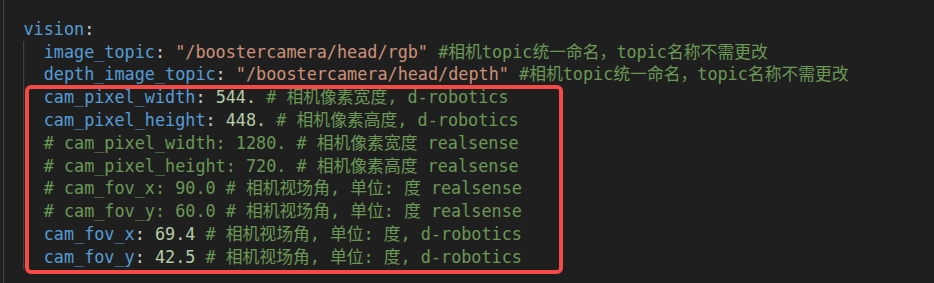
If the configuration file also keeps parameter comments for different cameras, only one set of parameters can be in effect. Do not let the RealSense parameters and the in-house camera parameters take effect at the same time.
V1.6 adds a VisualKick action version configuration:
RLVisionKick:
  visual_kick_version: kV2
For a first deployment of V1.6, it is recommended to use kV2. kV2 has a larger leg swing, a longer kick distance, and greater tolerance for ranging error; after calibration, it is less likely to miss the ball. If you later need to compare kick speed, kick distance, and calibration tolerance, switch to kV1 for testing.
3.5 Build, Startup, Log Check, and Stop
When using the code for the first time, it is recommended to rebuild:
cd ~/Workspace/K1_5v5_Demo_1.6/
sudo rm -rf ./build ./install
cd scripts/
chmod +x *
cd ..
./scripts/build.sh  # First build, this will take a while
If the code was already built on the robot before, you must run build.sh again after modifying parameters and reusing it
cd ~/Workspace/K1_5v5_Demo_1.6/
./scripts/build.sh # Run this command to rebuild after each configuration file change, to ensure the relevant parameters in install are overwritten
Start the Demo:
cd ~/Workspace/K1_5v5_Demo_1.6/
./scripts/start.sh
After startup, the following are usually launched:
- brain_node
- vision_node
- game_controller_node
View the logs:
tail -f brain.log
tail -f vision.log
tail -f game_controller.log
Key checks:
- Whether the match status in brain.log is stable and whether GameController status can be received.
- Whether vision.log keeps refreshing, whether model initialization is complete, and whether the camera can be read normally.
- Whether game_controller.log shows that GameController communication is normal.
Stop the Demo:
cd ~/Workspace/K1_5v5_Demo_1.6/
./scripts/stop.sh
4. Vision Configuration and Calibration
4.1 Vision Configuration Priority
When deploying V1.6 on-site, first check the vision configuration at the system path:
cd /opt/booster
# When the robot is reused, this file may be accidentally deleted. If the file does not exist, you need to recalibrate using the program and then upload it to /opt/booster. See section 4.3 for the method
sudo nano vision.yaml
This document follows this rule: /opt/booster/vision.yaml takes priority over the vision configuration in the Demo directory at /src/vision/config/vision.yaml. After performing calibration, replacing the model, or modifying camera parameters, you must first confirm that the configuration at this system path is correct and that the parameters are updated.
To reduce the risk of on-site configuration inconsistency, you can sync the system vision configuration to the Demo directory:
sudo cp /opt/booster/vision.yaml ~/Workspace/K1_5v5_Demo_1.6/src/vision/config/vision.yaml
4.2 Checking Camera Parameters and Model Path
When vision is abnormal, check the following first:
- Whether /opt/booster/vision.yaml exists and whether its contents match the current robot's camera (camera type).
- Whether src/vision/config/vision.yaml in the Demo is consistent with the system vision configuration.
- Whether cam_pixel_width, cam_pixel_height, cam_fov_x, and cam_fov_y match the current camera.
- Whether the YOLO model_path points to a model file available in the current Demo.
- When using a Demo-relative path, the model path should include ./src/vision/model/.
If tail -f vision.log does not refresh normally, or the vision node crashes after model initialization, first check the camera link, model path, and calibration file.
4.3 Hand-Eye Calibration Process
Hand-eye calibration is recommended when the robot has large ranging errors, sees the ball abnormally, kicks with obvious deviation, has had its camera replaced, or a long time has passed since the last calibration.
Preparation before calibration:
- The robot is in a safe position.
- After the robot enters PREP, take it off the safety stand and have it stand stably on the ground.
- Place the calibration board about 0.8 to 1 m directly in front of the robot.
- Put the robot into WALK mode.
Calibration board example:
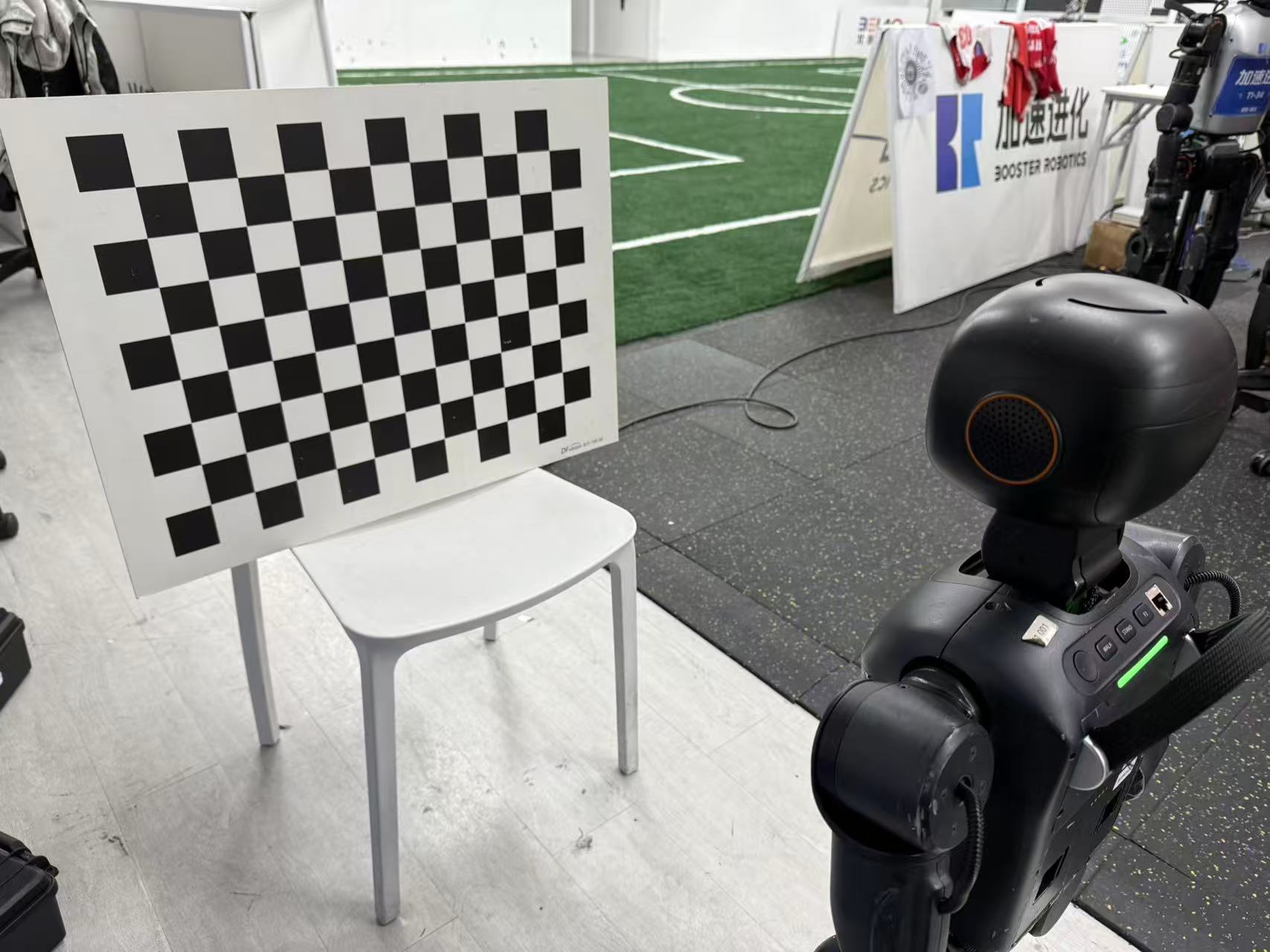
Start the calibration program:
cd ~/Workspace/K1_5v5_Demo_1.6/
source install/setup.bash
ros2 run vision calibration_node handeye src/vision/config/vision.yaml
Calibration window example:
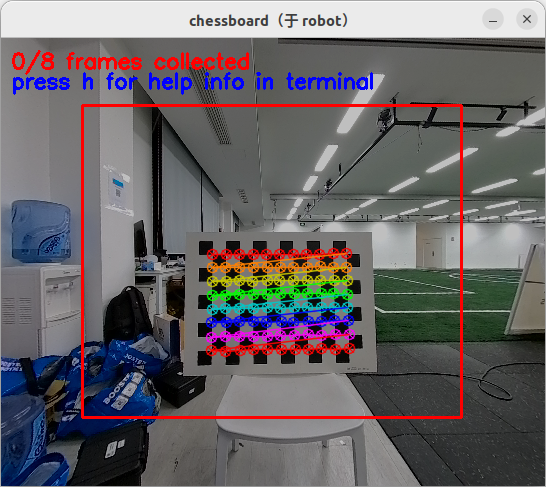
Operation steps:
- Select the calibration window.
- Press s to select the current image for calibration. Once selected, the calibration board area will have a green overlay, and the image count in the upper-left corner will update.
- Use the controller to move the robot's head; do not move the robot's base.
- Have the calibration board cover different positions in the field of view, covering the target area as much as possible.
- After collecting enough images, press c to compute.
- The computation may take 10 to 30 seconds.
- When the terminal asks whether to overwrite the input config, enter y.
- When the terminal asks whether to save to the system file, enter y to ensure the result is written to /opt/booster/vision.yaml.
- If the save is unsuccessful, use the command sudo cp /tmp/vision.yaml /opt/booster/vision.yaml
4.4 Calibration Board Parameters and On-Site Alternatives
If you use a non-default calibration board, you need to start calibration according to the actual checkerboard parameters. Parameter meanings:
- board_w: the number of squares in the horizontal direction.
- board_h: the number of squares in the vertical direction.
- board_square_size: the actual edge length of a single square, in meters.
Example command:
cd ~/Workspace/K1_5v5_Demo_1.6/
source install/setup.bash
ros2 run vision calibration_node handeye src/vision/config/vision.yaml --ros-args -p board_w:=10 -p board_h:=10 -p board_square_size:=0.05
When there is no physical calibration board on-site, you can print or display a checkerboard image, measure the actual square edge length, and fill in the parameters. The key is that the parameters must match the actual on-site dimensions.
5. GameController Configuration and Match Operations
5.1 Hardware Connection
The connection diagram between the network cable, router, and GameController machine is as follows:
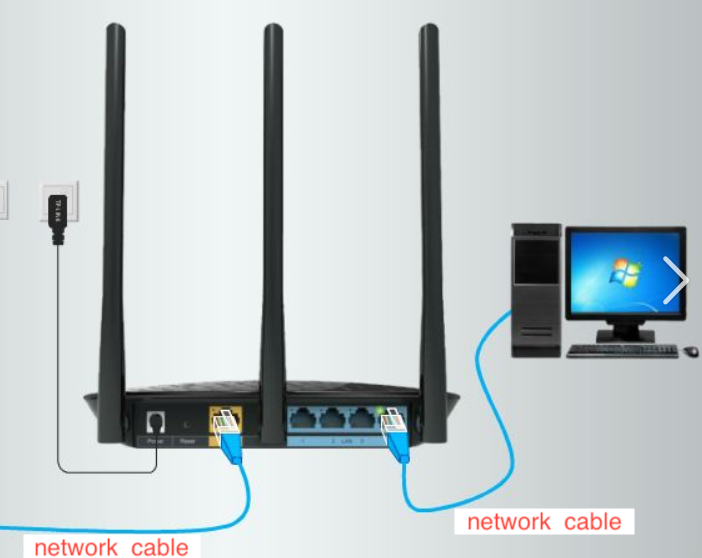
The leftmost network cable can connect to the internet, providing internet access for the computer and robots; if only LAN use is needed, this connection can be ignored.
After completing the hardware connection, you can begin configuring the referee program on the GameController machine.
5.2 Installing and Starting the GameController
The GameController is the match referee system, used for scoring, timing, match status, and penalty operations. The GameController broadcasts match information over the LAN, and all robots on the field must be on the same LAN as the GameController machine.
On Ubuntu 22.04, refer to GameController(kid-adult-demo), or use the precompiled package game_controller-1.0.1-x86_64-unknown-linux-gnu.tar.bz2 from the local materials.
Assuming the file is placed in ~/Documents/:
cd ~/Documents/
tar -xjf game_controller-1.0.1-x86_64-unknown-linux-gnu.tar.bz2 -C ~/Documents/
cd ~/Documents/game_controller-1.0.1-x86_64-unknown-linux-gnu
./game_controller
GameController startup screen example:
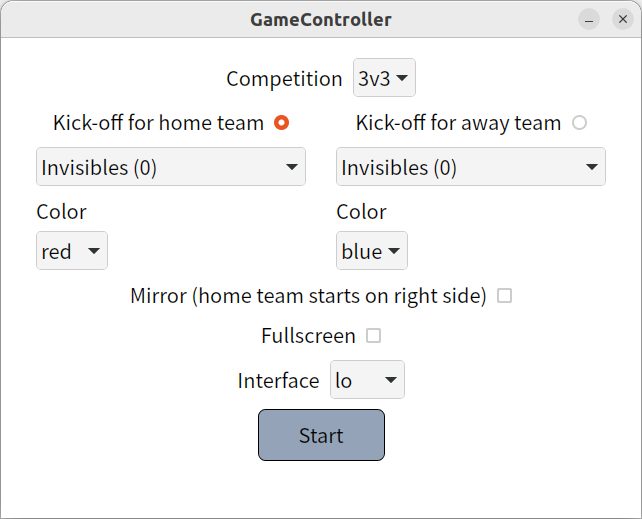
On first run, if libwebkit2gtk-4.1.so.0 is missing, run the following after connecting the GameController machine to the internet:
sudo apt update
sudo apt install libwebkit2gtk-4.1-0
5.3 Configuring Teams and the 5v5 Group
GameController team information is usually configured in config/humanoid/teams.yaml under the extracted directory. When adding a team, we recommend copying an existing team block, then modifying the team name and number while preserving the YAML indentation.
Example:
- name: Team23
  number: 23
  fieldPlayerColors: [red, blue]
  goalkeeperColors: [black, white]
You also need to add the same team number to the team list for the 5v5 group, configured in config/humanoid/5v5/teams.yaml under the extracted directory:
- 23 # Team23
Save the configuration and restart the GameController machine. If you cannot see the team in the GameController interface, check the following first:
- Whether the team was written into config/humanoid/teams.yaml.
- Whether the same number was added to the team list for the 5v5 group.
- Whether the YAML indentation, colons, and spaces preserve the format.
5.4 Configuring GameController Team Information and the Message Broadcast Network Interface---For the GameController Machine
On the GameController's initial interface, you need to select:
- The two competing teams.
- The match group, selecting 5v5.
- The network interface used to broadcast match information.
- Click start to enter the match interface.
You can view the network interfaces with the following command:
ifconfig
Network interface example:
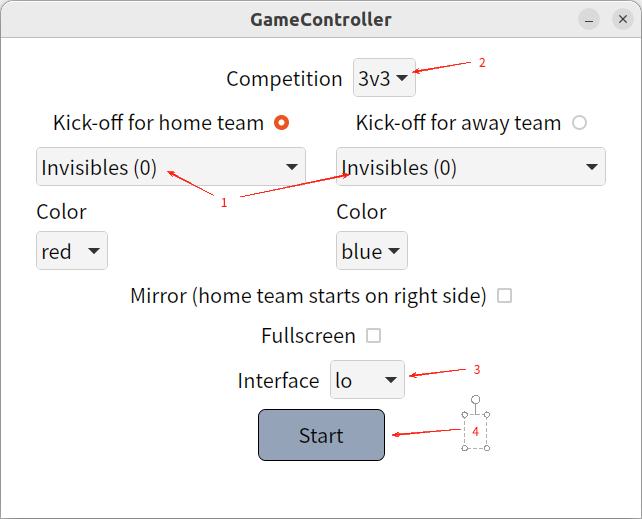
Common interface meanings:
- Wired NICs (
eth0,eno1,enp3s0, etc.): recommended for official matches, with lower latency and better stability. - Wireless NICs (
wlan0,wlp2s0, etc.): usable during training and debugging, but you need to ensure the wireless network is stable. - Loopback interface (
lo): used only for local communication on this machine, not for real robot matches.
Official deployment requirement: the IPv4 address used by the GameController machine must match the IP configured in each robot's whitelist and the IP in the brain configuration. If you switch NICs or reconnect to the network, you must synchronize the changes to every robot's configuration after the IP changes.
5.5 Creating and Starting a Match
The general match workflow:
- On the GameController machine, select the two teams, the 5v5 group, and the broadcast network interface.
- Click start to enter the match information interface; the initial state is initial.
- Both teams' robots start the Demo and complete the LT + A and LT + B take-the-field preparation.
- The referee issues ready, and the robots execute their take-the-field logic.
- The referee issues, or the system automatically enters, set, and the robots stand in place.
- The referee issues playing, and the match officially begins.
- During the match, execute penalties, pickup, substitute, and set-piece operations according to the on-field situation.
- After the match ends, the system enters finished.
Match information interface example:
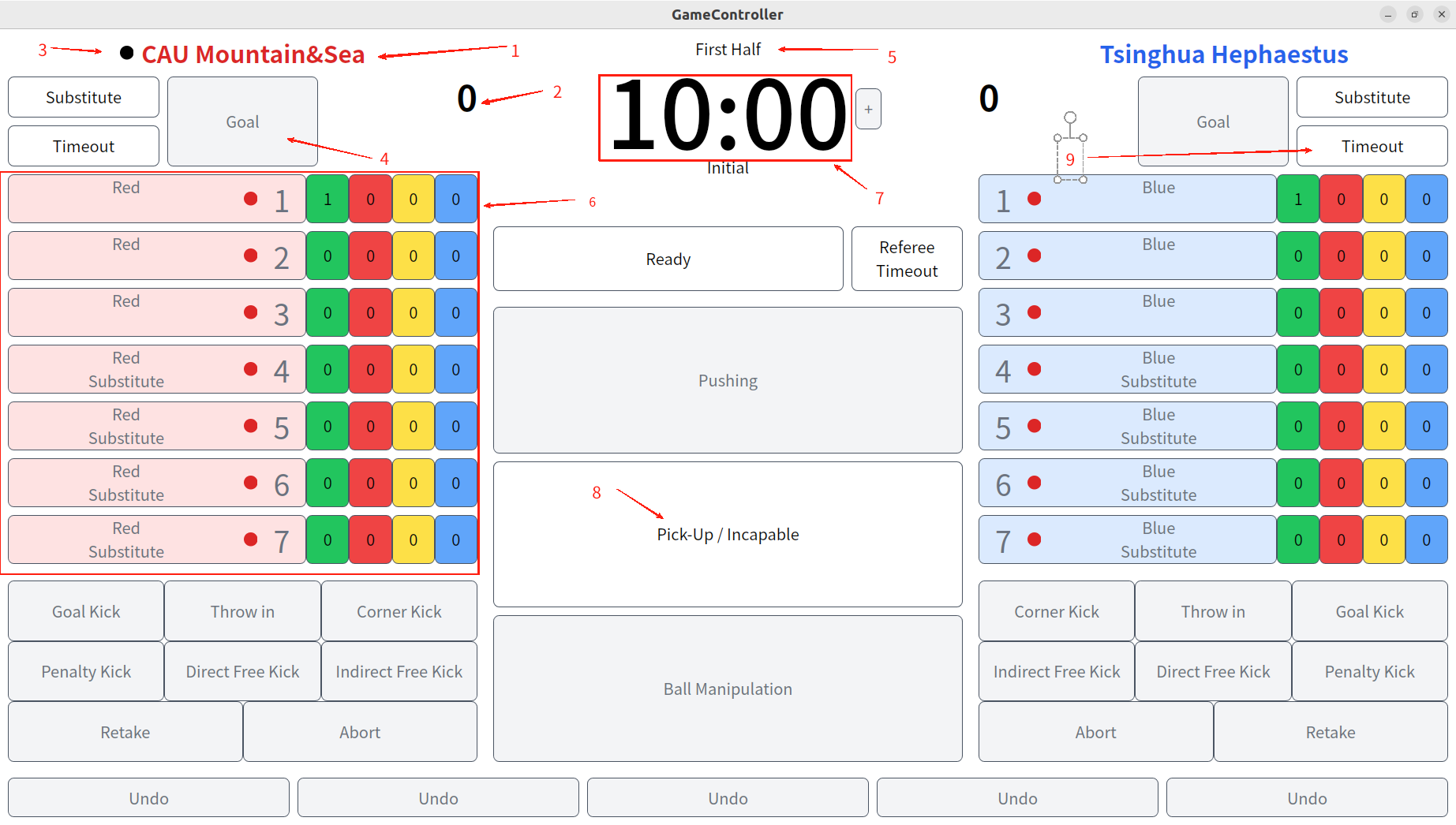
5.6 Match States and Referee Operations
Common match states:
State | Meaning |
initial | Initialization state; both teams' robots start their programs and wait for the match |
ready | Ready state; after receiving the ready command, the robots execute their take-the-field logic |
set | Set state; once in position, the robots stand in place and wait for kickoff |
playing | The match officially begins; penalty buttons become available |
finished | The match has ended |
Common referee operations:
Operation | Purpose |
pickup | When a robot falls, malfunctions, or interferes with the match, first click pickup, then select the corresponding robot number |
substitute | Switch a specified robot to a substitute or perform substitution-related operations |
penalty kick | Penalty kick |
Direct Free Kick | Direct free kick |
Indirect Free Kick | Indirect free kick |
Corner Kick | Corner kick |
throw-in | Throw-in |
Goal Kick | Goal kick |
If a referee operation is clicked by mistake, in some states you can hold down Shift, and the interface will reveal the corresponding undo control; then click it to revert to the previous state. Follow the actual interface of the on-site GameController version.
If a robot's state jumps abnormally among ready, initial, set, and playing, first suspect that multiple GameController machines are broadcasting on the same LAN. In that case, check brain.log and confirm whether the whitelist is enabled and whether the whitelist IP is the current GameController machine's IP.
6. Robot Take-the-Field, Manual Takeover, and Stopping
6.1 Pre-Match Checks
Confirm the following on each robot before taking the field:
- The robot firmware is 1.6.
- The SDK is 1.3.6.
- The Demo is compiled and started.
- vision.log refreshes normally.
- brain.log has no obvious errors.
- game_controller.log can receive the GameController state.
- team_id, player_id, number_of_players, the GameController IP, and the whitelist are configured correctly.
- The robot has sufficient battery, and there are no unrelated people or obstacles on the field.
6.2 Take-the-Field Operation Sequence
V1.6 must take the field in the following sequence:
Start the Demo
-> PREP / STAND
-> WALK / RT + A   #execute after placing at the field edge
-> LT + A: relocalize and enter kSoccer mode
-> Wait for localization to complete
-> LT + B: enter the automatic match strategy
The purpose of LT + A is not only to relocalize but also to put the robot into kSoccer mode. Do not skip LT + A and press LT + B directly.
After executing LT + A, the robot will try to find the soccer ball. Normal behavior is to keep gazing at the ball after finding it. If the head keeps turning and cannot gaze at the ball, first troubleshoot the vision, camera, calibration, and model before proceeding to the next step.
After executing LT + B, the robot enters the automatic match strategy and will subsequently act according to the GameController state.
6.3 Manual Takeover
When you need to exit AI control, press:
LT + X
After takeover, the robot may continue executing the last motion command issued by the AI. At this point, gently push the joystick to interrupt the last command, then take manual control.
6.4 Stopping the Demo
Stop the program:
cd ~/Workspace/K1_5v5_Demo_1.6/
./scripts/stop.sh
After stopping, continue observing the robot's posture, and when necessary, put the robot into PREP or DAMP before carrying it or shutting it down.
7. Recovery Workflow After Battery Swap or Power Loss
7.1 Safe Battery Swap
When the K1 issues a low-battery warning or the power indicator light signals a low battery, you should swap the battery promptly to avoid the robot losing power and collapsing, which could damage joints or pose a risk to people.
Safe battery swap workflow:
- Move the robot to a spacious, safe area.
- Use STAND/PREP to put the robot into a stable posture.
- Safely lay the robot down or place it on a support device.
- Hold the battery latch and remove the low-battery pack.
- Insert a fully charged battery, with the battery indicator light facing toward the robot's head.
- After hearing the latch click, confirm the battery is installed in place.
- Power on, wait for the prompt tone, and enter PREP before placing the robot back on the field.
Battery swap example:
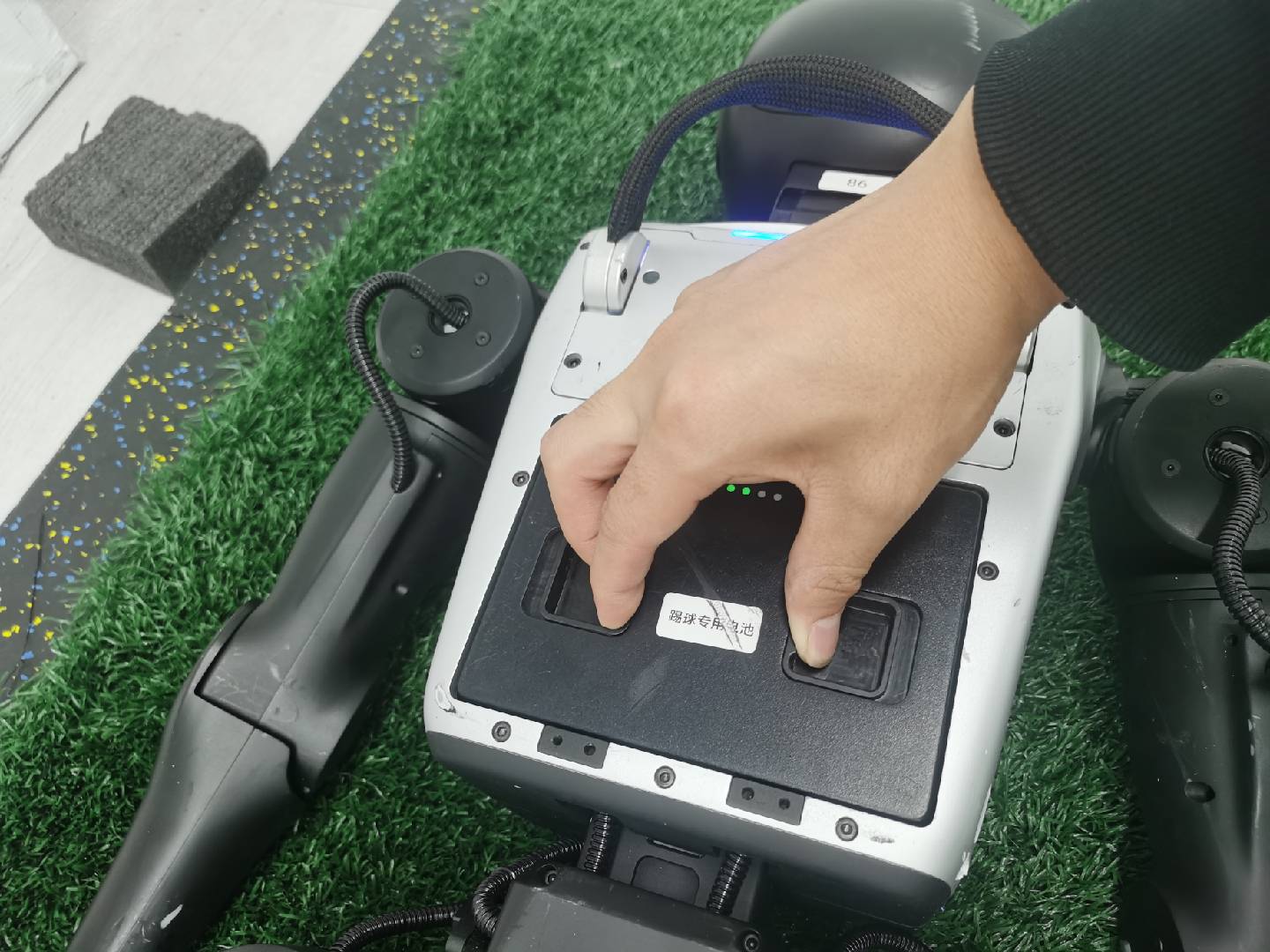
7.2 Restarting the Strategy
After replacing the battery and powering on again, you must restart the strategy:
cd ~/Workspace/K1_5v5_Demo_1.6/scripts/
chmod +x *
./start.sh
start.sh may first stop the old vision, brain, sound, and game_controller processes. If no process found appears on the first startup, this is usually normal because the old processes did not exist in the first place. If, after running start.sh multiple times, it still reports that the relevant feature packages are not online, you should check the startup script, the compilation results, and the logs.
8. Frequently Asked Questions (Q&A)
8.1 Connection, Compilation, and Startup Issues
Q: What should I do if I cannot connect to the robot via SSH?
A: Check in the following order:
- Whether the robot is powered on and has completed the startup prompt tone.
- Whether the local computer and the robot are on the same LAN.
- Whether the wired connection uses 192.168.10.102.
- For a wireless connection, whether the IP is the robot's current wireless IP.
- Whether the username is booster and the initial password is 123456.
- Whether the local computer's NIC IP is configured to the correct subnet.
Q: What should I do if the Demo behavior does not change after modifying the configuration?
A: After modifying config.yaml, recompile and restart:
cd ~/Workspace/K1_5v5_Demo_1.6/
./scripts/build.sh
./scripts/stop.sh
./scripts/start.sh
Also confirm that the file you modified is the configuration file on the current robot, not a copy on the local computer or another robot.
Q: What should I do if I cannot tell whether the program is running normally after startup?
A: View the three logs:
cd ~/Workspace/K1_5v5_Demo_1.6/
tail -f brain.log
tail -f vision.log
tail -f game_controller.log
brain.log shows the strategy and match state; vision.log shows the camera and model; game_controller.log shows GameController communication.
8.2 Vision, Calibration, and Localization Issues
Q: What should I do if the robot cannot find the ball or keeps turning its head?
A: Check the following first:
- Whether vision.log refreshes normally.
- Whether /opt/booster/vision.yaml matches the current camera.
- Whether image_topic and depth_image_topic are the unified V1.6 Topics.
- Whether the camera parameters and the YOLO model path are correct.
- Whether a re-calibration of the hand-eye is needed.
Q: What should I do if ranging is inaccurate, the robot cannot kick the ball, or kicks are off target?
A: First confirm visual_kick_version: kV2, then check the vision configuration and camera parameters. If the ranging deviation is still noticeable, redo the hand-eye calibration and save the result to /opt/booster/vision.yaml.
8.3 GameController and 5v5 Strategy Issues
Q: What should I do if the robot's match state jumps randomly among ready/initial/set/playing?
A: This is usually because multiple GameControllers are broadcasting on the same LAN, or the robot's whitelist is configured incorrectly. Steps to handle it:
- Confirm that only one GameController machine is running on the LAN.
- On the robot, view brain.log to confirm the source of the state jumps.
- On the GameController machine, run ifconfig to confirm the IPv4 address of the NIC currently in use.
- Check each robot's config.yaml and launch.py to confirm the GameController IP matches the whitelist.
- After making changes, recompile and restart the Demo.
Q: What should I do if the robot cannot receive the GameController state?
A: Check:
- Whether the GameController machine and all robots are on the same LAN.
- Whether the GameController selected the correct network interface.
- Whether the GameController IP in the robot's configuration is the IPv4 address of that interface.
- Whether the whitelist is enabled and the IP is filled in correctly.
- Whether game_controller.log has communication output.
Q: What should I do if I cannot see a team on the GameController configuration page?
A: Check config/humanoid/teams.yaml and the 5v5 group team list. The team numbers must be consistent, and the YAML indentation must be correct. After making changes, restart the GameController.
8.4 Recovery After Battery Replacement or Power Loss
Q: Is it a failure when the startup script reports no process found?
A: Not necessarily. start.sh may first run the stop logic to clean up old processes. If there are no old processes on the first startup, seeing no process found can be normal. If, after starting multiple times, the logs still show that nodes are not online, then check the compilation results, script permissions, and the three log files.
8.5 Specific Method for Setting Up a Static IP for Communication Between the Robot and the GameController
Q: In some matches, the organizer requires the robot to use a static IP to communicate with the GameController. How should this be set up?
A: Here we use a concrete example as a demonstration.
Before the match, the organizer's TC/OC will usually inform you of this requirement, and they typically provide the following:
Router Wi-Fi name: BoosterRobotics
Password: boosterbooster
Gateway: 192.168.50.1
GameController computer IP: 192.168.50.217
The robot IP should be set to: 192.168.<team number>.<player number>  #here we use 192.168.66.87 as an example
After we obtain this information, the GameController IP is filled into the corresponding field in the Demo,
and the static IP setup follows the method below:
- Open a terminal:
sudo nmtui
- Select:
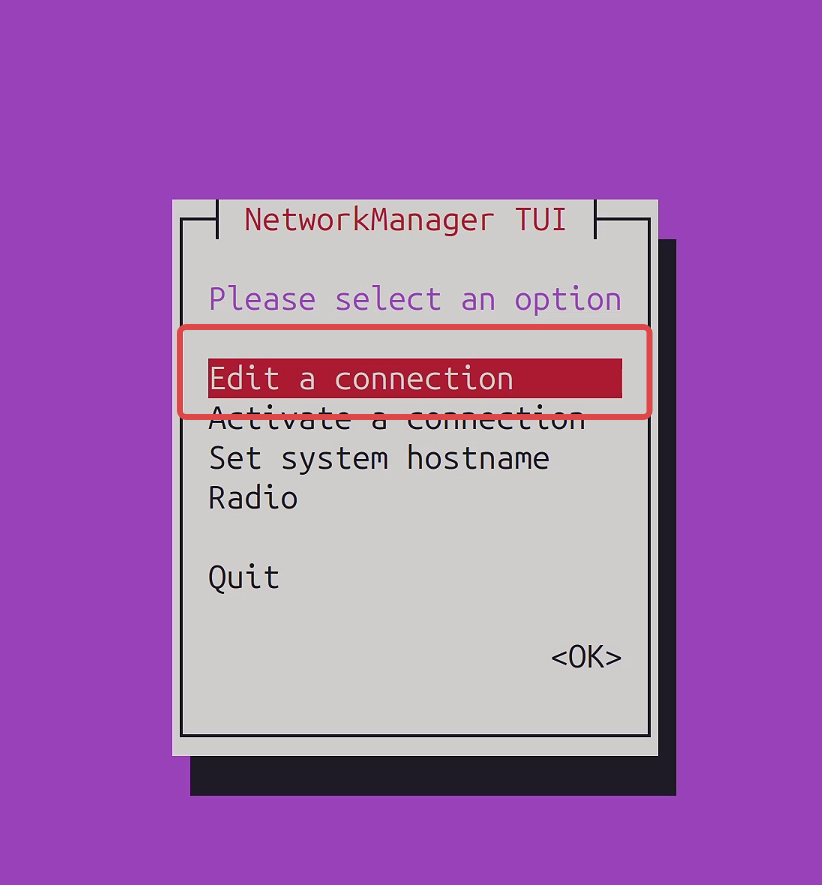
Edit a connection
- Find the Wi-Fi connection
roboleagueand select<Edit>.
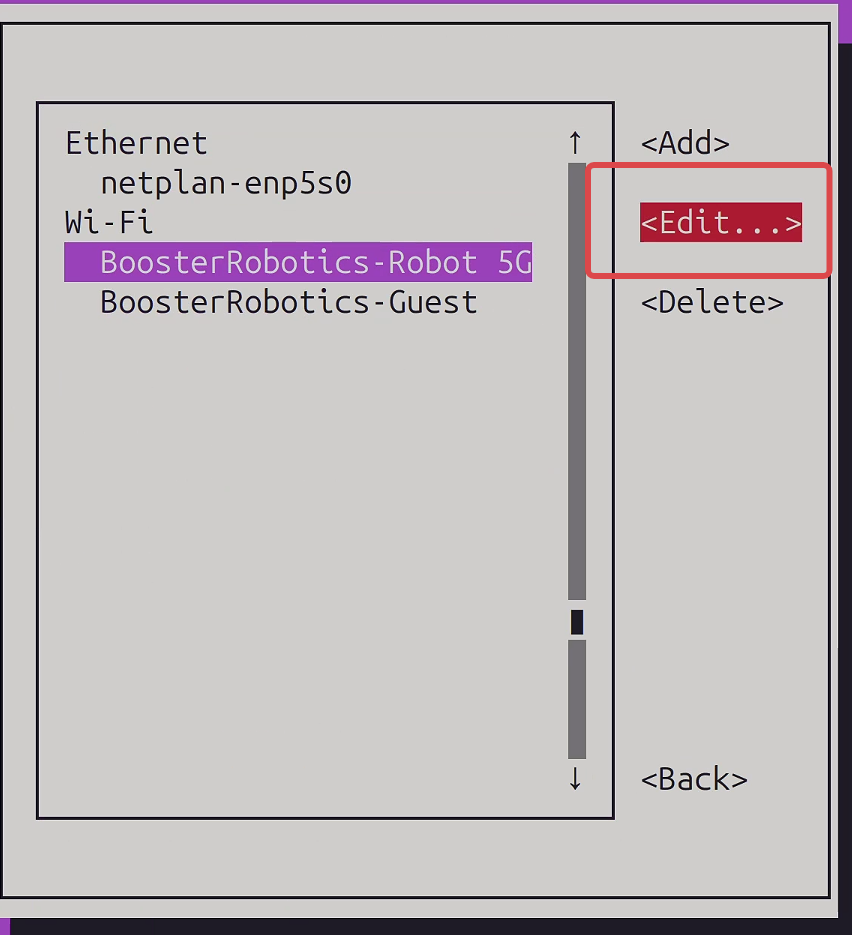
If this connection is not in the list, first exit and connect to the Wi-Fi:
nmcli device wifi connect "BoosterRobotics"
Then run again:
sudo nmtui
- On the edit page, set:
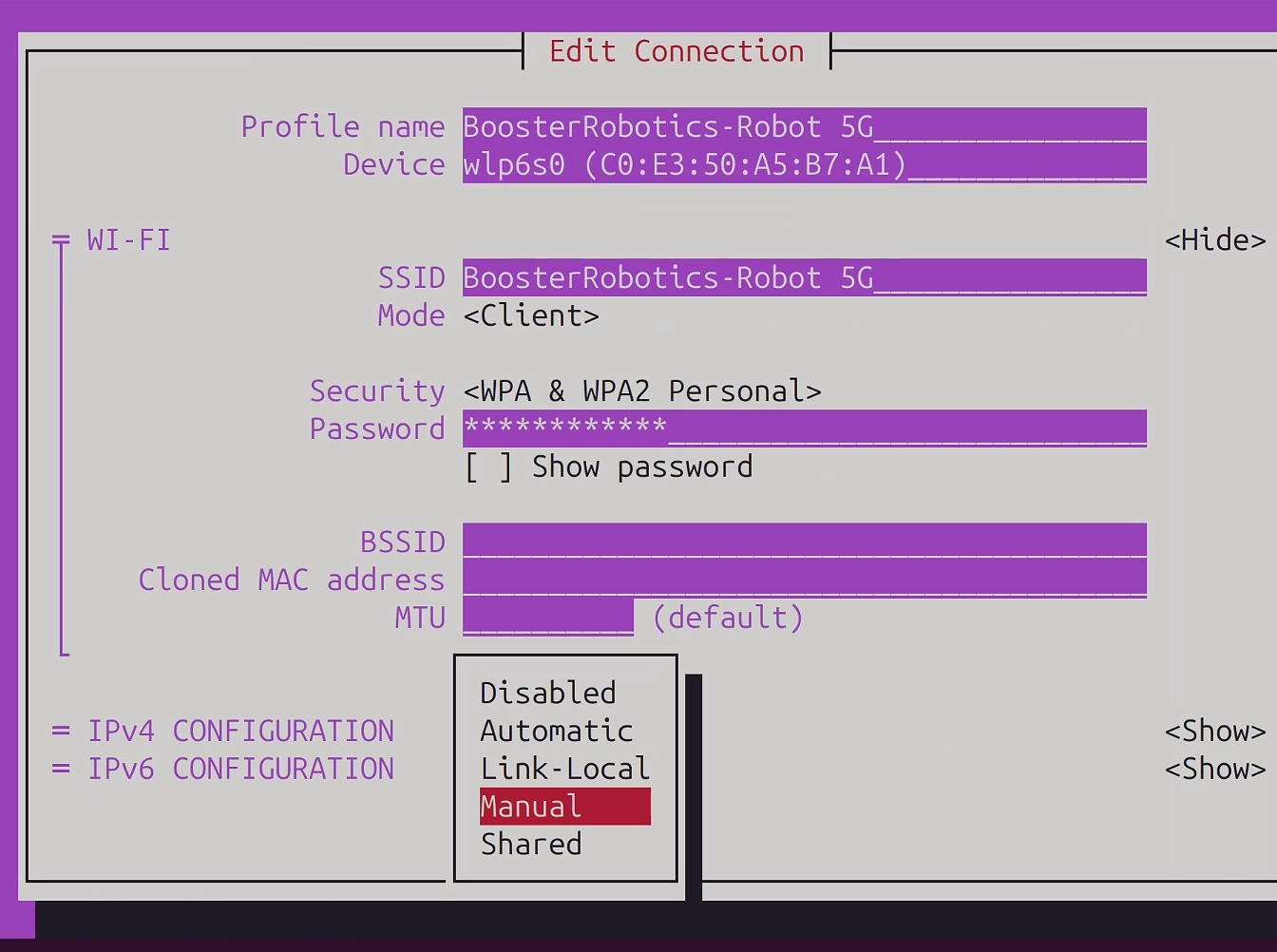
IPv4 CONFIGURATION: Manual
- Select
<Show>next to the IPv4 configuration and fill in:
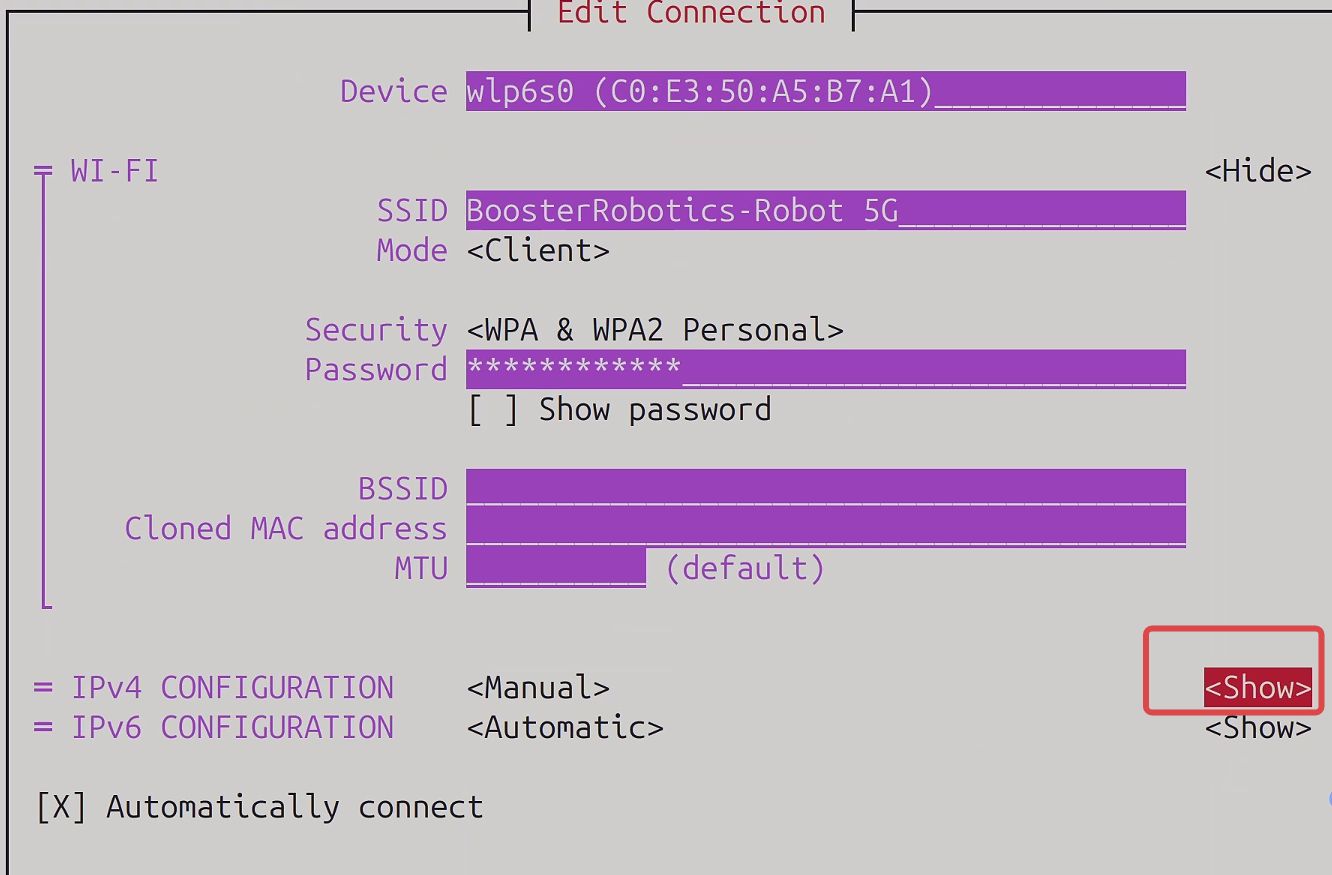
Addresses: 192.168.66.87/16
Gateway:   192.168.50.1
Keep the following options:
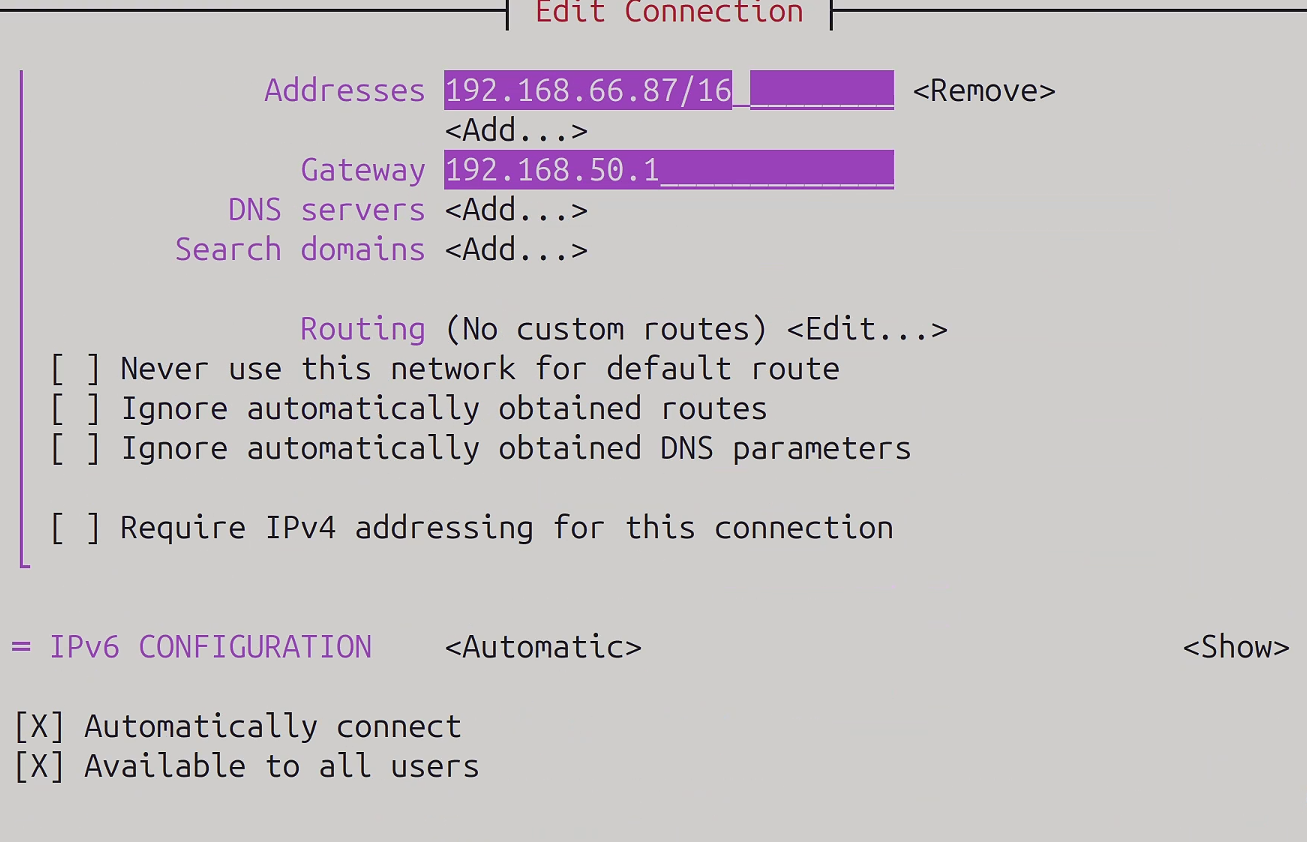
[X] Automatically connect
[X] Available to all users
- Select
<OK>to save, then press Esc to return to the main menu, and select:
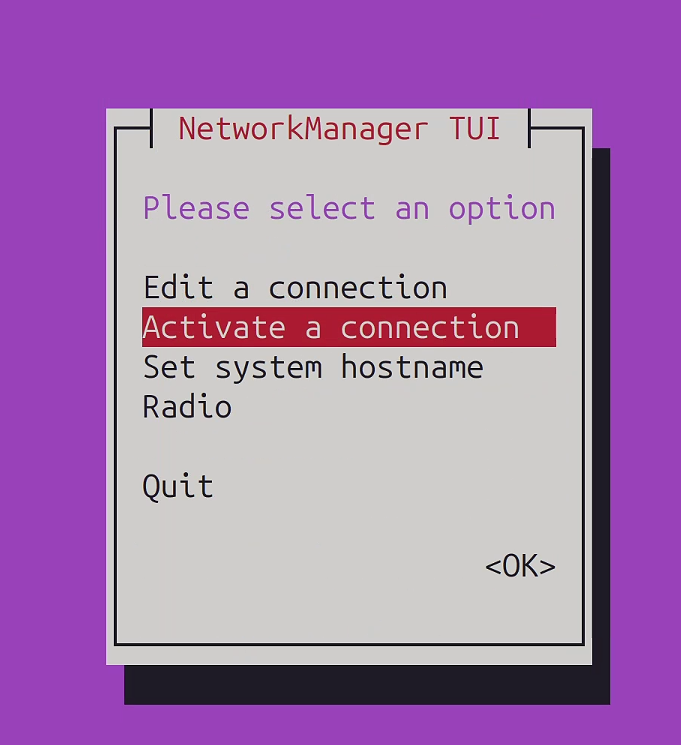
Activate a connection
First deactivate roboleague, then re-enable it. You can also exit nmtui and run:
sudo nmcli connection down "BoosterRobotics"
sudo nmcli connection up "BoosterRobotics"
- Check the configuration:
ip -4 address
ip route
nmcli connection show "BoosterRobotics"
Test the network:
ping -c 4 192.168.50.217 #ping the GameController machine