
Remote Support
Overview
When the robot has a problem and you need remote help, follow the process below to get remote assistance from our staff.
Information to Send to Technical Support
- Device ID and one-time passcode.
- Current robot state: whether it can power on, whether it can connect to the network, and the current mode.
- Symptoms: for example, unable to walk, abnormal App connection, upgrade failure, and so on.
- When the problem occurred and the operation you were running at the time.
- Whether you have already uploaded logs, or exported logs yourself through the terminal.
Remote Assistance Process
💡
Depending on your needs, you can use either of the following two methods for remote assistance.
- Connect your personal computer to the robot over SSH. Technical support connects to your computer through remote desktop, and then connects to the robot over SSH.
- Install remote desktop on the robot. Connect a monitor, keyboard, and mouse to open the remote desktop software on the robot, so technical support can connect to the robot directly.
-
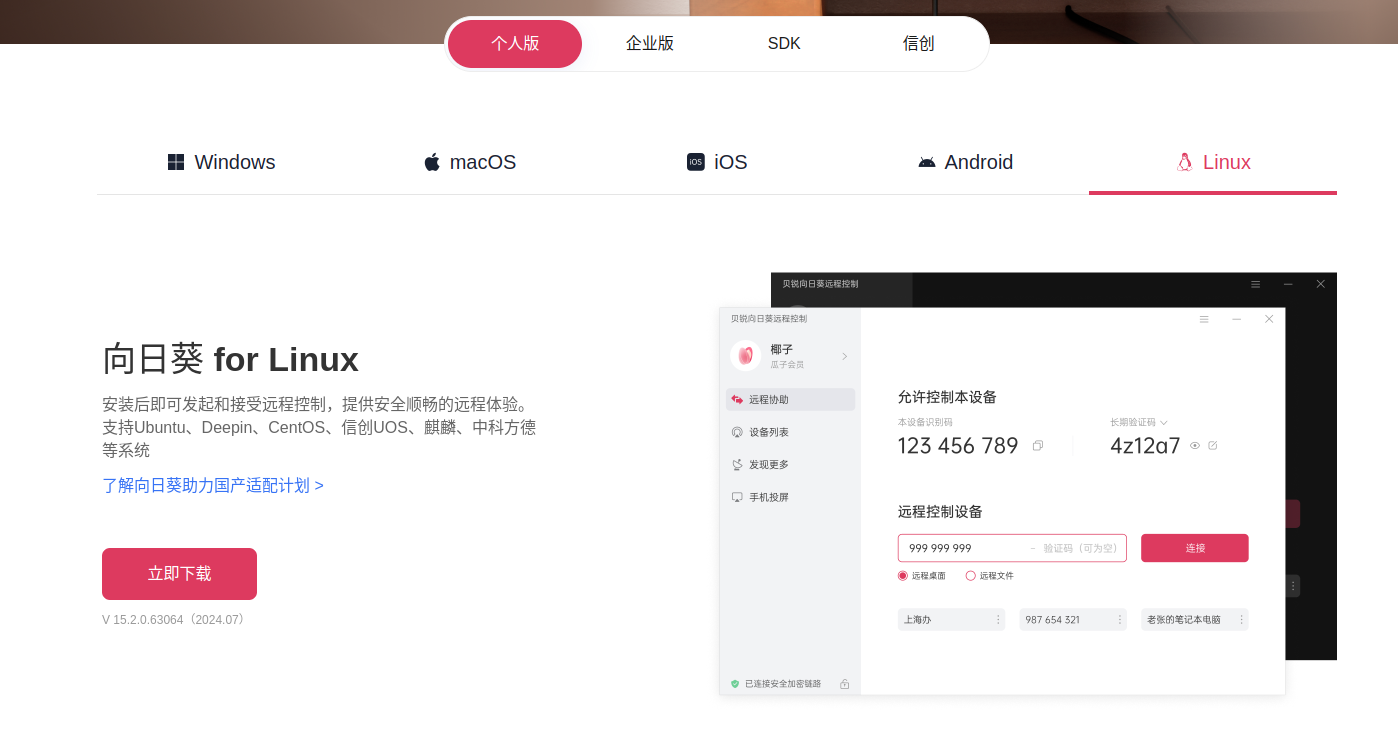
Download the remote desktop software:https://sunlogin.oray.com/download
- Select the personal edition.
- Select the operating system that matches your device.
-
Install the remote desktop software, and provide your Device ID and one-time passcode to technical support.
-
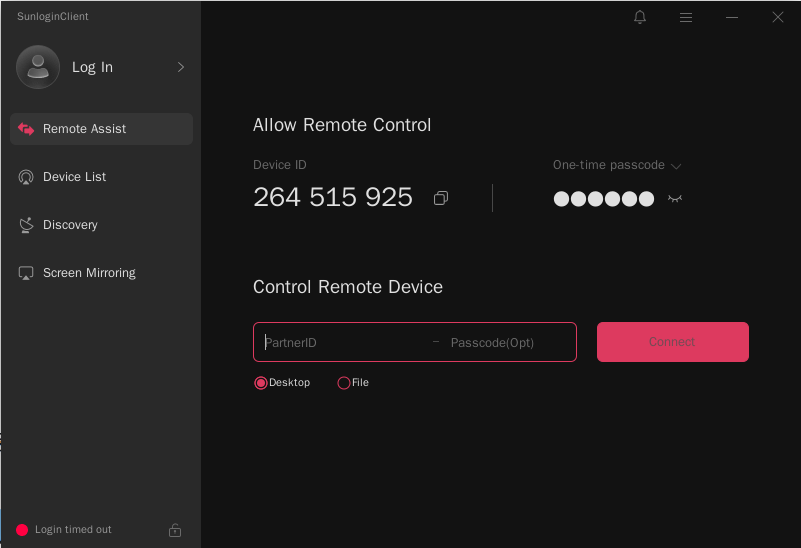
After installation, the software looks like this:
-
Click the eye button below "One-time passcode" to reveal the passcode, then copy the "Device ID" and "One-time passcode" and send them to our technical support.
-
-
Our technical support can then connect to the robot through remote desktop and start troubleshooting.