
Version Upgrade
Before Upgrading
When installing a new version of software, the robot's motion control program will be stopped, and the robot's joints will not exert force. Before upgrading, ensure the robot is in damping mode or motion control is stopped and has good support (e.g., placing it flat on the ground or using a stand to support the robot). Do not cut off power or interrupt the process during the upgrade.
- Make sure the installation package matches the current K1 model and the target version.
- Make sure the robot's battery level, network, and terminal connection are stable.
- If you have modified any configuration files, back up important configurations and logs first.
Upgrade via App
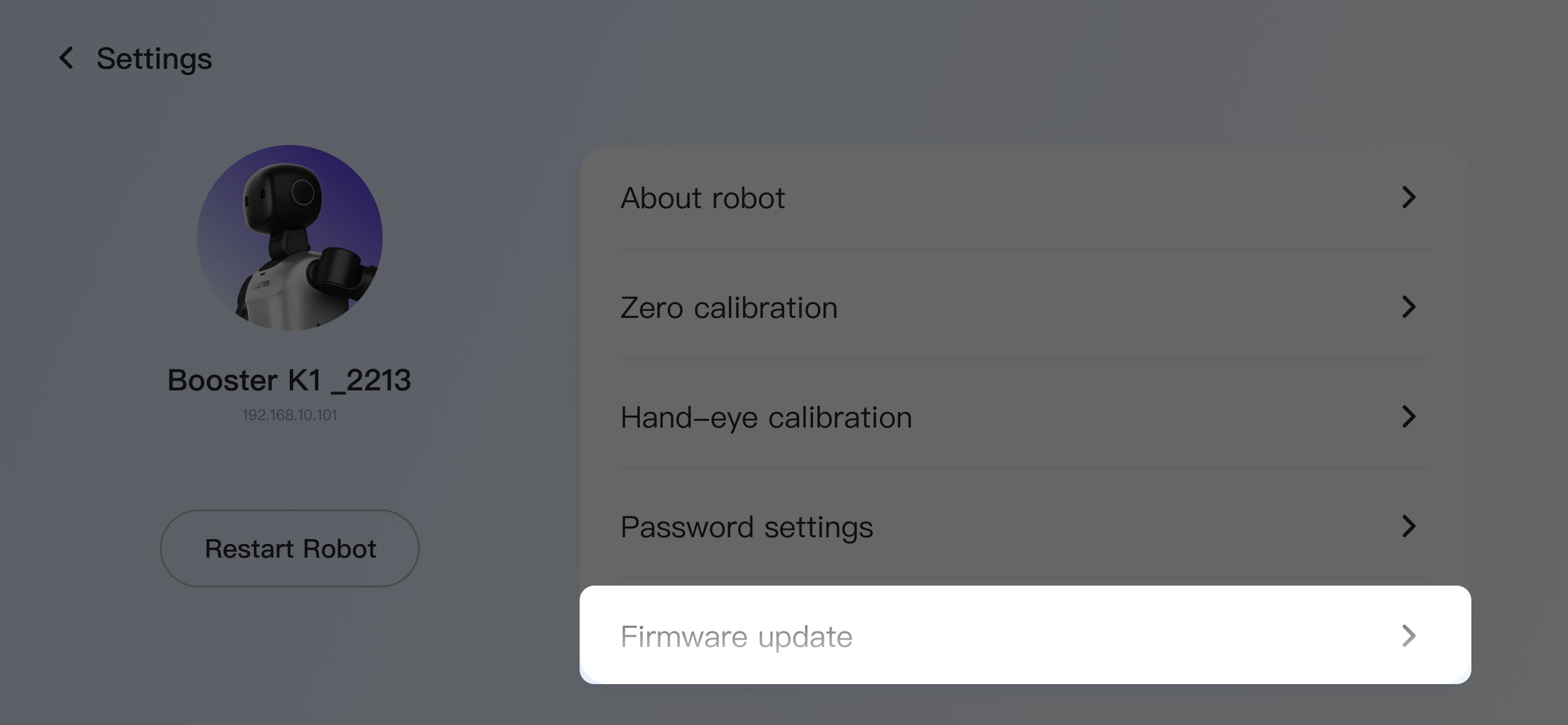
In the robot settings, tap "Firmware Update".
-
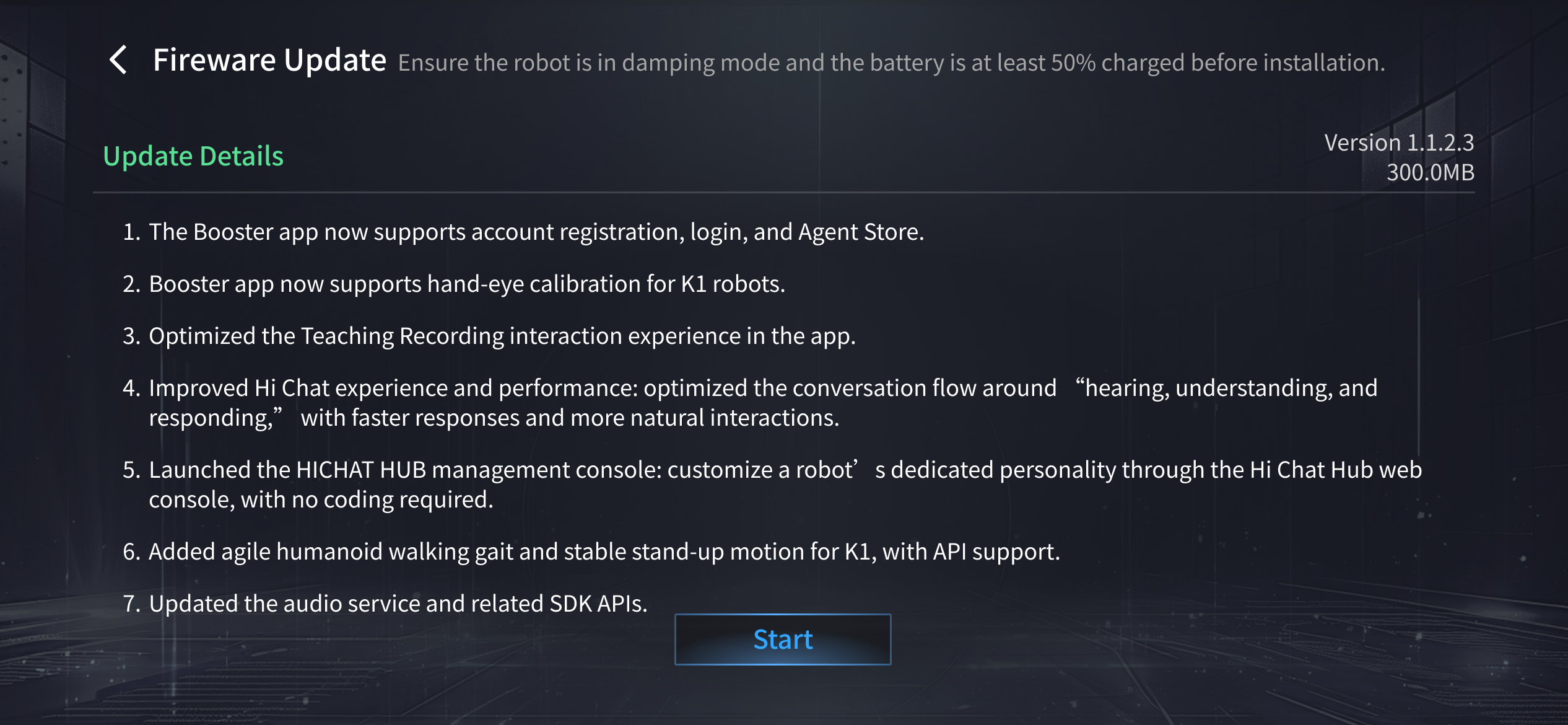
Before installing the firmware, make sure the robot has entered damping or ready mode, and the battery level is above 50%.
Upgrade via Terminal
Upgrade with Package
Please refer to the historical version manual K1 Instruction Manual(Legacy Version)
Please refer to the historical version installation packages K1 Version History
Download the latest installation package of the robot software. The current release information is as follows:
Release Date | Software Version | Software Package Download Link | Update Content |
|---|---|---|---|
2026.10.19 | v1.8.1.2 | Bug Fixes:
|
-
Set the file execution permission. Replace
<package-filename>.runwith the actual name of the downloaded installation package.sudo chmod +x <package-filename>.run -
Copy the software upgrade package to the K1 board (for example, to
/home/booster/Downloads).scp <package-filename>.run booster@192.168.10.102:/home/booster/Downloads/ -
Log in to the robot's board, go to the directory where the package is located, and run the installation with root privileges.
cd /home/booster/Downloadssudo ./<package-filename>.run -
After the installation is complete, restart or check the robot's service status as prompted.
Upgrade with Command-line
v1.0.5.0 and later support upgrading to the latest system via the command line. After logging in to the robot's board, run:
booster-cli upgrade
The appearance of the following printed content indicates that the system update has been completed.

FAQ
Slow pip Downloads
The perception process depends on some Python libraries installed via pip. If downloads are slow, you can switch the pip download source and run the upgrade again.
sudo su
pip config set global.index-url https://pypi.mirrors.ustc.edu.cn/simple
./<package-filename>.run
apt update Fails
If the upgrade log indicates that apt update failed, you can use the fishros tool to switch sources and try the upgrade again.
# Recommended: use fishros and select in order:
# [5] One-click source change
# [1] Change system source only
# [1] Add ROS/ROS2 source
wget http://fishros.com/install -O fishros && . fishros