Connect to Booster Robot
-
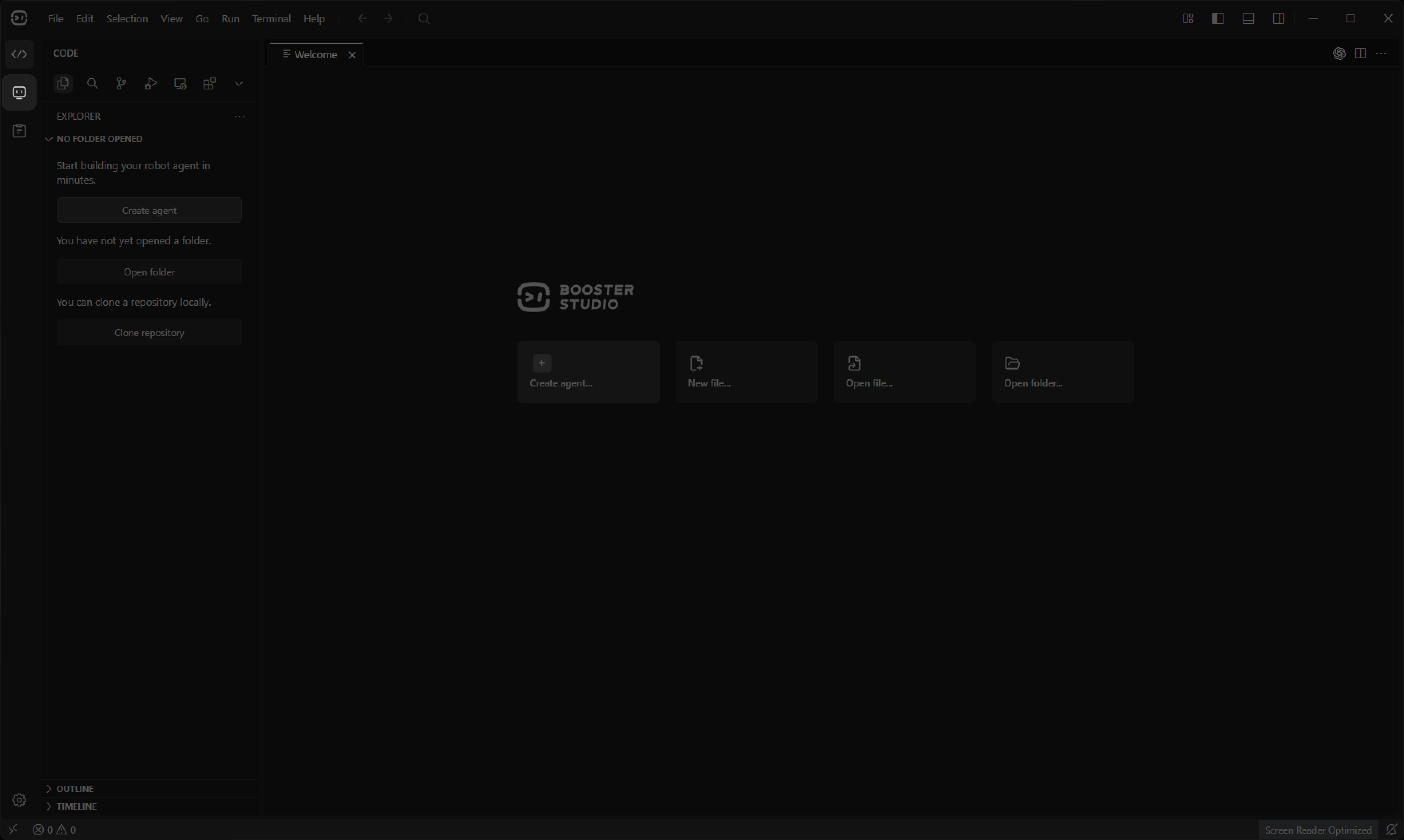
Switch to the "Robots" tab.
-
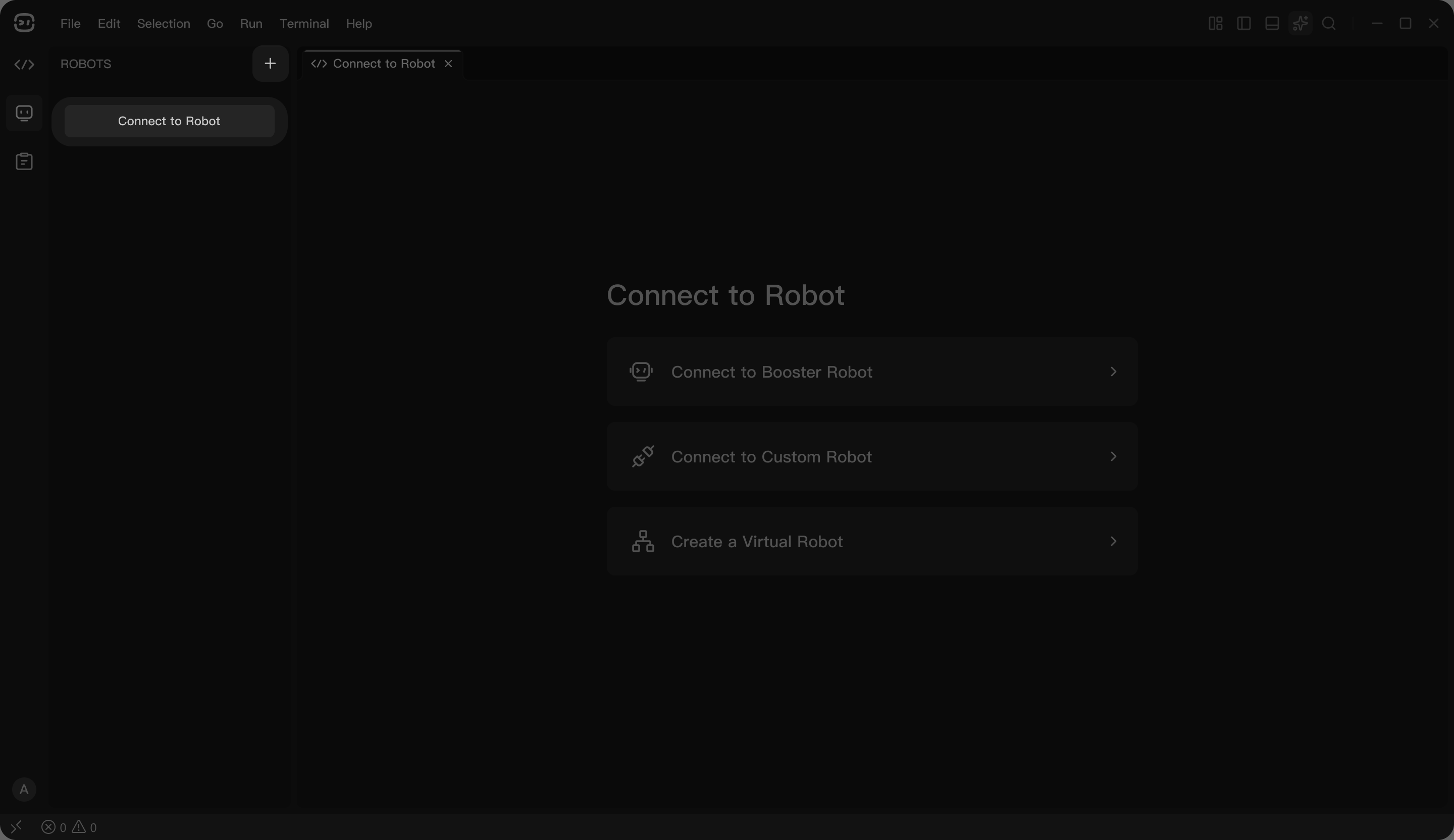
Click "Connect to Robot" or "+" in the upper-left corner to open the robot connection page.
-
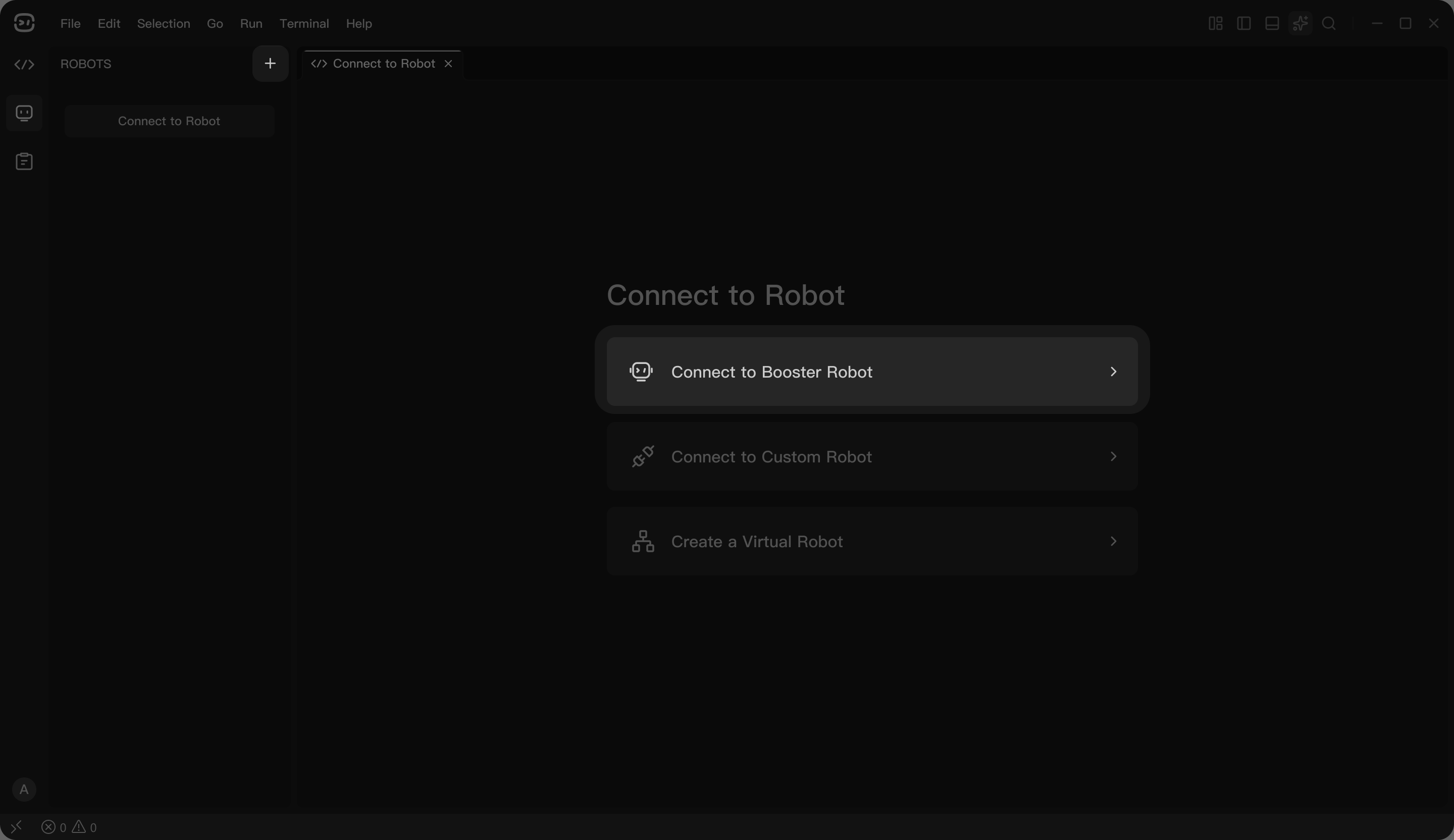
Booster Studio supports connections to Booster robots, custom robots, and virtual robots. Click "Connect to Booster Robot" .
-
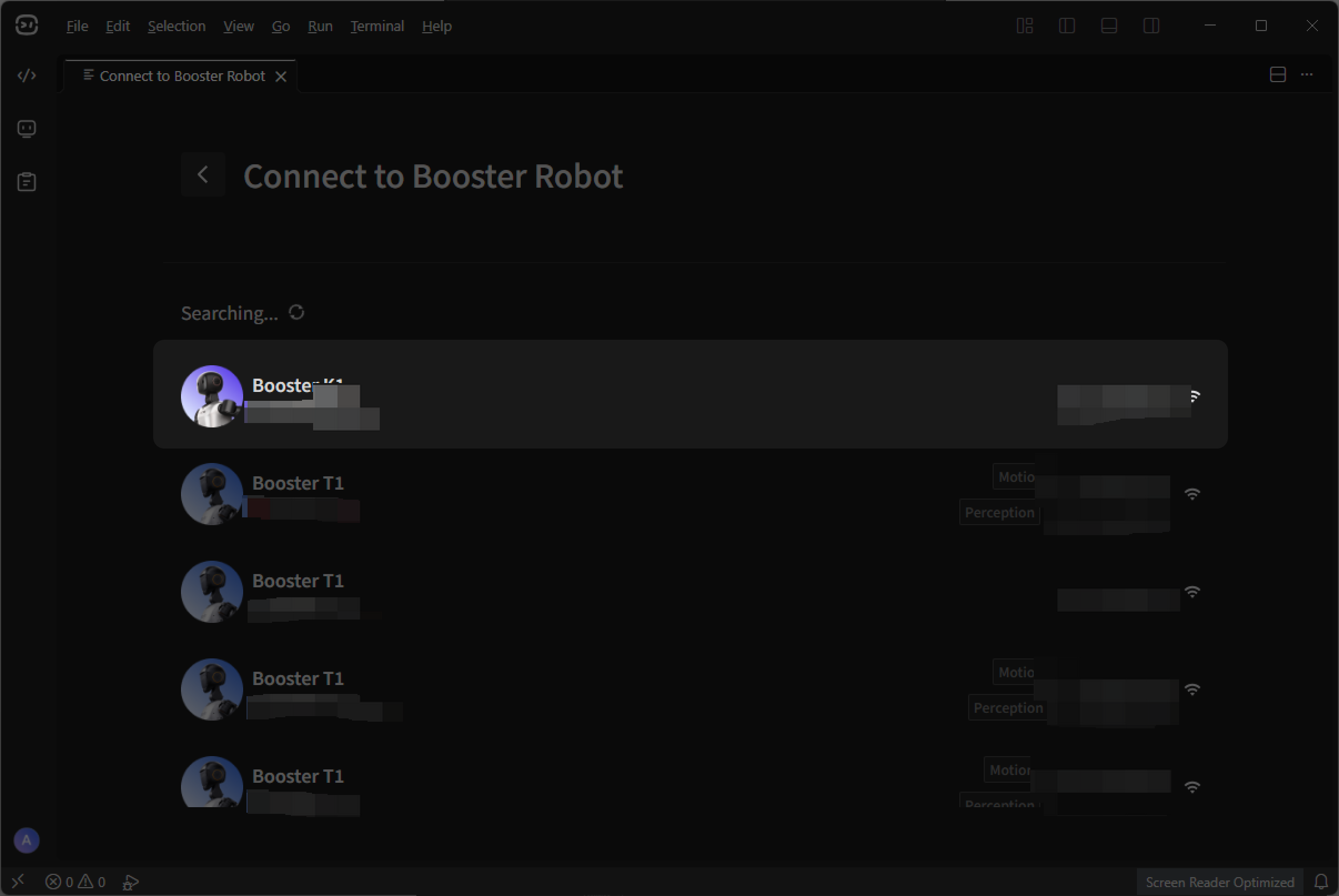
Find your robot in the list and click it to connect.
-
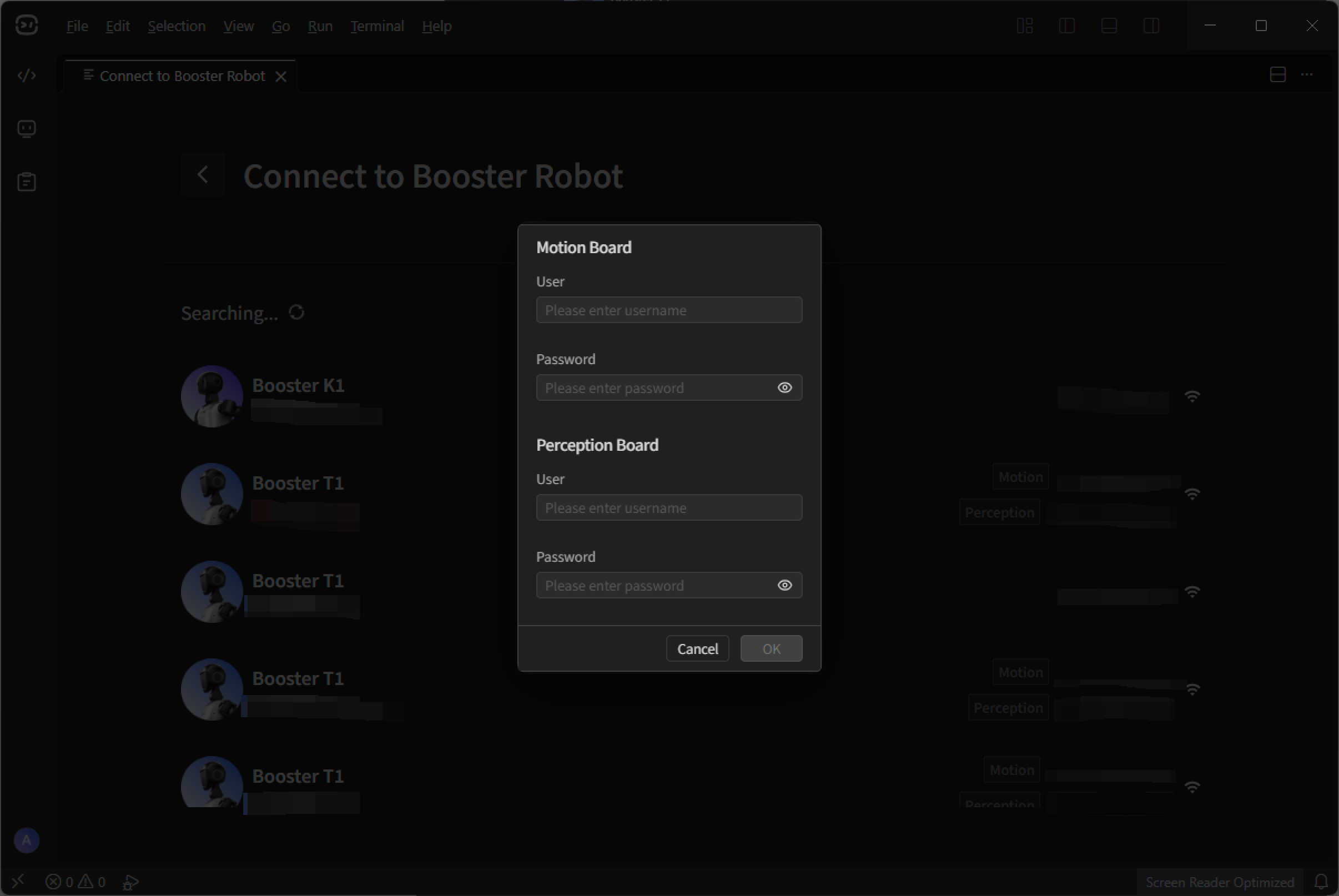
In the pop-up, enter the username and password for each board, then click "OK".
-
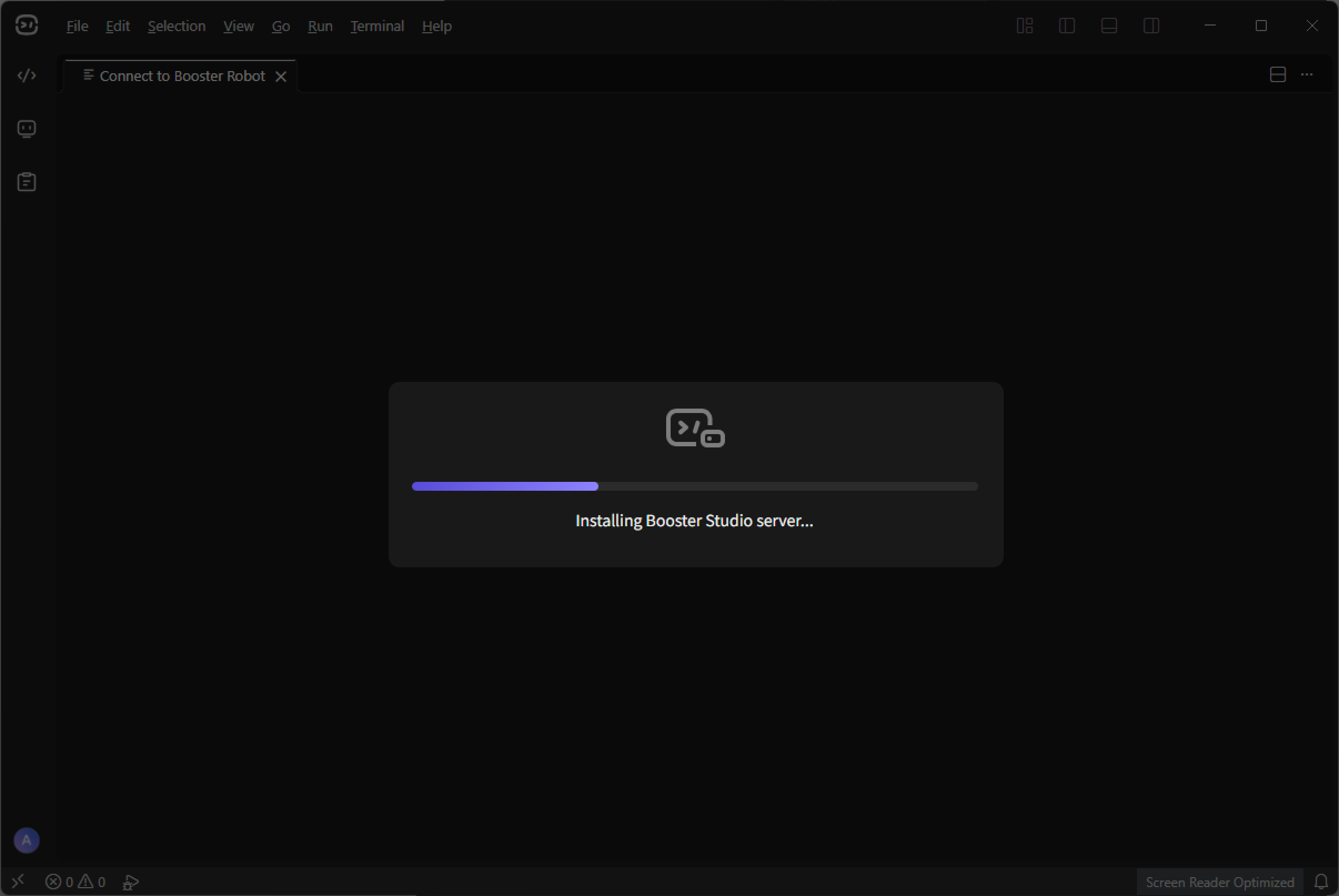
Start connecting to the robot and wait for the progress bar to finish.
-
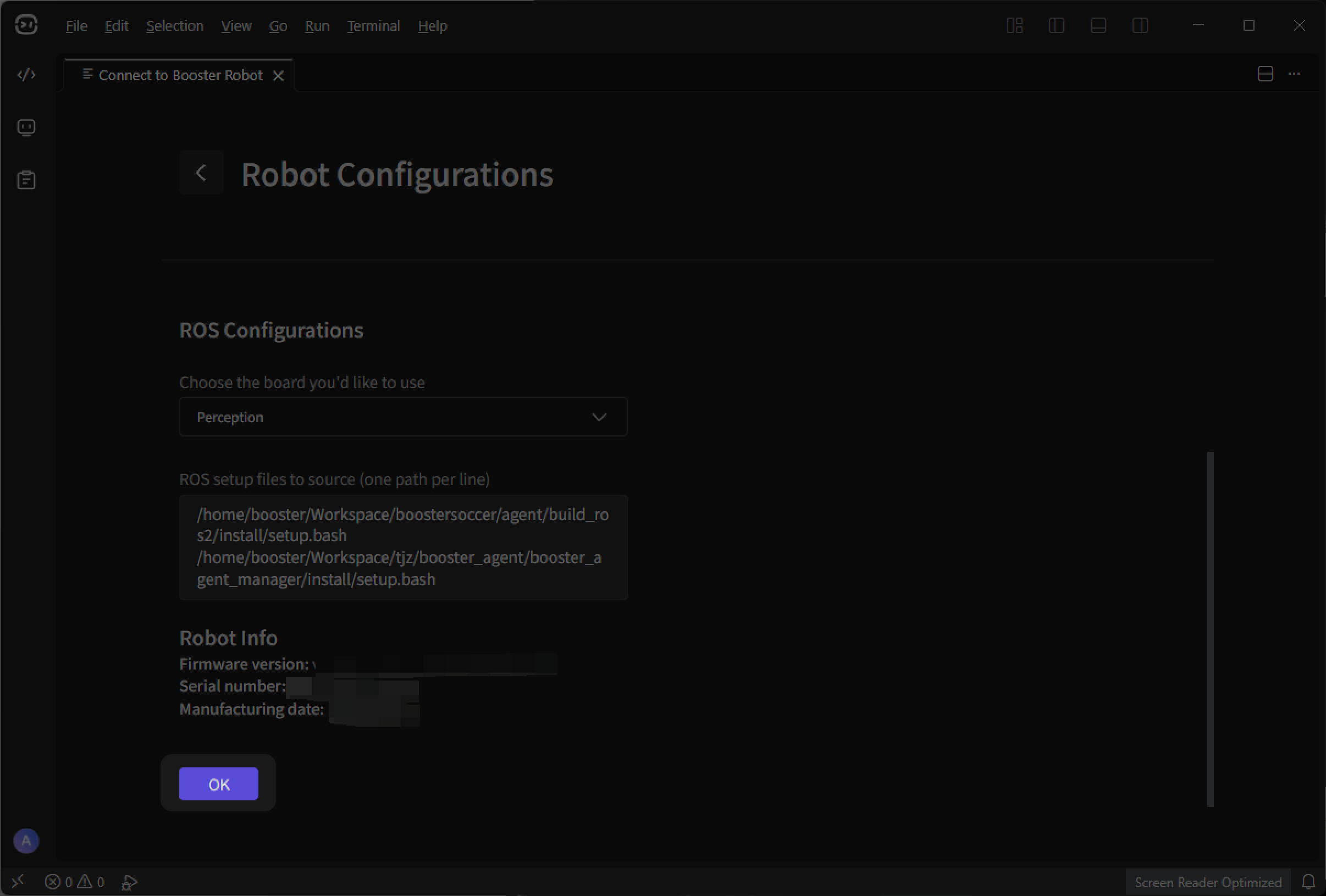
On the robot configuration page, you can change the robot name or configure the setup file path. Click "OK".
-
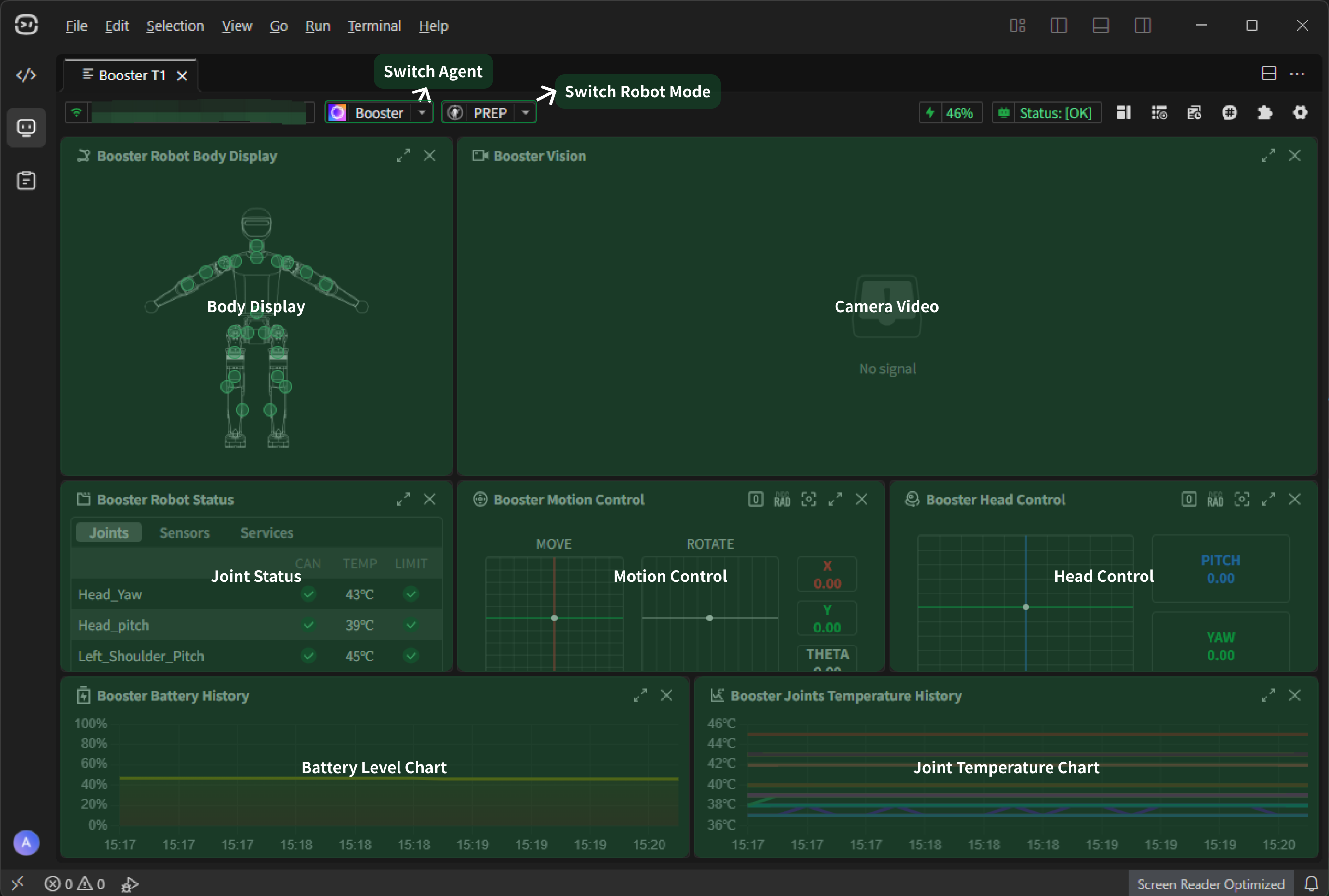
After the robot is connected successfully, Booster robot-specific widgets are displayed by default, including joint status, camera video, motion control, head control, battery level chart, and joint temperature chart.