
Virtual Robot Audio & Video Capture
Overview
The Audio & Video capture feature connects your computer's camera, microphone, and speaker to virtual robots, enabling them to receive real vision and hearing input and output speech.
Use cases: Robot interaction with real environments, voice conversations, vision perception algorithm testing.
Prerequisites
- Device requirements: Computer has an available camera, microphone, and speaker (built-in or external)
- System permissions: Camera and microphone access must be allowed on first use
How to Use
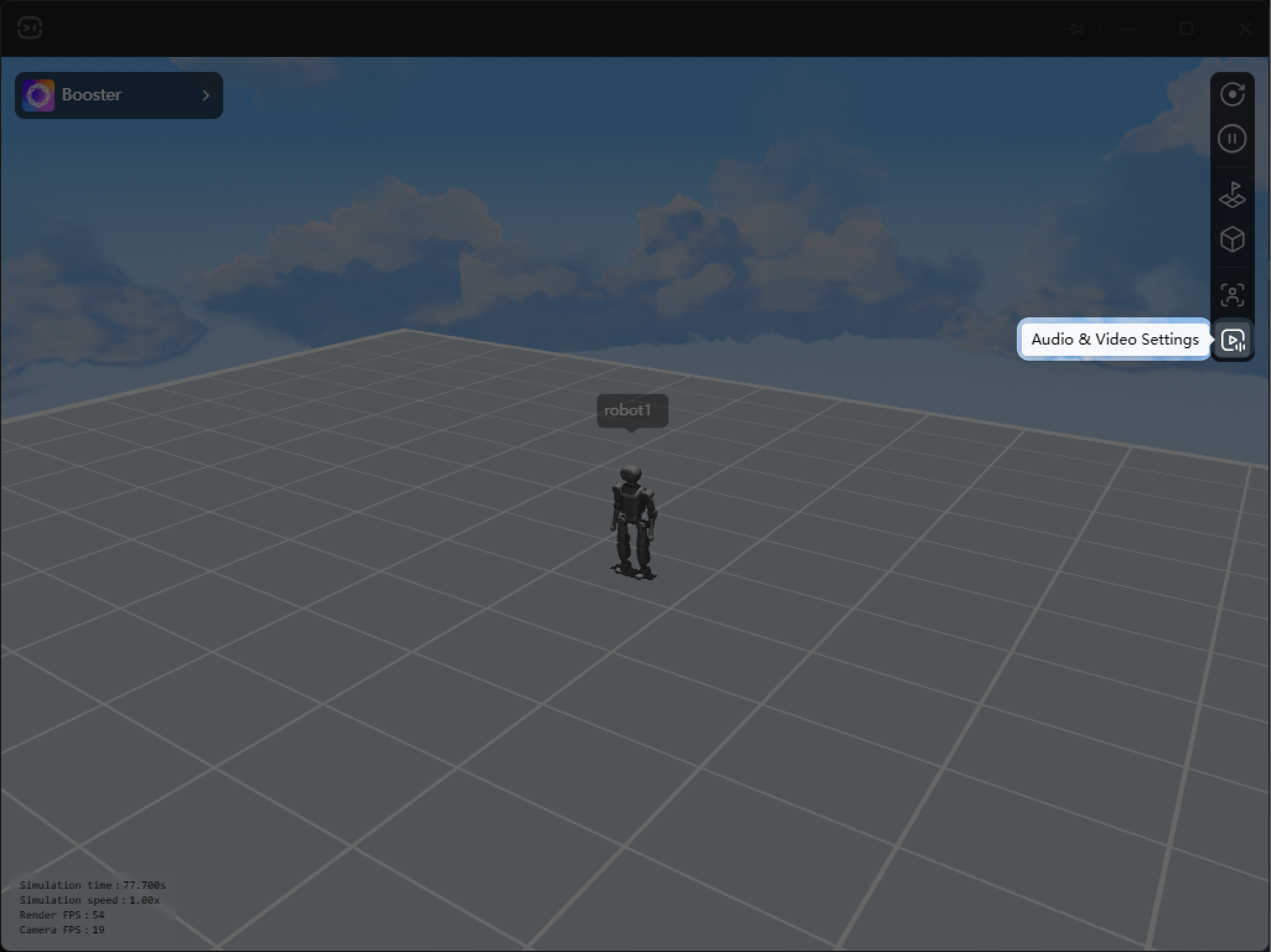
- Open Audio & Video Settings
Click the audio & video icon in the right sidebar to open the Audio & Video Settings panel.
- Enable Devices
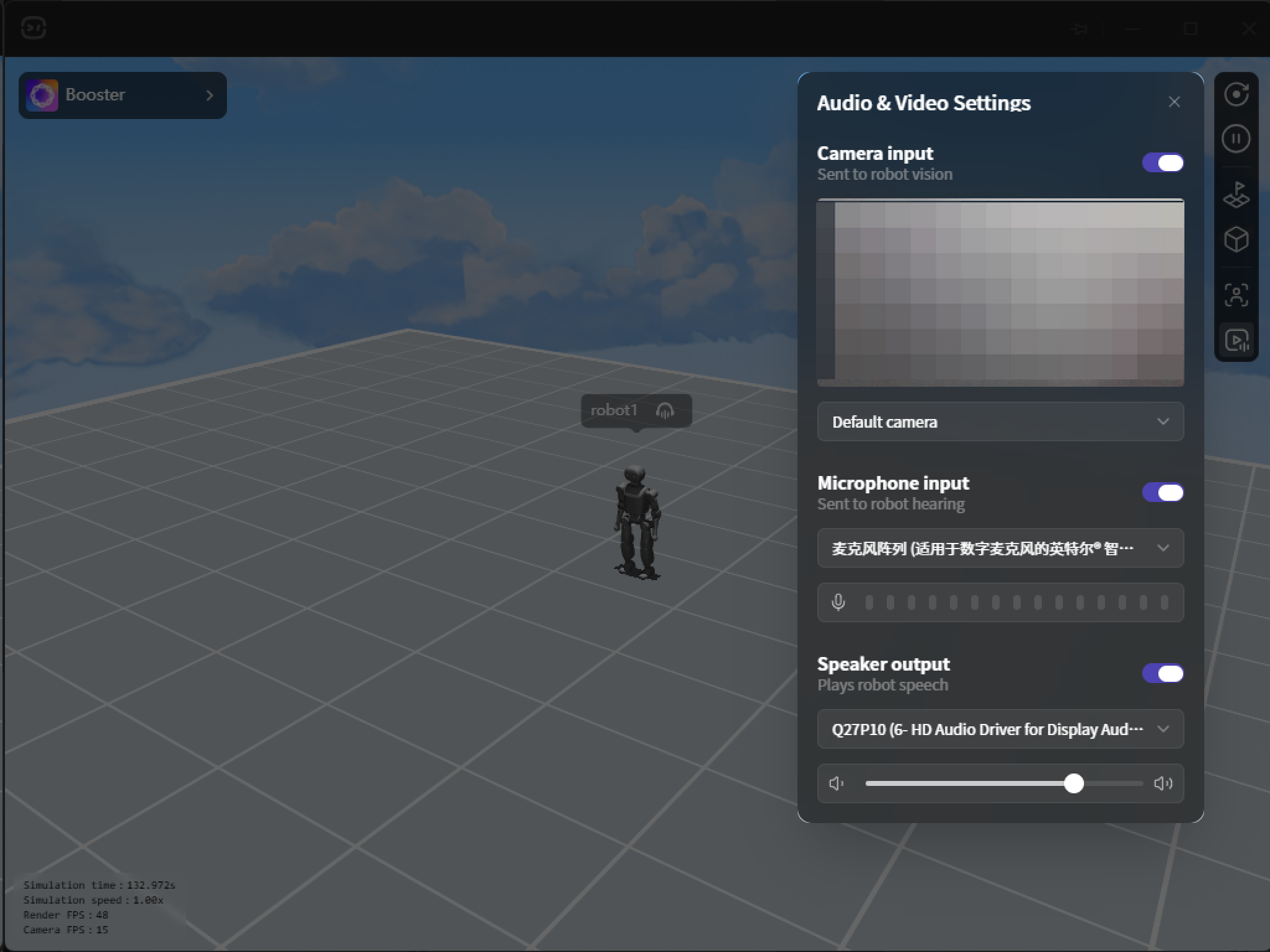
In the settings panel, enable the devices you need:
- Camera input: Streams camera feed to robots, shows live preview and device selection
- Microphone input: Streams audio to robots, shows real-time volume and device selection
- Speaker output: Plays robot speech on speaker, allows device selection
After toggling on, devices will connect to the virtual environment. All robots will receive the corresponding audio/video inputs or play the corresponding speech output.
- Monitor Real-Time Status
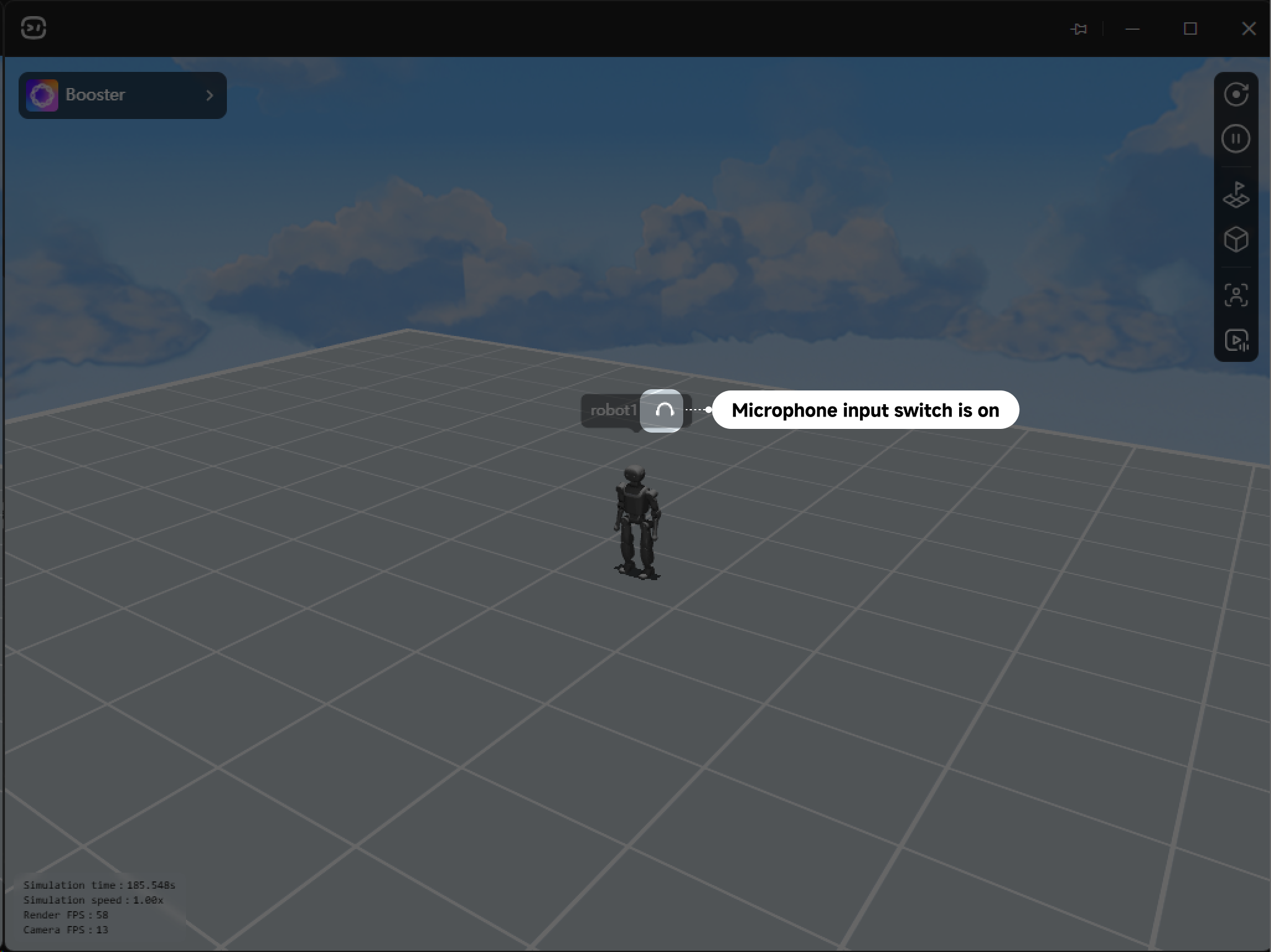
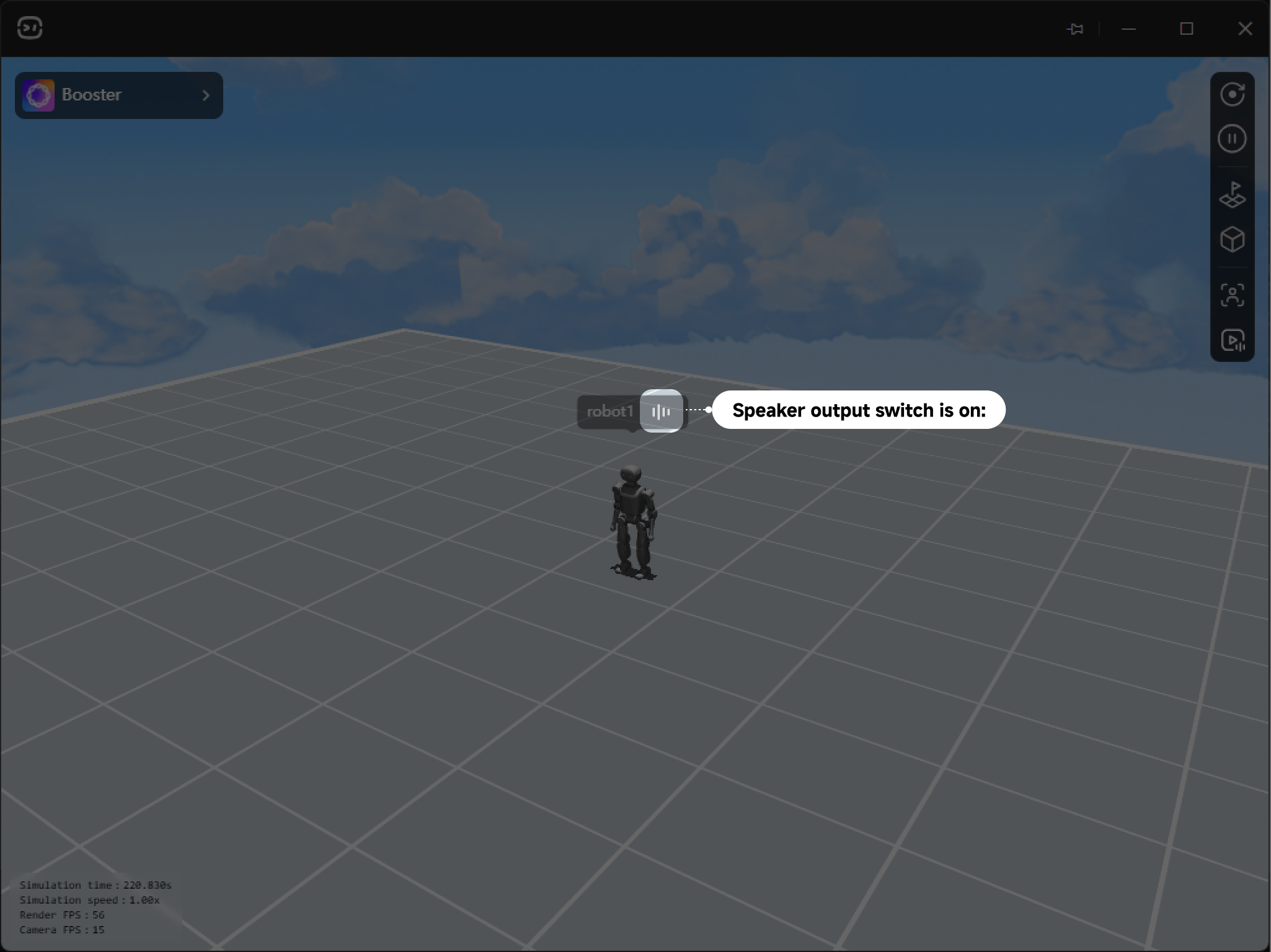
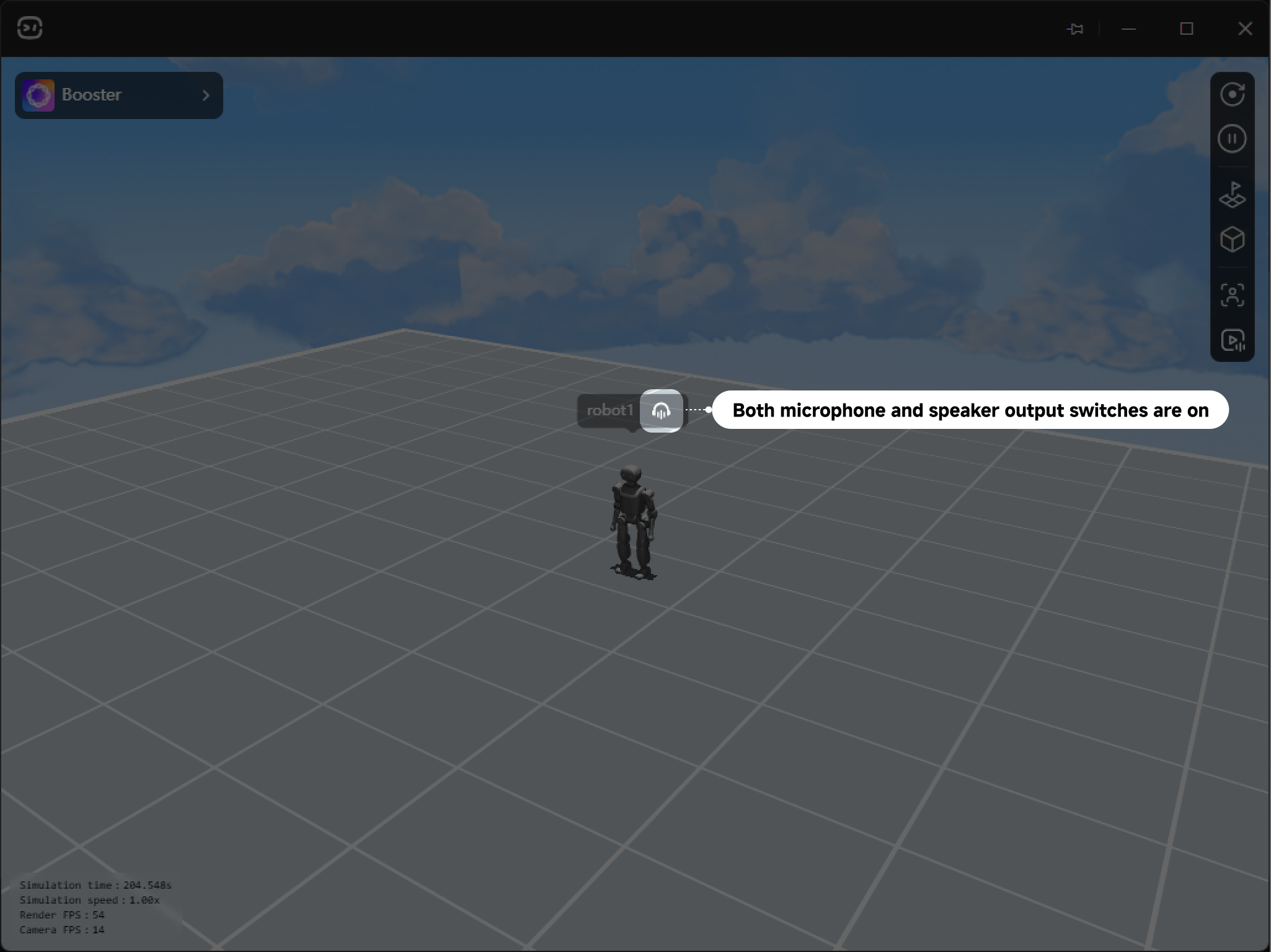
The status label above each robot shows three possible states:
-
Microphone input switch is on: The robot can receive voice input from the microphone
-
Speaker output switch is on: You can hear the robot's voice output through the speaker
-
Both microphone and speaker output switches are on: The robot can receive voice input and you can hear its voice output
- View Camera Feed
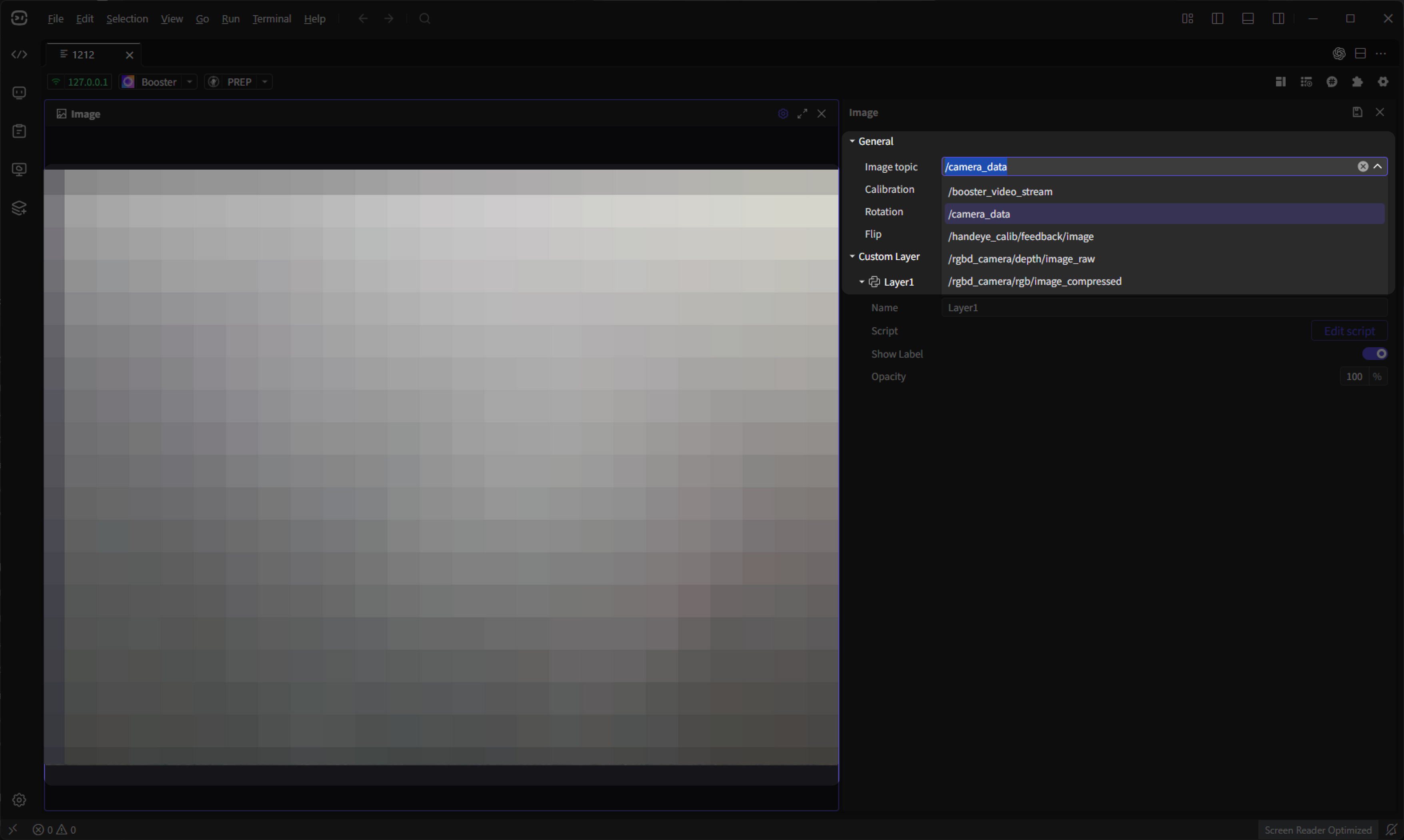
Once the camera is enabled, add an Image component in the Control Panel and select the /camera_data topic to view the camera feed.
FAQ
Why doesn't it work after toggling on?
Please check:
- Has the system granted camera/microphone permissions? If denied initially, manually allow in system privacy settings
- Is the virtual environment still running? If stopped, audio/video transmission will disconnect
What if it says "Audio & video relay disconnected — reconnecting…"?
The system will automatically attempt to reconnect. If it keeps failing, check:
- Is the virtual environment still running? Stopping or restarting will interrupt transmission
- Is the network connection stable?
If auto-reconnect fails, click the Reconnect button to manually trigger reconnection, or toggle the device switch off and on.