
Cloud Desktop
Overview
Cloud Desktop provides users with high-performance cloud computing resources and preinstalled software environments, enabling them to quickly start robot software development, simulation, and policy training.
Core Concepts
Compute
Cloud Desktop offers 3 compute configurations. Basic is selected by default, and you can choose another configuration based on your needs:
Tier | GPU | VRAM | CPU | Memory | Use Cases |
|---|---|---|---|---|---|
Basic | RTX 5880 | 4 GB | 8 cores | 16 GB | YOLO, programming basics, and lightweight simulation |
Pro | RTX 5880 | 12 GB | 16 cores | 32 GB | Primary Isaac Sim development |
Max | RTX 5880 | 24 GB | 32 cores | 64 GB | Complex Isaac simulation and policy training |
Storage: System and Data Disks
- System and data disks are allocated in 50 GB increments.
- The system disk minimum is 100 GB, and the data disk minimum is 0 GB.
- The system disk capacity must be at least the size of the selected image.
Images
An image is a template containing a preinstalled operating system, software packages, and data. You must select an image when creating a Cloud Desktop. Images are divided into two categories:
-
System images: The 3 images provided:- Ubuntu Base: A clean Ubuntu 22.04 environment containing only the basic system and common tools, suitable for learning fundamentals and installing tools.
- Robotics 101: An Ubuntu 22.04 environment with ROS 2 and a basic YOLO environment preinstalled, suitable for introductory robot programming and AI experiments.
- Robotics Advanced: An environment with Isaac Sim, an RL toolchain, and SLAM components preinstalled, designed for high-fidelity simulation, policy training, and advanced hands-on projects.
-
Custom images: Images saved from an existing Cloud Desktop.
Booster Beans
Using Cloud Desktop costs Booster Beans, which include:
- Compute: Charged only while the Cloud Desktop is powered on.
- Storage (system disk + data disk): Charged whether the Cloud Desktop is powered on or off.
Storage fees continue to accrue while the Cloud Desktop is powered off.
Usage Guide
Create a Cloud Desktop
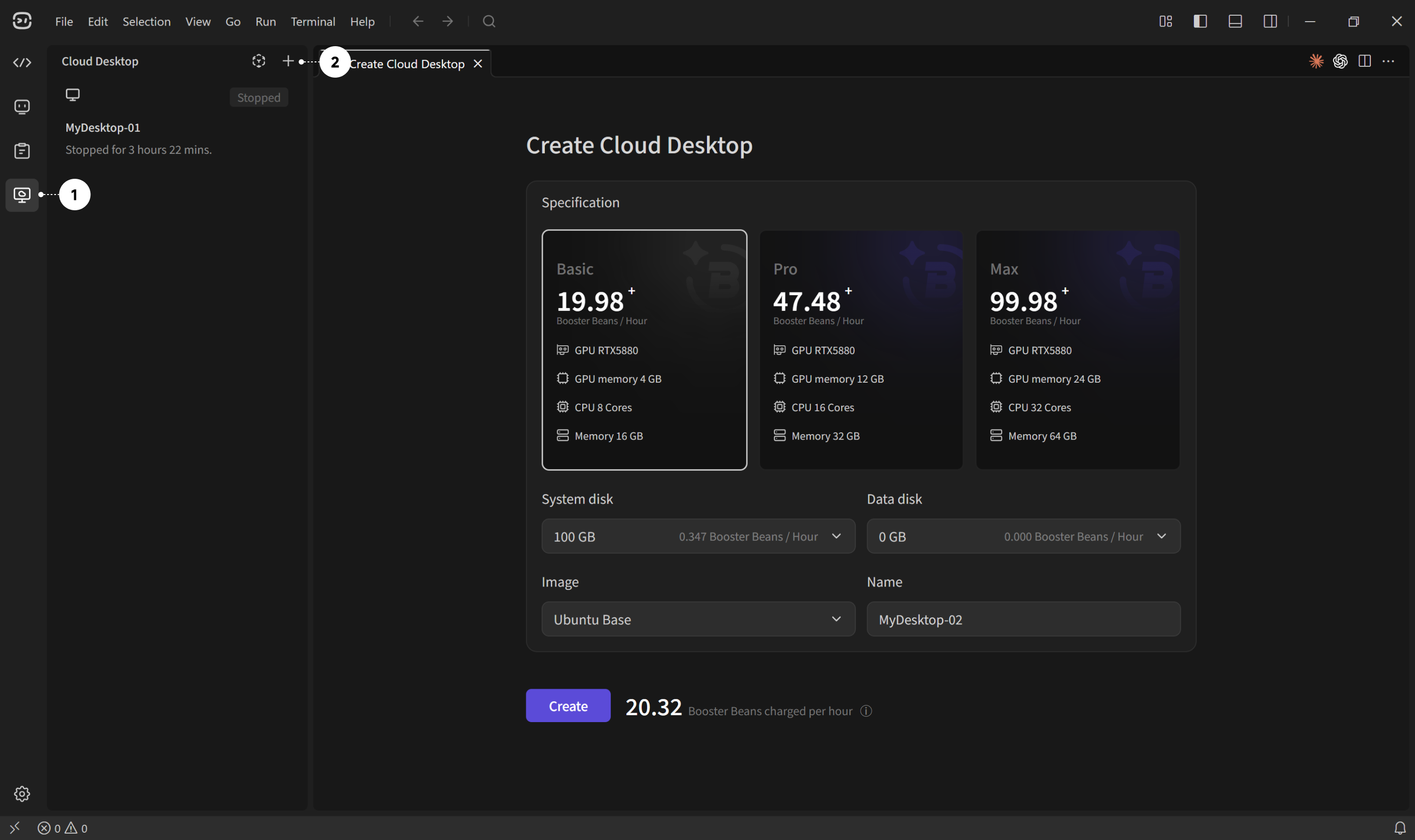
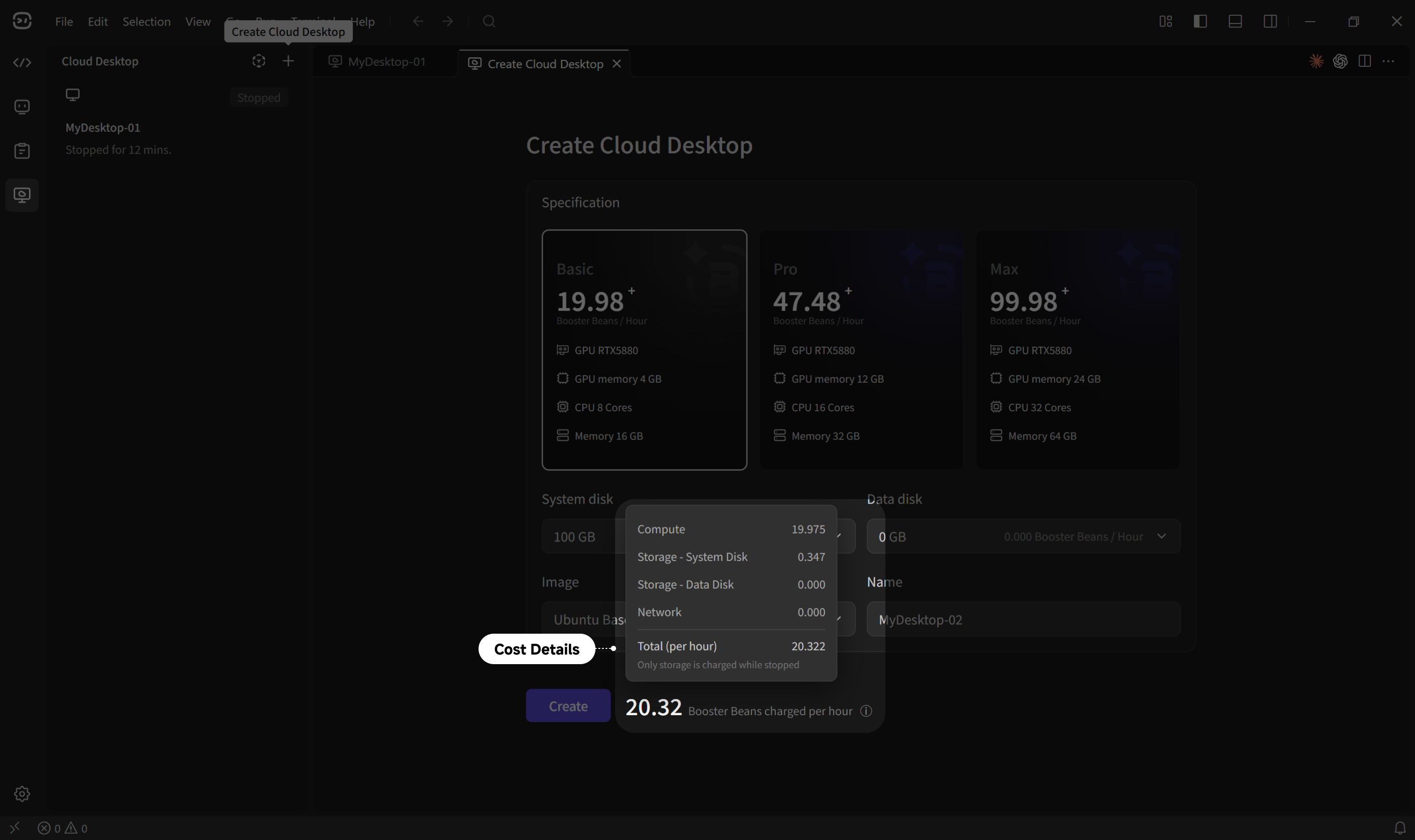
On the Cloud Desktop list page, click Create and complete the following steps:
- Select a compute configuration (Basic / Pro / Max). Basic is selected by default.
- Configure the system disk and data disk capacity.
- Select an image from the system images or custom images. You can search by name.
- Enter a Cloud Desktop name.
- Review the fee summary and click
OKto create the Cloud Desktop.
During creation, the total hourly cost is displayed in real time at the bottom of the page. If your Booster Beans balance is insufficient, the Cloud Desktop cannot be created.
Cloud Desktop Details
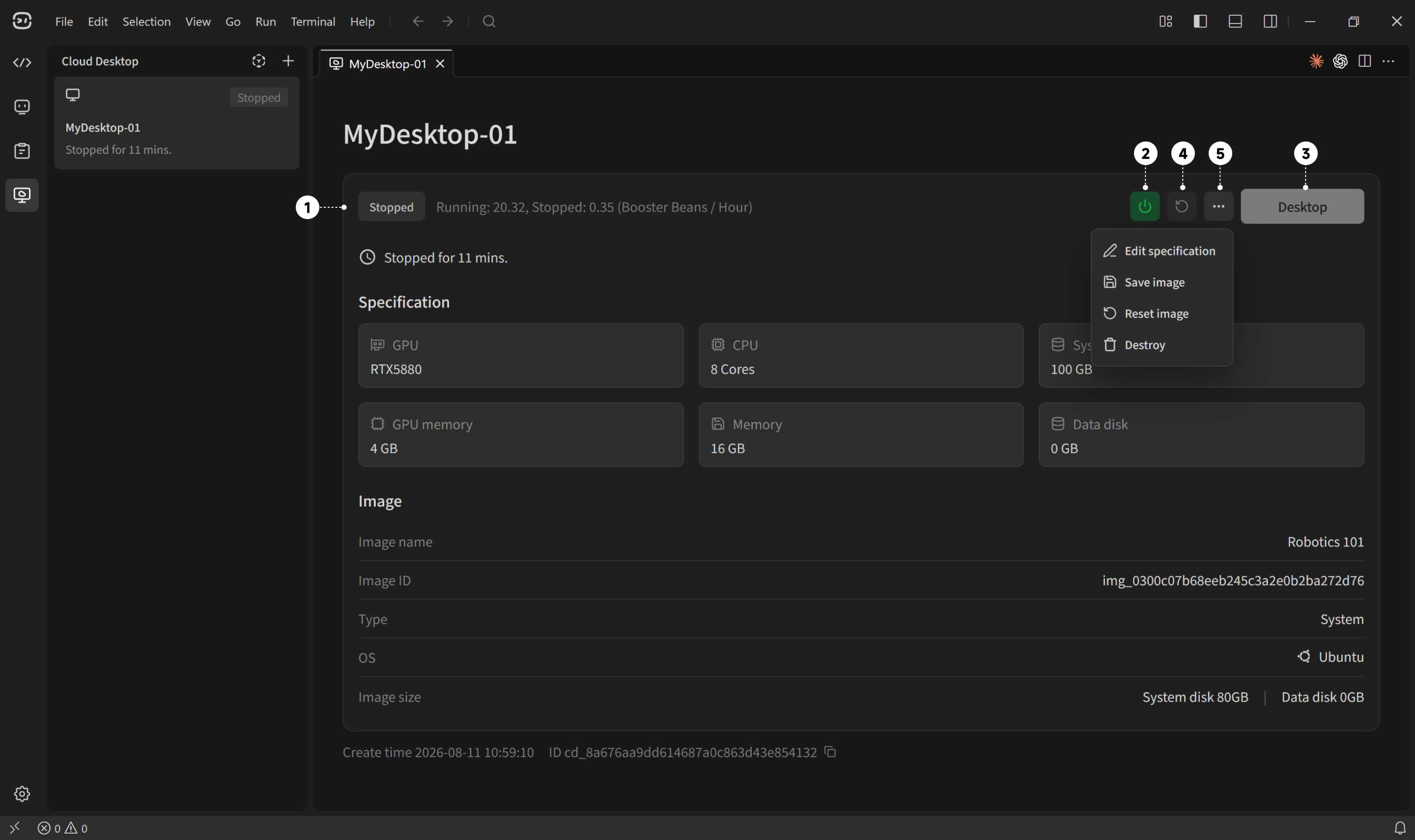
-
Current Cloud Desktop status
-
Start up / Shut down:
- Start up: Available only when the status is
Stopped. Start the Cloud Desktop. - Shut down: Available only when the status is
Running. Running tasks will be interrupted. Save your data first. (While the Cloud Desktop is stopped, storage fees continue to accrue, but compute fees are not charged.)
- Start up: Available only when the status is
-
Connect to the Cloud Desktop: Opens the Cloud Desktop in a new window.
-
Restart: Available only when the status is
Running. Restarting interrupts running tasks, so save your data first. -
More actions:
- Edit specification: Edit compute and storage settings. You can keep the current configuration or upgrade it; downgrades are not supported.
- Save image: Save the current Cloud Desktop data as a custom image for quick reuse when creating a Cloud Desktop. You can save
System disk onlyorSystem disk and data disk. - Reset image: Restore the Cloud Desktop to the image's initial state.
- Destroy: Delete the current Cloud Desktop. The system disk and data disk will be permanently deleted and cannot be recovered. Back up important data first.
Connect to a Cloud Desktop
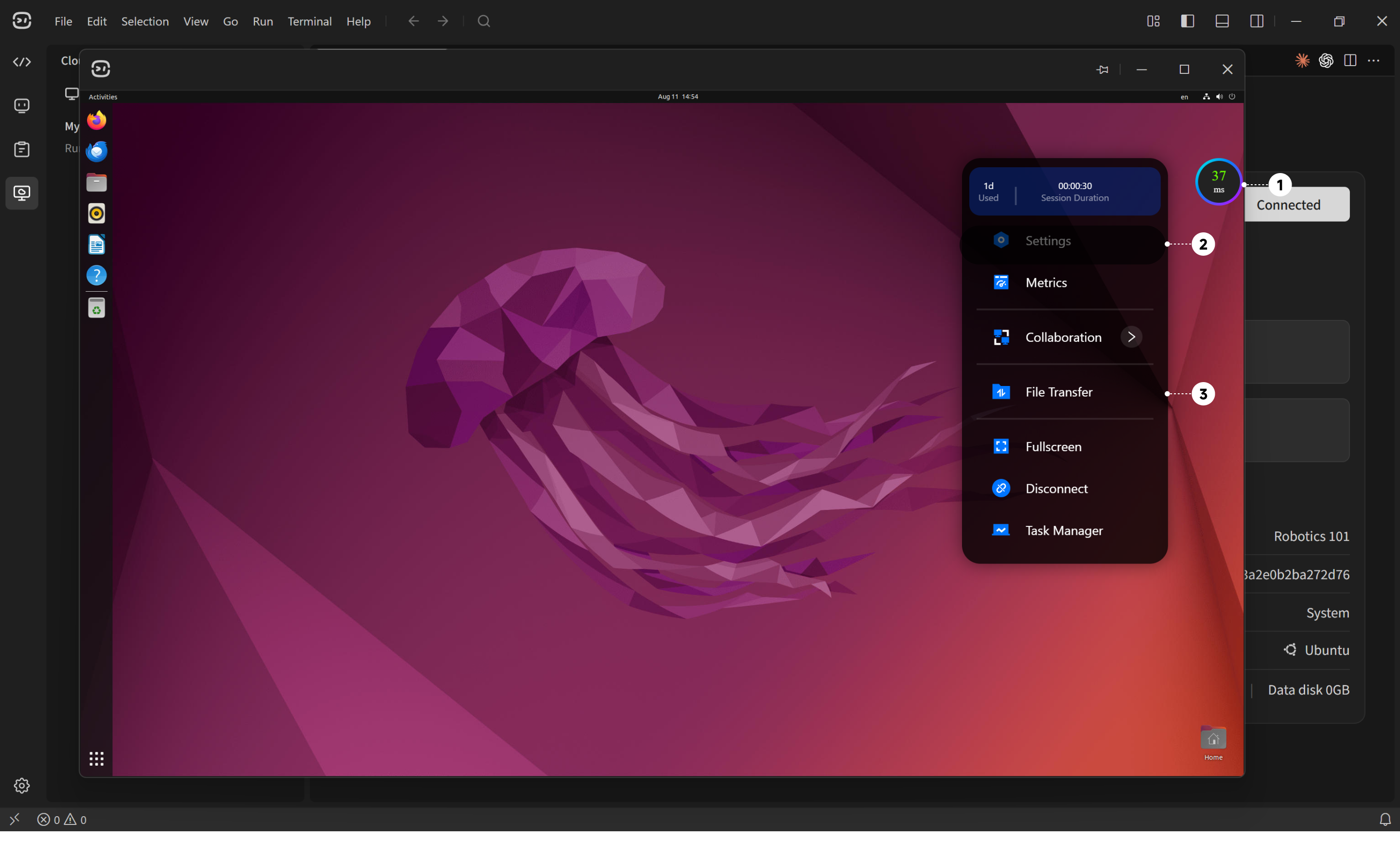
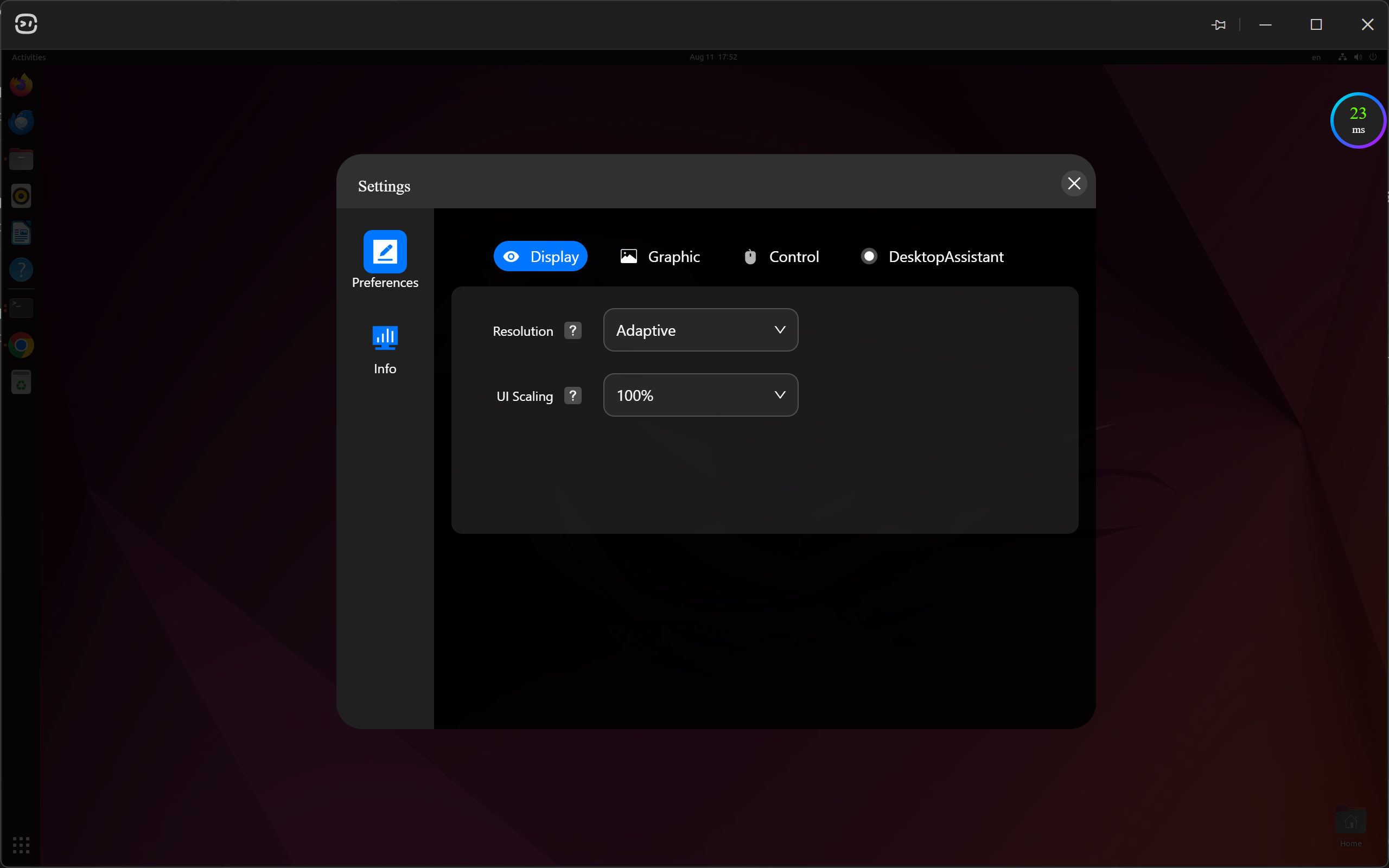
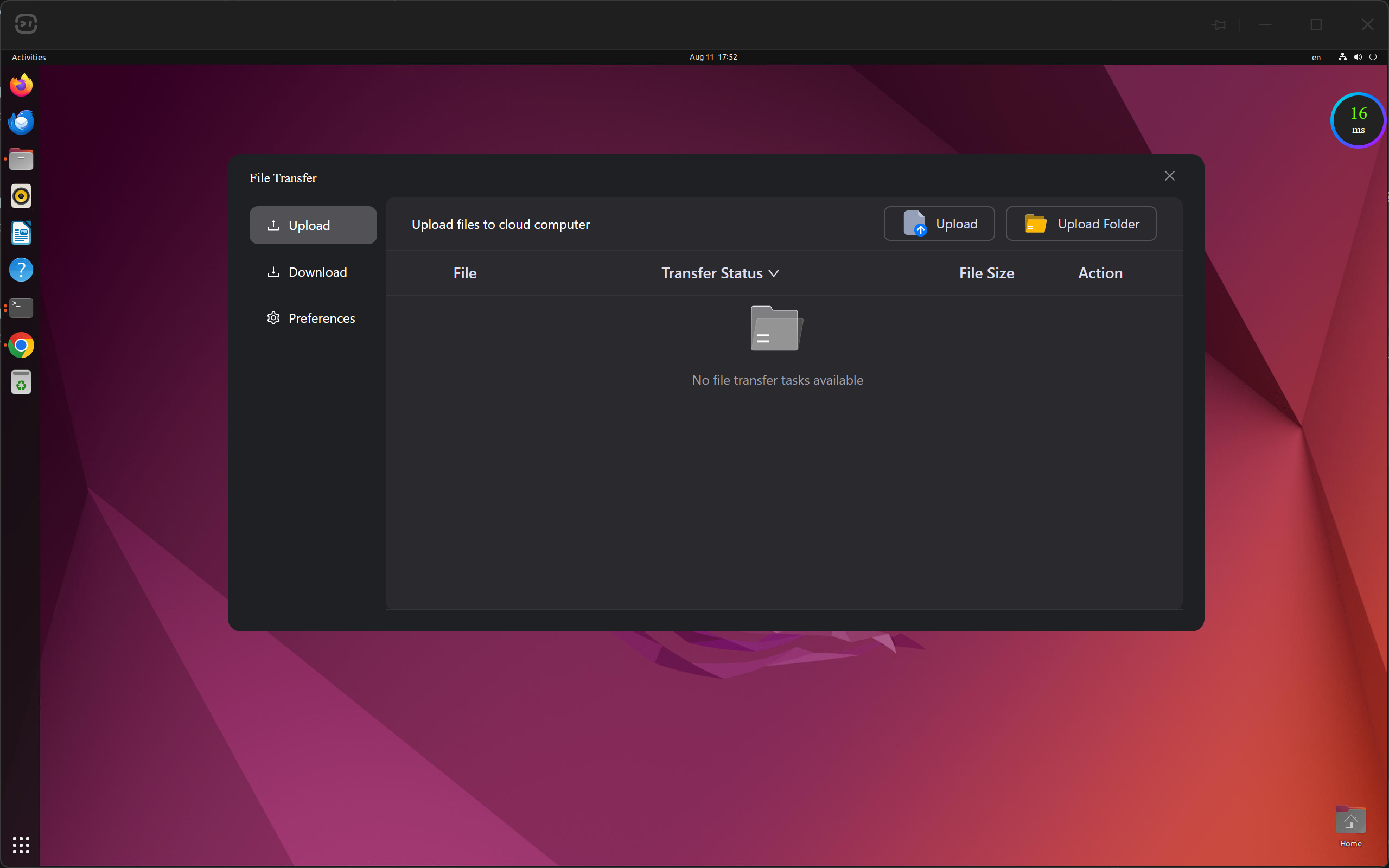
When the Cloud Desktop is in the Running state, click the Desktop button to open the graphical desktop in a new window.
In the graphical desktop, use the floating control ball to configure the following options:
- Open the floating control ball.
- Manage: Configure options such as the Cloud Desktop display.
- File transfer: Transfer files between the Cloud Desktop and your local computer.
Image Management
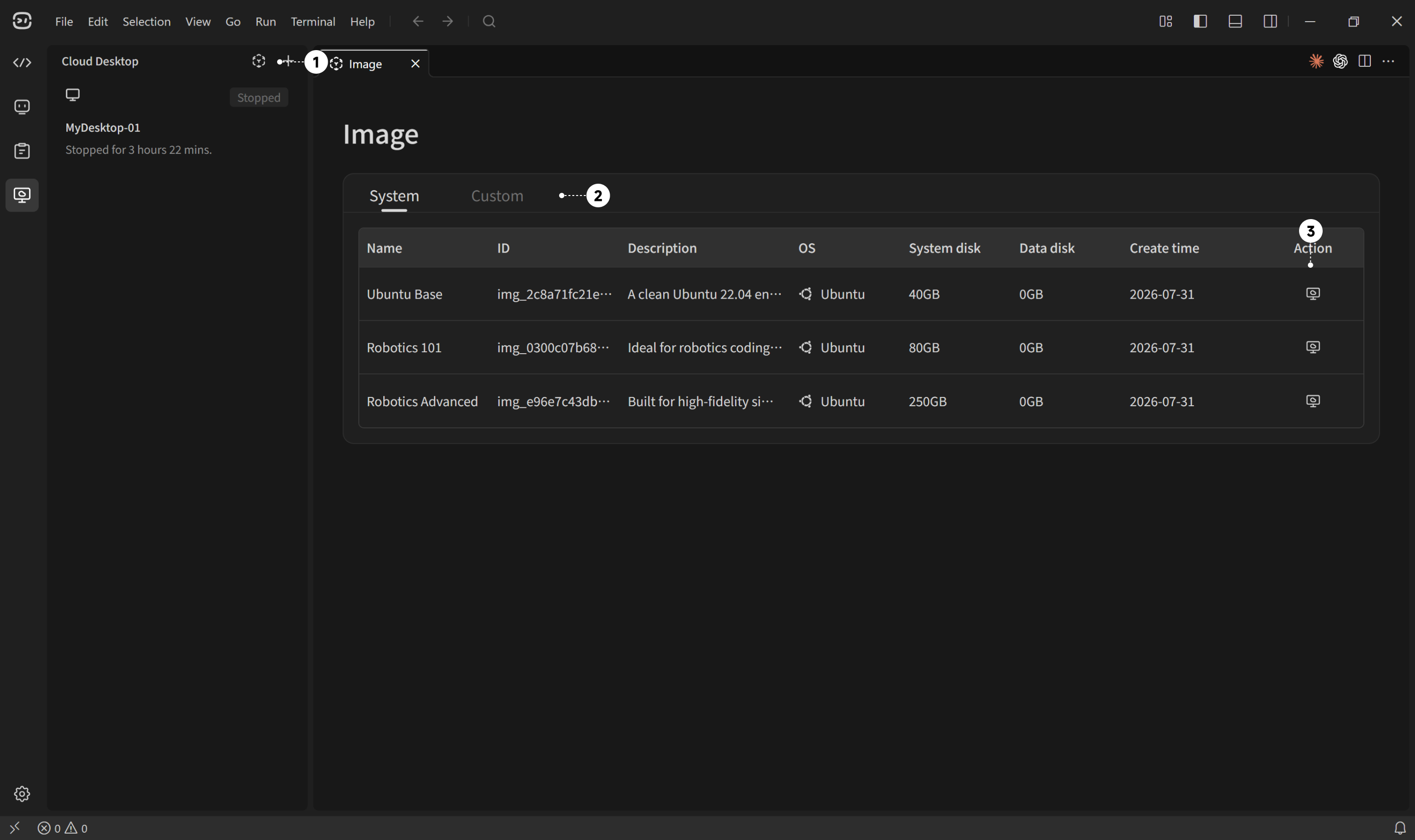
- Open the image list.
- Switch between system images and custom images.
- Create a Cloud Desktop directly from the selected image.
Billing
-
Using Cloud Desktop costs Booster Beans. When running, compute and storage fees are charged; when shutdown, only storage fees are charged.
-
If the desktop is disconnected for more than 10 minutes, a running Cloud Desktop will shut down automatically.
-
Settlement occurs every 30 minutes. If the balance after settlement is insufficient:
- A running Cloud Desktop will shut down automatically
- A stopped Cloud Desktop that still incurs storage fees will be destroyed automatically
-
Insufficient balance notifications will be sent by email and in the app 30 minutes in advance
FAQ
Docker is installed and started, but Booster Studio still shows that Docker is not running
-
Run the following command in the Cloud Desktop terminal:
# Add the current user to the docker groupsudo usermod -aG docker $USER -
Close the Cloud Desktop window and restart Cloud Desktop.
-
Connect to Cloud Desktop again, then run the following commands in the Cloud Desktop terminal to restart Docker.
# Start the servicesudo systemctl start docker# Enable Docker to start on bootsudo systemctl enable docker# Check the service statussudo systemctl status docker