
Quick Start: Build Your Custom Agent in 5 Steps
Step 1. Create an Agent Project
In Booster Studio, create a custom Agent from a template.
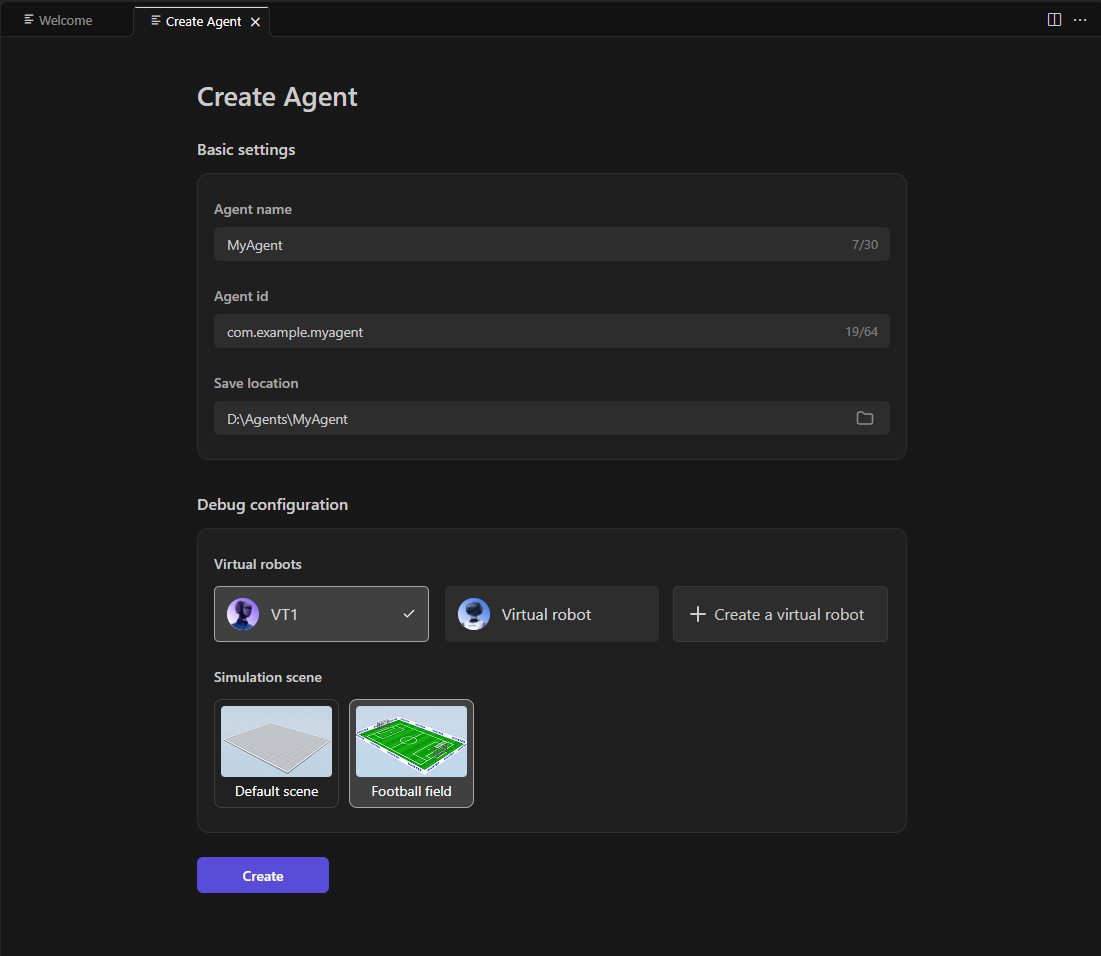
A minimal Agent project structure looks like this:
example_agent/
├── agent.toml        # Runtime configuration (ID, version, name, ...)
├── build.toml        # Build configuration (third-party library dependencies, ...)
├── src/
│   └── main.py       # Agent entry code (defines components, callbacks, ...)
├── res/              # Resource files (icon files, ...)
└── build/            # Build artifacts (automatically generated during build)
    └── example-1.0.0.agent  # Final Agent package
An Agent requires an entry class that inherits from booster_agent_framework.AgentBase to serve as the entry point. A simple example Agent is shown below:
from booster_agent_framework import AgentBase, AgentFeatures

class ExampleAgent(AgentBase):
    def __init__(self) -> None:
        super().__init__(AgentFeatures())
        self.logger.info("init!")
Step 2. Implement Component Logic
Component is responsible for the UI rendering and interaction response in the App. Define the response logic for when a component is clicked. The callback can return a LocaleString as the notification text, which will be displayed as a Toast on the screen; return None if no notification is needed.
from booster_agent_framework import Component, LocaleString

def on_wave_click(self, component: Component) -> LocaleString | None:
    self.robot.do_action("hand_wave")
    return LocaleString("Waving started", "开始挥手")
Step 3. Register Components
Initialize the components and register them with the ComponentManager:
from booster_agent_framework import DefaultStateIconComponent, LocaleString

def init_components(self) -> None:
    # Create a "Wave" button
    # - ID: "wave_btn"
    # - Name: "Wave" (EN/ZH)
    # - Callback: on_wave_click
    wave_btn = DefaultStateIconComponent(
        "wave_btn",
        LocaleString("Wave", "挥手"),
        "res/wave.png",
        False,
        self.on_wave_click,
    )

    # Update the manager with the component
    self.component_manager.add_component(wave_btn)
Step 4. Improve the Configuration File
agent.toml is the runtime configuration file for the Agent, used to define Agent metadata. The system reads this file during installation and runtime to extract the required information.
A minimal agent.toml example is shown below:
id = "com.example.my_agent"
version = "1.0.0"
name = { en = "ExampleAgent", zh = "示例" }
logo = "res/logo.png"
description = "Example Python Agent"
entry = "src/main.py:ExampleAgent"

[requirements]
min_api_level = 10800
models = ["Booster K1"]
For a complete description of the configuration options (including build.toml, component shortcuts, signing, etc.), see Configuration Files and Configuration Items.
Step 5. Install the Agent on the Robot
You can install your Agent to the robot with a single click in Booster Studio, or distribute the .agent file built in the build directory for installation.
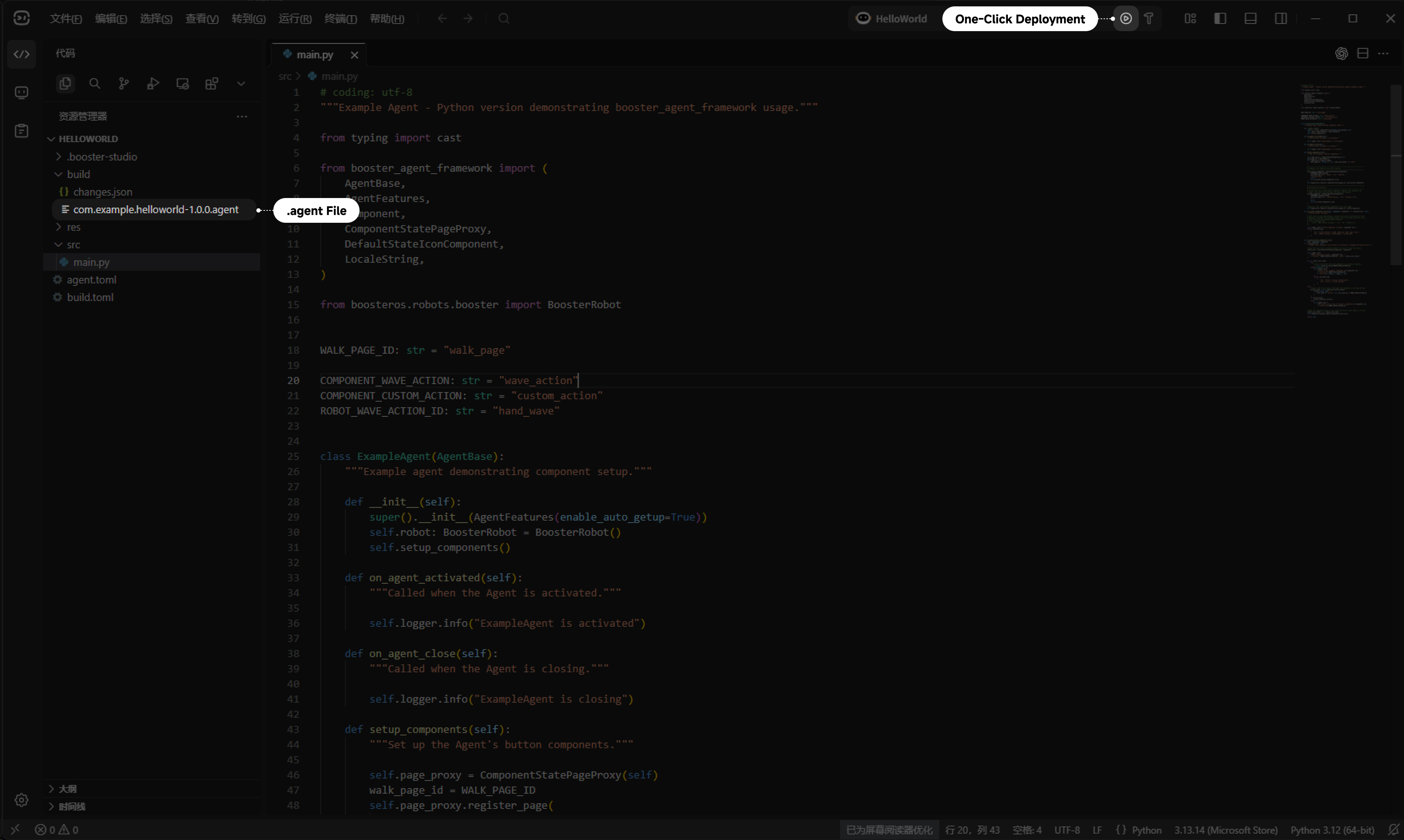
Note:
- Installing a Python Agent requires firmware version 1.7.0 or later. Installation will fail on devices with lower firmware versions.
- In firmware 1.7.0, the
boosteroslibrary is not built in. If your Agent depends on this Python library, SSH into the robot and manually runpip install boosterosto install the SDK; otherwise, the Agent will not work properly. (Firmware 1.8.0 and later has this library preinstalled.)